- It allows remote and local management of TP-Link routers and extenders through an intuitive interface.
- It includes advanced tools such as parental controls, guest network creation, and real-time network diagnostics.
- Requires updated firmware versions on the hardware and iOS 11+ or Android 5.0+ operating systems.
- It simplifies the initial configuration of the SSID, passwords, and WAN parameters without the need for a computer.

These days, having complete control of our home in our pocket is commonplace, and managing our Wi-Fi network is no exception. To avoid the hassle of navigating complicated web menus on our mobile browsers, which sometimes seem designed for giant screens, tools have emerged that make our lives much easier. This is where TP-Link Tether comes in , a free app that transforms the way we manage our network equipment, allowing us to make complex adjustments with ease.
This tool isn't just for experts; it's designed so that any user, from the most basic to those who want to fine-tune their network, can intuitively monitor their routers and extenders . Whether you need to quickly change a password or kick someone off your Wi-Fi without permission, Tether puts all the options just a couple of clicks away, eliminating the need for a desktop computer.
What exactly is the Tether app?
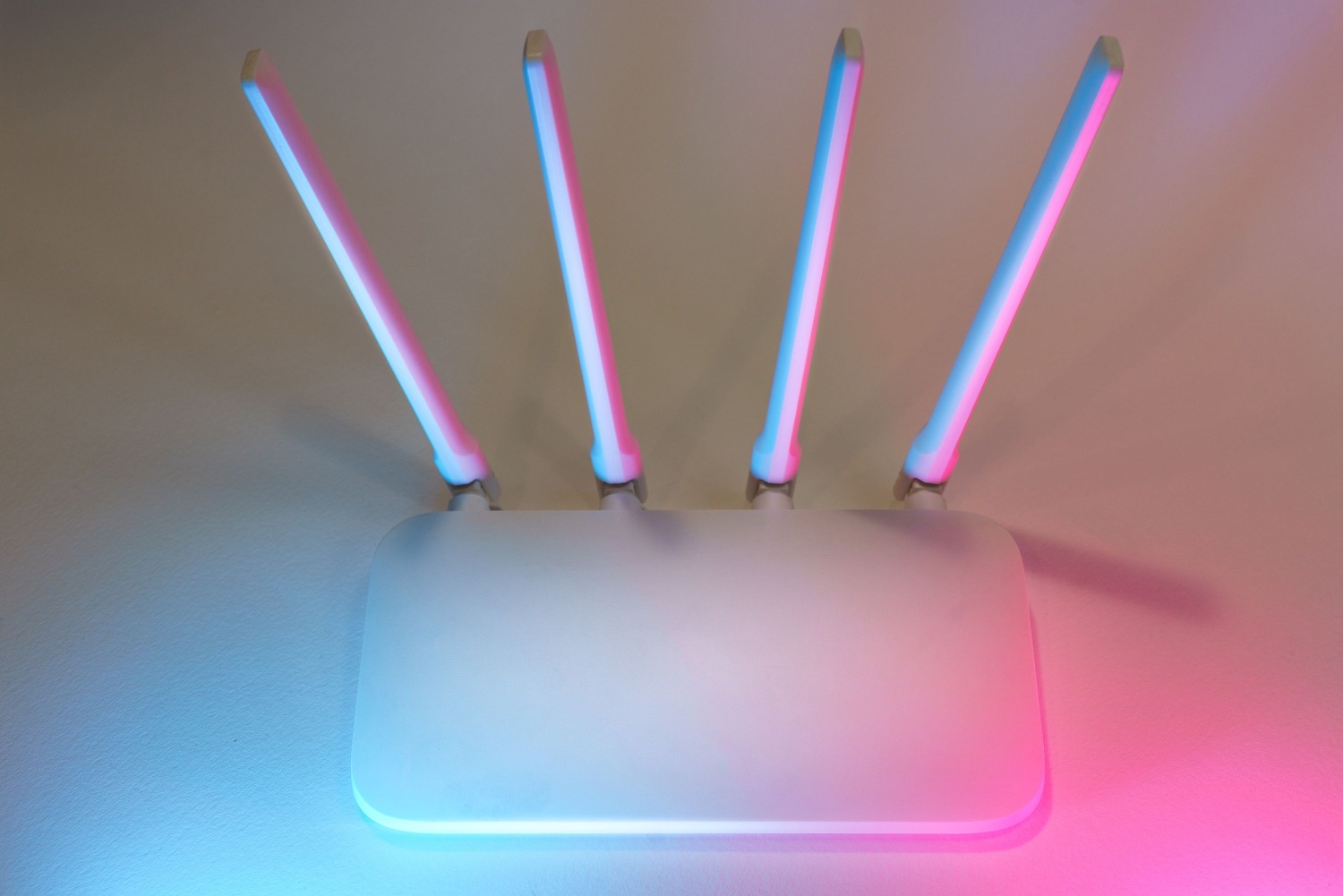
This is a comprehensive solution specifically designed to remotely manage TP-Link routers, xDSL equipment, and range extenders. Its main strength is its clean, visually appealing interface, which allows you to check network status and adjust settings as needed, whether at home or from anywhere else thanks to its cloud integration.
Main features and tools

The application doesn't just scratch the surface, but delves into various essential tools for everyday life:
- Wi-Fi Management: You can rename the SSID (your network name) and update the security key to keep your connection secure.
- Parental control: It's ideal for those with children, as it allows define access times to the internet and block specific websites or domains.
- Guest Network: It allows you to create a separate connection for visitors, preventing strangers from accessing your local files and improving security. main network security.
- Internet connection: It facilitates the adjustment of WAN port parameters, allowing you to choose between dynamic IP, static IP, PPTP or L2TP as required by the provider.
- Diagnosis and System: It includes tools for detecting LAN/WLAN faults in real time, as well as options for restart or reset the computer factory.
- Share Access: A very practical function that generates a QR code so that others can connect to the wifi without having to type the password manually.
Compatibility and system requirements
For everything to run smoothly, certain technical requirements must be met. Regarding mobile software, the app requires iOS 11 or later , and for Android, version 5.0 or later (although some reviews suggest that versions as early as 4.0 may work). It is vital that the network device's firmware is updated to the latest available version to avoid compatibility issues.
The list of compatible hardware is extensive, encompassing families like the Archer (C7, C9, AX55, among others) and various TL-WR and TL-WDR router series. However, most recent extender and router models are already prepared to integrate with Tether, even if they don't appear explicitly in older lists.
Step-by-step guide for initial setup
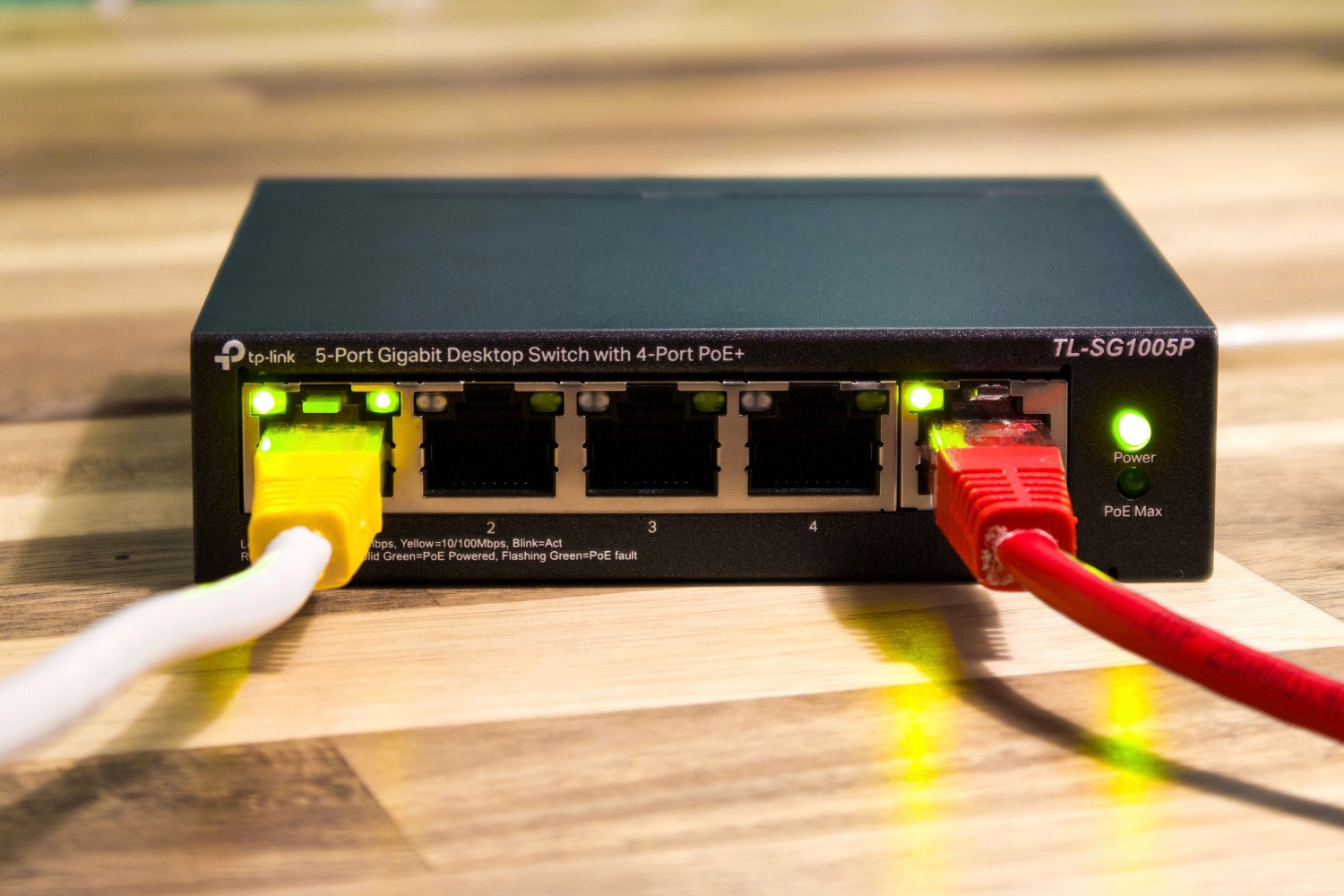
Setting up the system is quite simple if you follow a logical order. First, make sure the Ethernet cable connects the modem to the router's WAN port . Once that's done, connect your smartphone to the device's default Wi-Fi network (this information is usually found on the label on the bottom of the device).
When you open the application, Tether will scan the network and display compatible devices. After selecting your device, the system will prompt you to create an administrator password for the router. Next, you must choose the connection type (dynamic IP is the most common if you're behind another router, while PPPoE is usually the option for direct connections to the ISP), configuring the VLAN ID if required by your internet provider.
Finally, we customize the names and passwords for the 2,4 GHz and 5 GHz bands . The process ends with an automatic connection test that confirms whether the internet is working correctly. If we want to manage the device remotely, we simply log in to our TP-Link cloud account.
Having complete control of the network infrastructure from a mobile device drastically simplifies home management, allowing you to block unwanted users, optimize Wi-Fi performance, and manage children's connection time, all through a fluid interface that eliminates the need for outdated web interfaces.
FAQ
Which devices are compatible with the Tether app?
It is compatible with a wide range of TP-Link routers, xDSL equipment and range extenders, including most recent models in the Archer and TL families.
Can the router be managed remotely?
Yes, it is possible to perform remote management by creating an account on the TP-Link cloud service and logging into the application.
What should I do if my router doesn't appear on the Tether list?
It is recommended to verify that the device firmware is updated to the latest version and that the mobile phone is connected to the router's Wi-Fi network.
What is the purpose of the guest network function in Tether?
It allows you to create a separate Wi-Fi connection for visitors, preventing them from accessing the files and devices on the main local network for security reasons.
How can I block internet access from a specific device?
Within the app's settings menu, you can access the blocked clients section to add devices to a blacklist.
What operating system requirements does the app need?
The app requires iOS 11 or later for Apple devices and Android 5.0 or later for Google devices.
Is it possible to change the Wi-Fi name and password from the app?
Yes, the Wi-Fi section allows you to change the SSID name and update the access password for both the 2,4 GHz and 5 GHz bands.
