- Uninstalling removes the executable software but does not guarantee the deletion of the user account or data in the cloud.
- It is common for residual files, caches, and orphaned folders to remain in the device's internal storage.
- For complete removal, it is essential to manage the profile deletion from the privacy settings and cancel active subscriptions.

I'm sure it's happened to you a thousand times: you see your smartphone's storage is running out and you start cleaning it up, deleting all those apps you no longer use. It seems like the simplest process in the world—press a button and you're done—but the reality is that uninstalling a program isn't the same as completely erasing your digital footprint. There's a world of difference between removing access to the service and deleting the information you've generated over months.
Many people think that by removing an app icon from the home screen, everything related to that app vanishes into thin air. However, mobile phones work in a more complex way, and there are layers of data that remain intact even after the app is uninstalled. To avoid any surprises regarding your privacy or available storage space, let's take a closer look at what really happens behind the scenes on your device.

The mystery of space and residual files
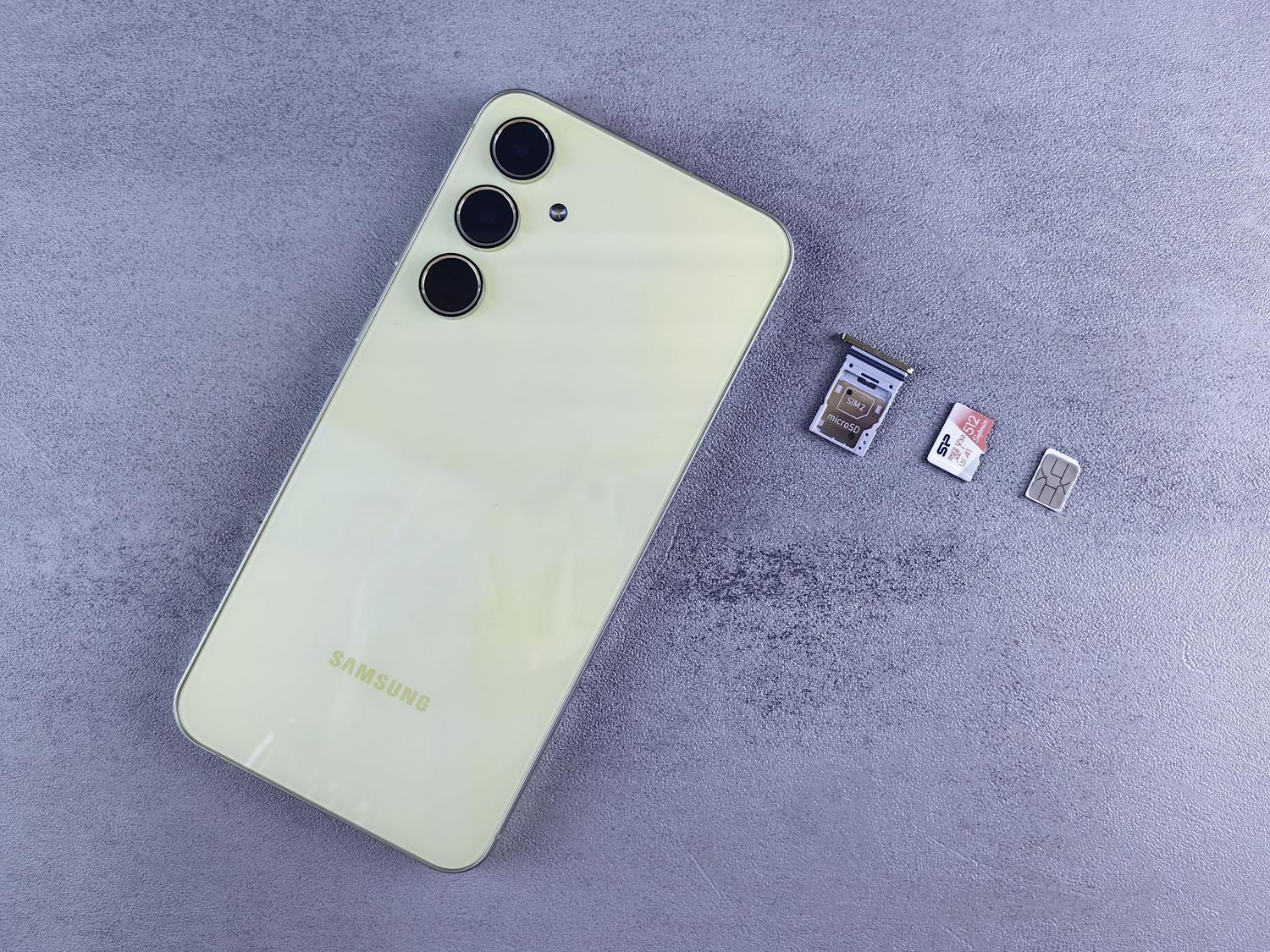
When you delete an app, the operating system removes the binary files—the code necessary for the program to function. This frees up some storage space, but it's not always enough. Often, the space isn't fully recovered because temporary files , Android app cache , and data folders created by the app while you were using it remain stored .
This is especially common with photo editing tools, health apps, or social media apps, which tend to generate a huge amount of local data. If you notice that your storage space has barely changed, you likely have orphaned files in your internal memory . To fix this, the best solution is to use a file manager (like Files by Google on Android) and manually search for folders named after the deleted app to delete them.

Accounts, profiles and the cloud: the great misunderstanding

This is where most users get confused. We need to distinguish between three different levels: the installed application, the local data, and the user account. When you uninstall the app, you're only removing the first level. Your profile on Instagram, Spotify, or Netflix still exists on the company's servers , since that information doesn't reside on your phone, but in the cloud.
Therefore, if you reinstall an app after several months, you'll notice you don't have to configure anything from scratch; your photos, messages, and preferences are still there. The app is simply a gateway. To truly erase your data, you must go to the privacy settings or account management section and request the permanent deletion of your profile before deleting the app from your device.
Automatic backups and synchronization
Both iOS and Android have backup systems that can sometimes cause problems. In Apple's case, many apps save data to iCloud even after they've been uninstalled . You can check this by going to Settings > iCloud and seeing which apps are still taking up space in the cloud. Something similar happens on Android with Google Drive and its automatic system backups designed to protect your data .
This explains why, when you restore a new phone or reinstall an app, old settings reappear. For a thorough cleanup, you need to audit your backups and manually delete the backups associated with that specific software to prevent the data from coming back to haunt you.

Privacy, permissions, and the dangers of subscriptions

A critical point that we often overlook is that deleting an app doesn't necessarily revoke the permissions you granted it. Some apps may continue to track certain information or maintain links to other social media accounts. It's highly recommended to unlink associated accounts and review access permissions in your Google or Apple account settings before proceeding with uninstallation.
Furthermore, there's a crucial financial detail: deleting the app doesn't cancel the subscription . If you pay a monthly fee through the App Store or Google Play, the charge will continue to appear on your bank account even if you no longer have the app installed. You must go to the subscriptions section of your app store and manually cancel the service to stop paying.
Quick guide to total removal
- Before deleting, open the app and look for the option to delete account or delete data personal
- On Android, go to Settings > Apps > Storage and select Clear data and cache before uninstalling.
- Check your file manager to locate and delete any residual folders that may have been left behind. internal memory of the mobile phone.
- Go to the subscription management section of your official store to make sure there are no subscriptions. active recurring payments.
Maintaining control of our digital footprint requires an active effort that goes beyond a simple click. To truly delete an app, we must coordinate the cleanup of local files, manage cloud data, and administratively close the account and its payments, thus ensuring that the device is clean and our privacy is protected.

