- It is essential to have a processor with virtualization support and sufficient RAM to use VirtualBox smoothly.
- Disk space limits the number and type of virtual machines you can create and run simultaneously.
- Advanced features such as snapshots, shared folders, or clipboard greatly improve the virtualization experience.
- Proper BIOS/UEFI and VirtualBox plugin configuration prevents common errors and limits performance problems.
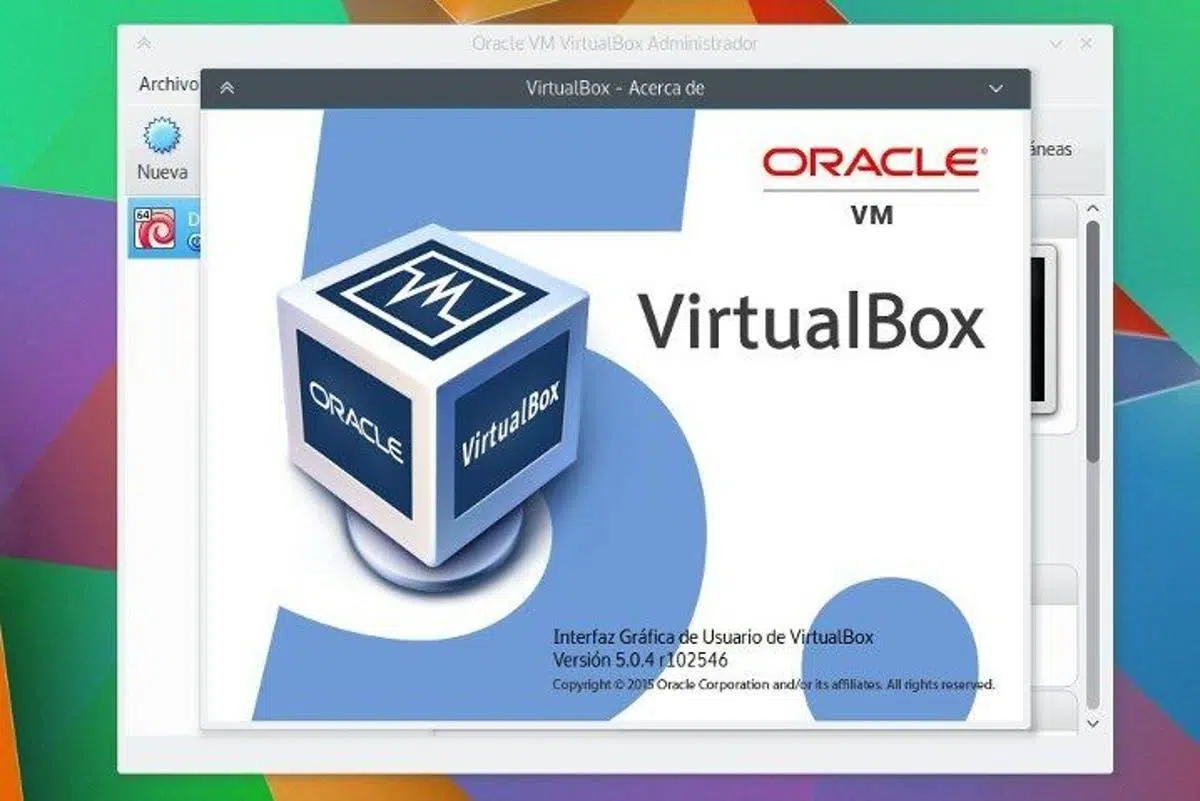
If you're considering using VirtualBox for practice, cybersecurity labs, or simply testing other operating systems, it's very common to wonder if your computer will be sufficient. VirtualBox is powerful and flexible, but it requires that the computer meet certain minimum requirements to run smoothly.especially when you want to have several virtual machines running at the same time.
Many cybersecurity training centers and degrees work with 2 or more virtual machines simultaneously (e.g., a server and an attacker machine), and students often arrive with laptops of all kinds, from inexpensive Windows to more powerful Macs. Clearly defining the requirements for processor, RAM, storage, and operating system helps avoid unpleasant surprises on the first day of class..
What is VirtualBox and why is it so widely used?
VirtualBox is a desktop virtualization software developed by Oracle that has become a de facto standard for students, system administrators, and developers. It allows you to run one or more guest operating systems within your main system as if they were independent computers.but using the hardware of your physical machine.
One of the great advantages of VirtualBox is that it is cross-platform and open source. It can be installed free of charge on Windows, macOS (Intel), Linux, and even other systems like FreeBSD.This makes it easy for students to work with different host operating systems in the same classroom without problems.
Furthermore, VirtualBox is highly valued for training because It offers a perfect balance between power, ease of use, and flexibility.There are solutions more geared towards business environments, but for learning, testing, setting up labs or validating software compatibility, VirtualBox is usually the first recommendation.
In cybersecurity and development, virtualization drastically reduces risks. It's much safer to break a virtual machine while testing than to compromise the real system where your data is stored.And if something goes wrong, simply restore a snapshot or recreate the machine in a few minutes.
Advantages of virtualization with VirtualBox
Virtualization is not just a technical fad; it is a daily work tool for IT, cybersecurity, and development. The ability to run multiple operating systems on a single physical machine opens up a huge range of possibilities..
One of the main advantages is the possibility of testing without fear. You can install applications, services, or entire operating systems in a virtual machine and test their behavior before deploying them to production., avoiding damaging your main system.
It is also very useful for checking compatibility. If you develop software or manage systems, VirtualBox allows you to validate performance and compatibility across different versions of Windows or Linux.all from the same computer, without needing multiple physical devices.
In cybersecurity, virtualization is practically indispensable. It allows you to analyze malware or perform attack and defense exercises within a completely isolated environment.minimizing the risk of infecting the host computer or the actual network.
And no less important, there are economic and operational savings. Running multiple virtual machines on a single PC reduces infrastructure costs, simplifies administration, and accelerates testing cycles.This is critical in companies and also in educational centers where resources are often limited.
Key features of VirtualBox
VirtualBox stands out for a number of features that make it a very attractive option compared to other solutions. The first is its multiplatform nature: it works on Windows, various Linux distributions, FreeBSD and macOS (on Intel systems)This allows working in a homogeneous environment even if each person's hardware is different.
Furthermore, it is a free and open-source program, backed by Oracle. This means you can use it at no cost in personal, educational, and even many professional settings., with a huge community behind it that creates documentation, tutorials and solutions to common problems.
VirtualBox supports a wide variety of guest operating systems, including all editions of Windows (desktop and server), numerous Linux distributions, BSD, and other systemsEven without hardware-assisted virtualization enabled, it can run 32-bit systems, which greatly expands its compatibility.
Another highly appreciated feature is snapshot management. It allows you to save the complete state of a virtual machine at a specific moment and return to it when you need it.This is key for tests, courses, and labs where you repeat scenarios over and over again.
Finally, VirtualBox offers a very complete set of additional features: USB device support, integrated remote desktop, virtual machine portability, easy ISO file management, and a guided wizard for creating and configuring new machinesall with a relatively user-friendly interface.
Other notable features of VirtualBox
Beyond the basics, VirtualBox incorporates advanced features that are worth knowing about, especially if you are going to use it intensively. One of them is the ability to create groups of virtual machines and manage them together., ideal for laboratories with several machines that need to start and stop in a coordinated manner.
Another important function is the import and export of virtual machines. You can export a virtual machine in a standard format (e.g., OVF/OVA) and move it to another computer using VirtualBox.This makes it easier to share laboratory environments between students or colleagues.
Guest Additions are a fundamental element. This is a package of drivers and tools that is installed within the guest operating system to improve its performance and integration with the host.allowing, for example, better graphics support, shared clipboard, or dynamic resolution.
At the virtual hardware level, VirtualBox offers very broad support. It supports symmetric multiprocessing (SMP) on guest machines, USB devices, full ACPI support, multiple displays, embedded iSCSI, and PXE network boot., which makes it valid even for advanced scenarios.
In the educational and testing fields, this combination of virtual hardware compatibility and integration tools makes it It is possible to simulate quite complex environments on a single physical device, something that a few years ago required entire laboratories with several servers.
Minimum hardware and software requirements to install VirtualBox
To find out if your computer can handle VirtualBox (and especially with several machines running at the same time), you need to check a series of minimum requirements. The first key point is the available RAM memoryAt a very basic level, a minimum of 4 GB of RAM is usually considered for modern systems such as Windows 10 or 11, although in practice it is recommended to have 8 GB or more if you are going to run two or more virtual machines simultaneously.
With less memory, you can install VirtualBox, but The experience may become slow once you allocate RAM to guest machines.For example, if your host system has 4 GB and you intend to give 2 GB to a virtual machine with Windows 10, you're going to be cutting it very close for the host system.
As for storage, VirtualBox itself doesn't take up too much space. The program requires approximately 200 MB for its basic installationBut what's really important is the space for the virtual machines. Although you could technically create small virtual disks (from a few hundred MB), any modern operating system is going to need several gigabytes.
As reference, It is reasonable to reserve at least 20-30 GB per virtual machine with current systemsEspecially if you plan to install many applications or store data. Some older texts mention figures like 90 MB or 1 GB, but that falls far short of most current real-world scenarios; consider it only as a technical minimum, not a practical requirement.
Regarding the processor, you need an Intel or AMD CPU with hardware virtualization support (Intel VT-x or AMD-V). VirtualBox can function without this support for 32-bit systems, but performance and capabilities are significantly reduced.For the machines to run smoothly, a multi-core processor is recommended, ideally with four or more threads.
Specific prerequisites for Windows 10 and Windows 11
If you are going to install VirtualBox on a computer with Windows 10 or Windows 11 64-bit, there are a number of specific requirements that should be met. First, the host operating system must be a 64-bit version of Windows, with an updated version and all basic patches installed.since modern versions of VirtualBox are designed for this environment.
You also need a processor with virtualization enabled. On many computers, this option is disabled by default in the BIOS/UEFITherefore, you will need to access your computer's boot menu and enable Intel VT-x or AMD-V. Without this, you may only be able to create 32-bit virtual machines, even if your host Windows system is 64-bit.
In terms of memory, the practical minimum for Windows 10/11 with VirtualBox would be 4 GB of RAM, although for reasonable use 8 GB or more is recommended. If you intend to run two virtual machines simultaneously (for example, two cybersecurity lab systems), starting with 8-16 GB of RAM makes a big difference..
You also need administrator privileges in Windows to install VirtualBox and its drivers. During installation, network components and low-level drivers are added that require administrator authorization.Otherwise, the installation will fail partially or totally.
Finally, it is advisable to have an internet connection during the initial installation. This way you can download the updated installer from the official Oracle website, as well as the Extension Pack and any additional add-ons you may need..
How to download and install VirtualBox on Windows: an overview
Although we won't go into a step-by-step tutorial with screenshots here, it is still helpful to understand the basic installation sequence. The first step is to go to the official Oracle website at https://www.virtualbox.org/ and access the downloads section.From there, you select the option for Windows (Windows hosts).
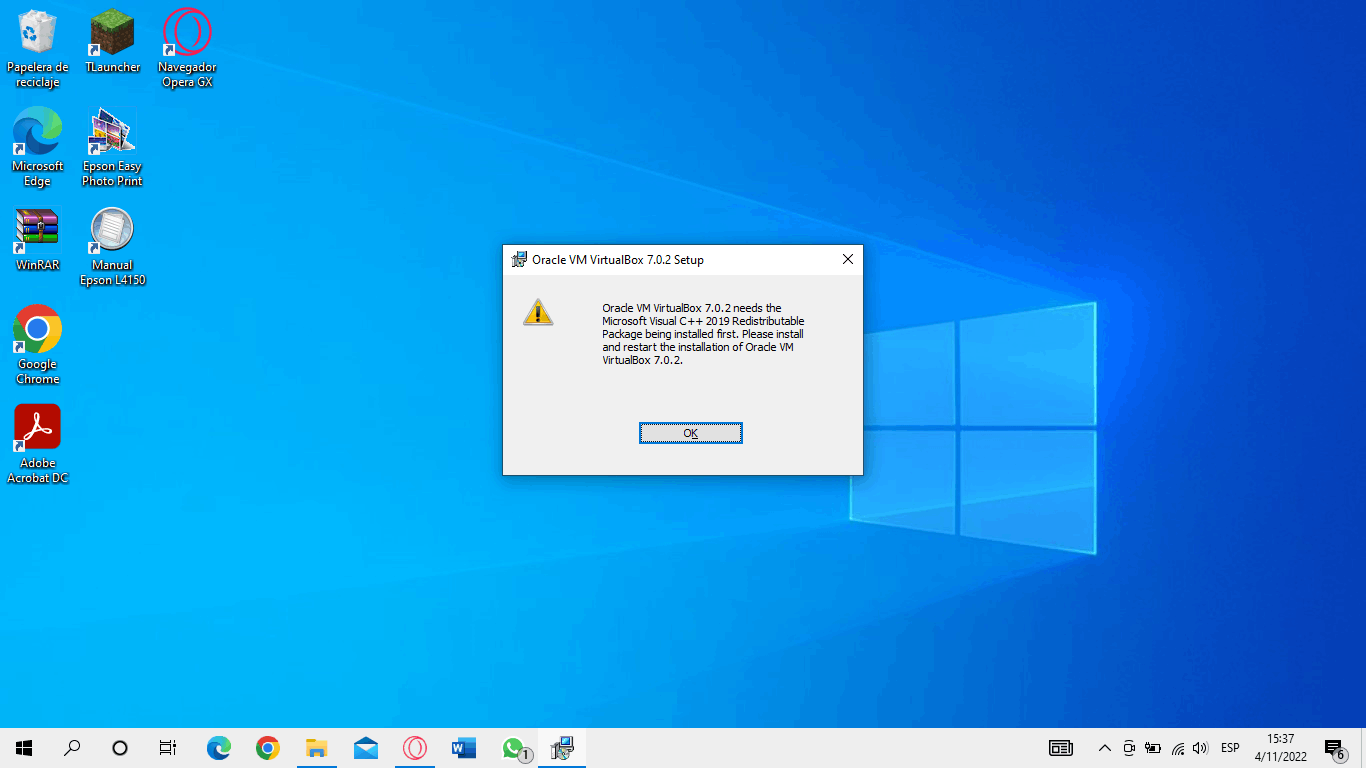
You will download an executable file of the type VirtualBox-7.xx-win.exe. Once the download is complete, simply go to your Downloads folder and double-click on the installer.The wizard will ask you to accept the license and will show you the component options that will be installed.
It is generally recommended to leave the default components as they are. The installer will take care of adding the necessary network drivers so that the virtual machines have connectivity. and the VirtualBox network adapter can be configured.
In some environments, dependencies such as certain Python libraries or the win32api module are also installed, which facilitate the creation and management of machines from the interface or through additional tools. If the wizard offers these components and you don't have very specific needs, it's best to keep the proposed configuration..
After confirming the installation, Windows may display a security warning when adding network drivers or kernel drivers. You must accept these notices for VirtualBox to work correctlyOnce the process is complete, the wizard will display a message indicating that the installation is finished and you can start VirtualBox for the first time.
BIOS/UEFI configuration and guest system types
One point that raises many questions is the relationship between BIOS/UEFI settings and the types of virtual machines you can create. If hardware virtualization is not enabled, VirtualBox will only allow the creation of 32-bit virtual machines.even if your processor and host operating system are 64-bit.
To take full advantage of VirtualBox, it is advisable to enter the BIOS/UEFI of the computer and look for options related to Intel VT-x, AMD-V or Virtualization Technology. Once activated, and provided your CPU and Windows host are 64-bit, you can create and start 64-bit guest systems without any problems..
This is especially important if you're going to be working with modern systems like current Linux distributions or recent versions of Windows Server on your virtual machines. Many of these systems are already designed for 64-bit architectures and may not offer 32-bit versions.which would severely limit you if you don't have virtualization enabled.
You should also be aware that some security programs, such as certain antivirus software or Microsoft virtualization features (e.g., Hyper-V), may conflict with VirtualBox. If VirtualBox is not correctly detecting hardware virtualization, check if you have Hyper-V enabled and consider disabling it.since both systems compete for the same type of resources.
Once the BIOS/UEFI and host operating system are configured, creating a new virtual machine is done from the corresponding button in the VirtualBox interface. The wizard guides you through choosing the guest operating system, the memory to allocate, the virtual disk size, and other basic parameters.which you can then fine-tune manually if you need a more advanced configuration.
Advanced features: snapshots, fluid mode, and 3D support
When you start using VirtualBox regularly, it's worth taking advantage of several advanced features that greatly simplify your work. Snapshots are probably the most valuable: they allow you to capture the exact state of a virtual machine at a specific moment. (system, configuration and disk included) to return to it whenever you want.
This is ideal, for example, for taking a snapshot of a "clean Windows", installing software to test it, and then restoring the initial state without leaving a trace. From the machine's menu, while it is running, you can select the option to take a snapshot. and then manage them from the VirtualBox interface.
Another interesting feature is the so-called fluid mode or seamless mode. This mode allows the guest operating system windows to appear integrated into the host system's desktop.as if they were native applications, instead of being enclosed in a full VM window.
To use fluid mode, it is essential to have the Guest Additions installed on the guest system. Once installed, you can activate fluid mode from the View menu of the virtual machine., achieving a fairly convenient integration for using specific applications within a different environment.
Regarding graphics support, VirtualBox has basic 3D acceleration. You must manually enable this option in the virtual machine settings and ensure that the corresponding drivers are installed within the guest.Don't expect to play the latest 3D titles, but you will be able to enable desktop effects like Aero in Windows or manage lightweight 3D applications.
Integration with the host system: USB, shared folders, and clipboard
To work comfortably between the host and guest systems, VirtualBox includes several integration features that make a difference in everyday use. One of the most used is USB device supportwhich allows you to connect a USB memory stick, a license key, or even other peripherals directly to the virtual machine.
To take advantage of USB support, you need to enable it in the machine settings and, in some cases, install the VirtualBox Extension Pack. Then, from the Devices menu in the VM window, you can select which USB device is redirected to the guest.where it will appear as if it were physically connected.
Shared folders are another very practical option. With this function you can define directories on the host system that will be accessible from the virtual machineas if they were network resources or additional drives. This is very useful for transferring files between the host and guest without having to use USB drives or download files.
The shared clipboard and drag-and-drop functionality also make life easier. By default these functions are usually disabled for security reasons, but you can enable them to copy and paste text or drag files between the two systemsreducing friction when working with multiple environments.
Finally, for scenarios where you need to quickly replicate an environment, VirtualBox allows you to clone virtual machines. Cloning is responsible for generating unique identifiers for the disks and components of the new machine., avoiding conflicts that would arise if you simply copied the files manually into the file system.
Handling common errors: the case of VBoxDrvStub
During the installation or first boot of VirtualBox on Windows, some errors related to its drivers may appear. One of the best known is the message NtCreateFile(\Device\VBoxDrvStub) failed: 0xc000000034, which indicates that the corresponding driver has not been loaded correctly.
When this problem occurs, one possible solution is to manually reinstall the driver involved. You can go to the VirtualBox installation folder, usually located at C:\Program Files\Oracle\VirtualBox\drivers\vboxsup, and run the VBoxSup.inf file. with administrator privileges to re-register the driver.
After that, it's advisable to open a command prompt (cmd) in administrator mode and run the service startup command: sc start vboxsupIf everything is working correctly, the system will respond that the vboxsup service is in RUNNING state and without errors.
This process often resolves the driver loading failure and allows VirtualBox to start normally. If the error persists, it is usually advisable to check for conflicts with other hypervisors or security solutions that may be blocking the driver.as well as reinstalling VirtualBox from scratch.
In educational or laboratory settings, having these troubleshooting steps documented greatly streamlines support for students, who often encounter these types of messages on their personal laptops and don't know where to start.
Where to download VirtualBox and final usage considerations
It is always recommended to download VirtualBox from its official website to ensure you get the latest stable version and avoid modified installers. The official website is https://www.virtualbox.org/, where you'll find downloads for Windows, Linux, macOS, and other platforms., as well as the Extension Pack for additional features.
On systems with 32-bit and 64-bit processors, it is advisable to choose the appropriate installer. Current versions of VirtualBox are primarily designed for 64-bit architectures, both on the host and guest systems.However, it is still possible to work with 32-bit systems if your hardware or needs require it.
Once installed and with hardware virtualization enabled, you can create virtual machines of all kinds, from lightweight environments for testing specific tools to complex cybersecurity labs with several simulated networks. Taking advantage of features like snapshots, shared folders, and cloning will allow you to work much more efficiently. and repeat scenarios without having to start from scratch each time.
With a computer that meets the requirements for a processor with virtualization support, sufficient RAM (ideally 8 GB or more), ample disk space, and an up-to-date host operating system, VirtualBox becomes a very versatile platform for learning, testing, and experimenting without putting your main system at risk.This is especially valuable for new cybersecurity students and anyone who wants to experiment with different operating systems without complicating their life.