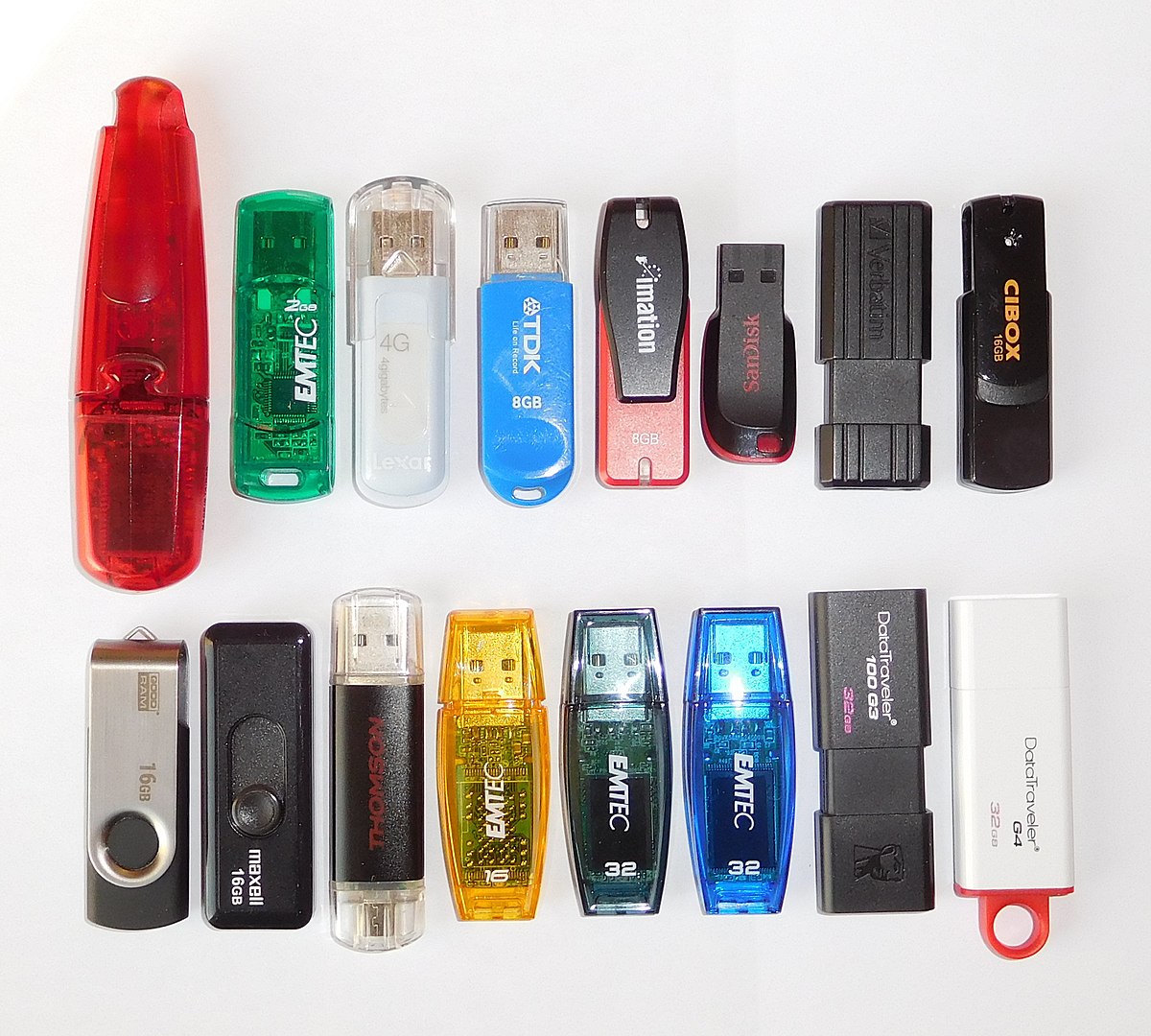
- With Ventoy you can create a multiboot USB drive and copy multiple ISOs without formatting each time.
- The same USB drive can host Windows, Linux, and rescue, encryption, and diagnostic utilities.
- Adding tools like VeraCrypt, KeePassXC, Tor, or USB Raptor turns it into a complete security kit.
- Properly configuring BIOS/UEFI and booting from USB is key to taking full advantage of the flash drive's potential.
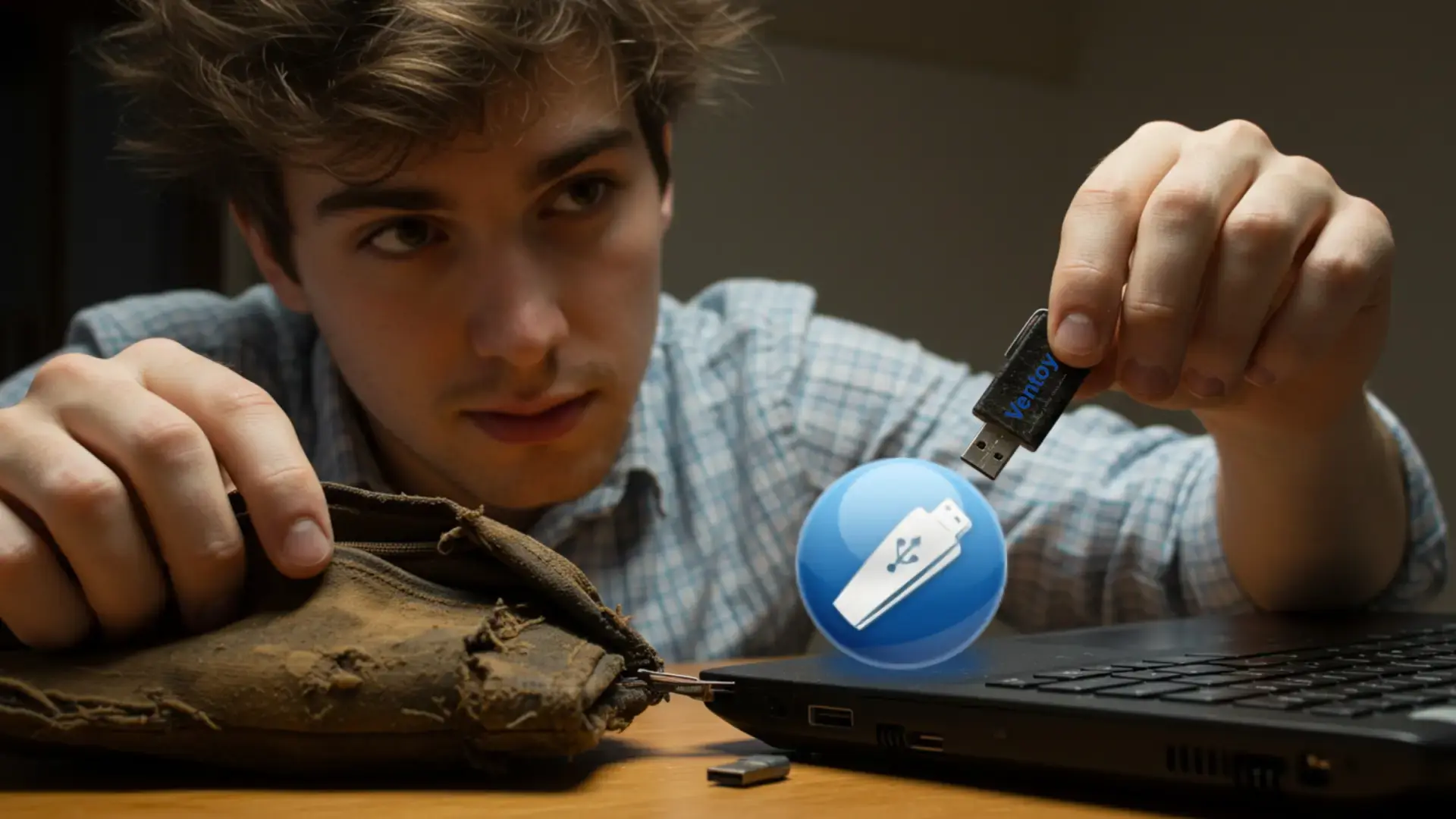
Convert a simple USB drive into a all in one tool It's one of those tricks that, once you discover it, there's no going back. That old USB drive you have lost in a drawer can become your digital Swiss Army knife: it can be used to install operating systems, boot computers that won't turn on, save encrypted backups, carry your passwords, browse privately, or even use it as a physical key to lock and unlock your computer.
With a little patience and the right software, you'll be able to assemble it in a single pen drive various Windows and Linux distributions, rescue tools, portable antivirus programs, and advanced utilities without having to reformat every other day. It's also a perfect solution if you regularly repair computers for friends or family, work as a technician, or simply want to have an "emergency kit" always on hand.
What you need to turn your USB drive into an all-in-one
Before you get started, it's important to be clear about the requirements your USB drive must meet to perform as expected. multiboot USB drive and security toolYou don't need to buy an extremely expensive model, but it should meet certain minimum requirements so you don't get frustrated at the first sign of trouble.
Ideally, you should use a memory with at least 16 GB of capacityHowever, if you plan to install multiple Windows installations, several Linux distributions, and rescue tools, you should opt for 32 GB or more. The more space you have, the more room you'll have for large ISO images, persistent partitions, and backups.
It is also highly recommended that the USB drive be USB 3.0 or higherIt will still work on 2.0 ports, but the speed difference when copying multi-gigabyte ISOs or installing operating systems is enormous. You'll especially notice this improvement if you use images larger than 4 GB or if you work with many computers simultaneously.
Finally, make sure the memory is in good condition, without bad sectors or unusual behavior. A USB drive that disconnects on its own or gives read errors can ruin a Windows installation mid-process and waste a lot of time, as well as cause problems that are difficult to diagnose.
Ventoy: the foundation for a true multiboot USB drive
The key piece to turn your USB into a multiboot unit capable of booting dozens of operating systems It's Ventoy. It's a free, open-source, portable program that eliminates the major hassle of traditional USB installation drives: having to format and "burn" each ISO every time you want to try or install something new.
Ventoy works very differently from classic tools like Rufus or Universal USB Installer. Instead of "dumping" an ISO image onto the memory, what it does is Prepare the USB drive only once and install a small boot manager on itFrom there, you will only have to copy ISO, WIM, IMG, VHD(x) or EFI files to the USB as if you were using it to save photos or documents.
When you boot a computer from that USB drive, Ventoy will load a menu listing all the images you've copied. You'll just need to choose the ISO or system you want to use at that time and the program will start directly from that file without decompressing or modifying it.
The beauty of this approach is that you can have Windows 10, Windows 11, several Linux distributions, rescue utilities, disk cloning tools, and much more all on the same memory, coexisting without conflicts. And if a new version of any system is released, it simply... Delete the old ISO, copy the new one, and you're done., without needing to redo the entire USB drive.
Another strong point of Ventoy is its enormous compatibility: it supports more than 400 different operating systems including Windows versions and Linux distributionsIt supports MBR and GPT partitions, Legacy BIOS and UEFI booting (including Secure Boot in many cases), and allows you to work with images larger than 4 GB without breaking a sweat.
How to install and configure Ventoy step by step
Installing Ventoy is quite simple, although it's advisable to proceed with caution because the process Format the USB drive completely the first time.First of all, save any important files you have on your memory card to another location, because everything will be erased.
The first step is to download Ventoy from its official website or its GitHub repository. The program comes in a compressed file, so you'll need to... Unzip the ZIP file and run the Ventoy2Disk.exe file. If you're using Windows. There's also a Linux version, but the procedure is slightly different.
Once inside Ventoy2Disk, you'll see a very simple interface: at the top you select the USB drive you're going to use (be careful not to select the wrong drive) and at the bottom you have the buttons to install or update Ventoy on that deviceBefore clicking “Install”, it’s worth taking a look at the options menu.
From the settings section you can choose the partition type (MBR or GPT), activate the “Secure Boot” mode so that it works on computers with Secure Boot, and reserve a free space in the memory that Ventoy will not use, ideal if you want to continue using the USB drive for normal files as well.
The general rule is simple: if you're going to use the USB in older computers with classic BIOSMBR is usually the most compatible option; if you're aiming for modern UEFI systems, it's better to choose GPT, especially if you want to avoid problems with large disks or with Secure Boot itself.
Once you're clear on the options, click "Install". Ventoy will display two security warnings indicating that the drive will be completely formatted. Confirm both times and let the program finish. Prepare the internal structure of the USB drive and copy the boot managerIn a few seconds you should see a message indicating that the installation was successful.
From that moment on, your USB drive is "ventilated". If you open it from File Explorer, you'll see a practically empty drive. That's the good thing: from now on you just have to drag and drop ISO, WIM, IMG, VHD(x) or EFI images whichever you want to use. You don't need to run anything else.
Install multiple Windows and Linux systems on a single USB drive
One of the most powerful uses of this system is to create a A single USB drive with all the Windows editions you need (7, 8.1, 10, 11, Home, Pro, etc.) and several Linux distributions For testing, recovery, or everyday use. This way you avoid having to look up which USB drive contains which ISO every time you need to format a PC.
If you already have "all-in-one" Windows ISO images (for example, one that includes both 32-bit and 64-bit editions), you just need to copy them directly to the USB drive with VentoyThey don't need to be special USB ISOs; as long as they are valid installation images, Ventoy will take care of booting them.
Do the same with the Linux distributions you want to have on hand: Ubuntu, Debian, Fedora, openSUSE, Linux Mint, or even specialized distributions for rescue, security, or forensic analysisRemember that Ventoy supports very large images, so you won't have any problems with heavy distributions or integrated tools.
When you plug the USB drive into a computer and boot from it, a text or graphic menu (depending on the configuration) will appear with a list of all detected image files. You just have to Move with the arrows and choose which system you want to launchIf a Windows ISO includes multiple editions, the installer itself will ask you which one to install.
In addition, Ventoy allows you to create persistent partitions for some Linux distributionsThis means you can boot a "live" Linux distribution, but save your changes, files, and settings for future use. It's very useful if you want to carry a ready-to-use Linux system in your pocket, with your programs and essential data.
Alternatives and tools for creating bootable USB drives
Although Ventoy is one of the most comfortable to ride on Hassle-free USB multibootHowever, this isn't the only option available. There are many programs for creating bootable USB drives, and some can be incredibly useful in specific situations, whether you simply want Windows on the drive or require more advanced options.
Rufus is a classic for Windows: it allows you quickly create a bootable USB drive from an ISO file, both for windows versions as well as for Linux distributions. It is very lightweight, requires no installation, and offers several options for format, partition scheme (MBR/GPT), and file system.
Another veteran tool is Universal USB Installer, which also allows prepare bootable pendrives for different systems Using ISOs you have on your PC. It's simple and effective, with options to format the drive before burning the image if needed.
If you're more involved with the Linux world, UNetbootin remains a favorite option. This program makes things much easier. Download and burn GNU/Linux distributions It runs on a USB drive without using a CD or DVD, and includes support for many popular Linux distributions. It also works on Windows, Linux, and Mac.
There are also tools specifically geared towards users seeking more control and professional options, such as Yumi, RMPrepUSB, UltraISO or Acronis True ImageSome of them allow you to create multiboot drives, add extra utilities (antivirus, diagnostic tools, etc.) or even clone complete Windows installations to deploy them on multiple computers.
If your main goal is to prepare an official USB drive with Windows 10 or 11, you can use directly Microsoft Media Creation ToolThis utility downloads the system image from Microsoft's own servers and automatically formats and installs everything necessary on the USB drive.
Creating a bootable USB drive: options for all levels
There are several ways to manufacture a bootable USB drive in WindowsAnd not all of them require third-party programs. If you're comfortable with the command line, you can do it manually with Diskpart, although most users find graphical tools more convenient.
Using the command prompt, the process involves opening a command window as administrator, running diskpart, list the discs with list disk, select the USB (usually “disk 1”), clean it with clean and create a primary partition with create partition primary.
Then you need to select that partition, mark it as active, format it in FAT32 with a recognizable label and assign a drive letterOnce that's done, all that's left is to copy the contents of the ISO image to the USB drive, either by mounting the ISO or by extracting it first. It's a powerful method, but with many steps where a lapse in attention could cause you to accidentally erase the wrong disk.
For most users, the most sensible option is to use one of the utilities mentioned: Rufus, Universal USB Installer, Balena Etcher, Passcape ISO Burner, AOMEI Backupper, PassFab for ISO, etc. They all handle... automatically prepare the boot structure, format when necessary, and copy files correctly., significantly reducing the margin of error.
Balena Etcher, for example, has become very popular precisely because of its simplicity. The process is summarized in three steps: choose the image, select the drive, and click "Flash." Furthermore, it is cross-platform (Windows, macOS, and Linux) and open source, with measures in place to prevent accidentally overwriting the wrong hard drive.
In the professional field, solutions like Acronis True Image allow you to create boot drives with backup, restore and disk cloning functionsThese are tools designed for companies or technicians who need to deploy or recover systems on a large scale, but nothing prevents you from using them at home as well if they suit your needs.
Booting the computer from USB and common problems
It's not very useful to have a perfect multiboot USB drive if the computer won't boot from it. For it to work, you'll need to instruct the BIOS or UEFI to use the USB drive as the boot device, at least temporarily.
On most computers, as soon as you turn on or restart the PC, a small text appears indicating which key to use for enter BIOS or open the boot menu. They are usually Esc, Del, F1, F2, F10, F11 or F12If you already have Windows installed, you can also access the UEFI firmware options from within the system itself, using advanced reset.
Once inside, look for the "Boot" section and place the USB drive in front of the internal hard drive, or use the USB drive directly. boot device selection menu To select only the USB drive during that restart, save the changes, restart, and if everything is working correctly, you should see the Ventoy menu or the Windows installer, depending on your configuration.
If the USB drive doesn't appear as a boot option, several things could be happening: the USB port might be very old, the flash drive might be damaged, the drive format might not be compatible with the computer's BIOS/UEFI, or the USB boot option might be disabled. In some cases, the... partition type (MBR/GPT) and boot mode (Legacy/UEFI).
It's also possible that the computer might freeze on the initial screen or completely ignore the memory. Often, this can be resolved by trying a different port, using a USB 3.0 cable instead of an older one, or recreating the USB drive with another tool. temporarily disabling Secure Boot if the utility you're using doesn't yet support it well.
In the worst-case scenario, if your computer doesn't recognize any USB drive as a boot device and you know that other computers do, it's possible that the PC's firmware is too limited or that the USB drive is corrupted. At that point, trying a different USB drive is usually the quickest way to resolve the issue.
Turn your USB drive into a security and emergency kit
Beyond system installation, a good "all-in-one USB" should include safety and rescue tools for when things go wrong. In fact, you'll often get more use out of the USB drive as an emergency kit than as a simple Windows installer.
One of the most interesting options is Emisoft Emergency Kit, a portable suite for Windows that you can Run directly from the USB without installing anything.It is designed to analyze and disinfect computers suspected of having malware, Trojans, spyware, and the like, and is one of the tools recommended by organizations such as INCIBE.
Another little gem is the portable version of the Tor browser. Installed on a USB drive, it allows you to Browse with greater privacy from virtually any computerIdeal if you need to use someone else's or public equipment and don't want to leave a trace. Just open the corresponding folder on the USB drive and run the executable.
If you want to take security to the next level, you can create an encrypted partition with VeraCrypt in memory. That way, you can store sensitive backups, private documents, or even your password manager database inside an encrypted container. Even if you lose the USB drive, no one will be able to access its contents without the key.
For password management, KeePassXC in portable mode is an ideal candidate. Its .kdbx databases use strong encryption (AES-256), and if you store them within a VeraCrypt volume, you'll have a double layer of protectionBy carrying both on the USB drive, you can securely log in to virtually any computer without having to memorize everything.
Use the USB drive as a physical security key
Besides serving as an encrypted storage device and rescue kit, your USB drive can become a kind of Physical key to lock and unlock your PCThe idea is simple: the computer only unlocks when the USB is connected; as soon as you remove it, the computer locks automatically.
There's a free tool called USB Raptor for this. After installing and configuring it, you'll be able to Link system access to the USB driveDuring the process, a special file (RUID) is generated that acts as a master key, in case you lose the memory or need to regain access without it.
USB Raptor allows you to adjust interesting parameters, such as the boot state (locked from startup), pairing with the USB serial number to prevent cloning, and other advanced options. When properly configured, it offers an extra layer of security Very comfortable, especially if you work with laptops in shared or public environments.
This does not completely replace a strong password or other authentication methods, but it does add a very practical extra barrier: even if someone knows your password, if they do not have the USB drive they will not be able to access the system while that protection is active.
Ventoy from Android: Prepare your USB without using a PC
You may need to prepare a multiboot memory with Ventoy, but Don't have another working computer on handFor those scenarios, there is an unofficial adaptation of Ventoy for Android, created by an independent developer.
This application allows you to connect a USB drive to your mobile phone using an OTG adapter and install the Ventoy environment directly from AndroidAfter that, you can copy ISO, IMG, VHD(x) or EFI images that you have stored on the phone itself.
The process is quite straightforward: you choose the partition type (MBR or GPT), decide whether to enable Secure Boot, configure whether you want a persistent partition, and select the image you want to use. The app then prepares the USB drive and gets it ready for booting. boot any PC directly from that memory.
It's not linked to the official Ventoy project, so it's best to use it judiciously and always download it from the official store (Google Play) or reliable sources. Even so, it's a very handy solution when the only working device you have available is your own mobile phone.
With everything we've seen, it's easy to imagine the potential of transforming a simple USB drive into a true digital "Swiss Army knife": a single USB drive capable of installing dozens of operating systems, rescuing broken computers, scanning for viruses, protecting data with strong encryption, saving your passwords, and acting as a physical access keyBy investing some time in setting it up properly and keeping the images and tools up to date, you'll always have a tremendously versatile resource in your pocket for both emergencies and everyday life.