- Most mobile phone problems (slowness, freezes, app errors) are solved by restarting, clearing the cache, freeing up space, and controlling background apps.
- Connectivity, battery, charging, and storage problems usually have simple solutions: check cables and ports, optimize power and network settings, and check the SD or SIM card.
- Common physical faults (broken screen, buttons, camera, audio) may require replacement parts, but many are diagnosed at home before going to a technical service.
- If, after applying all the basic solutions, slowness, errors, or overheating persist, there is likely hardware damage and it is advisable to seek professional help.
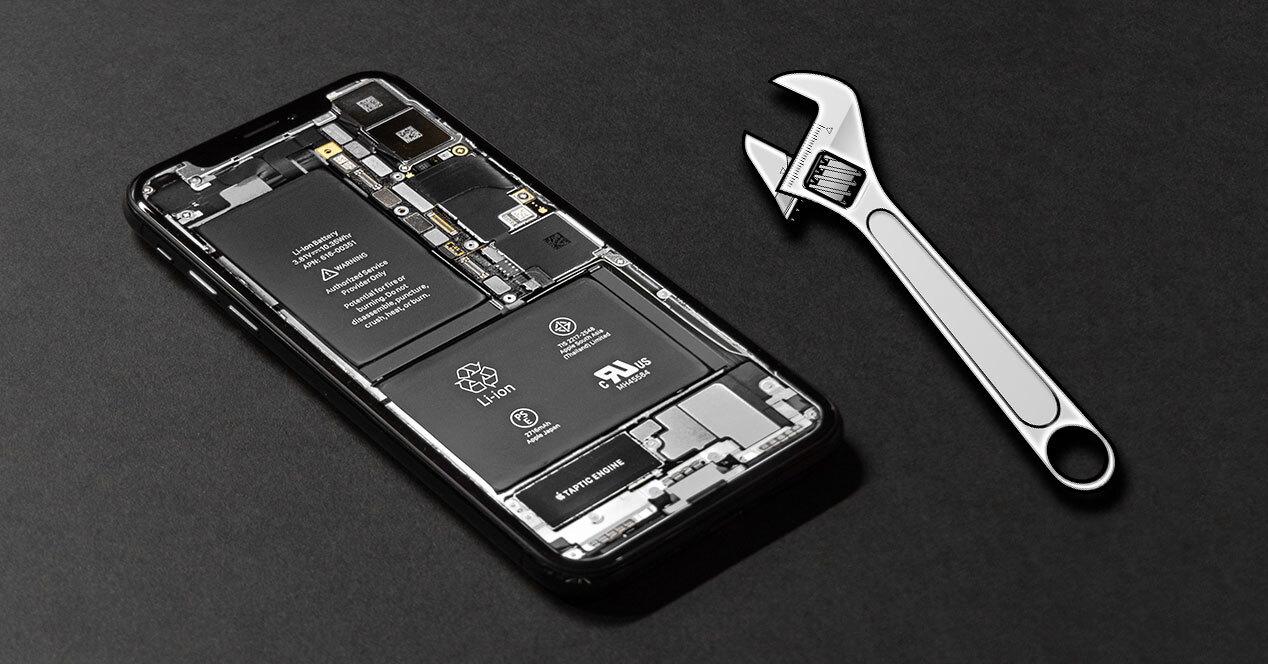
Your mobile phone has become your window to the world : you use it for work, to talk to friends and family, to take photos, to pay in stores, and even to open the garage door. That's why, when something goes wrong, the feeling of panic is overwhelming. The good news is that, in most cases, you don't need to be a techie or have any fancy tools to get out of trouble: many common problems can be fixed with a few quick adjustments.
In this guide, you'll find the most common smartphone problems (Android and, to a lesser extent, iPhone) and the solutions that actually work: from slow phones, battery issues, and overheating, to problems with charging, Wi-Fi, the Play Store, full memory, SD card, camera, or unresponsive buttons. Everything is explained in clear, straightforward language, with tips and tricks anyone can use at home.
Performance issues: slow phone, freezes, and black screens
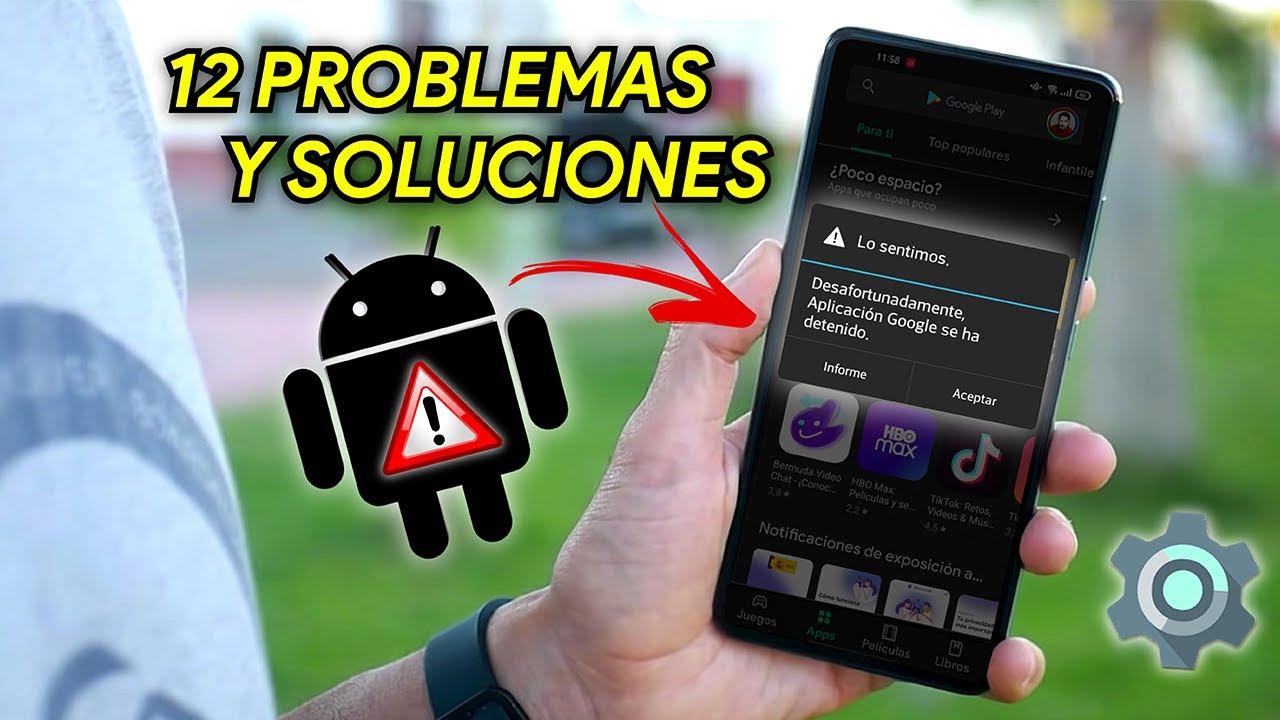
One of the most common smartphone problems is a feeling of sluggishness : the phone takes a long time to open apps, the screen freezes, or a black screen suddenly appears and becomes unresponsive. This is usually due to background processes, poorly optimized apps, insufficient free space, or simply because the system hasn't been restarted in several days.
The first step is almost always the same: restart your phone . Press and hold the power button and select the restart option. If the screen is completely frozen, try a forced restart (on many Android devices, this is power + volume down for about 10-15 seconds). This simple action clears temporary files, restarts system processes, and resolves many performance issues.
If you're experiencing freezes and slow performance, check the apps running in the background . Many remain open even after you think you've closed them, continuing to use up RAM and processing power. Close any you don't use, and if there are apps you never use, uninstall them from Settings > Apps. You'll see an immediate improvement in performance.
A nearly full internal storage also makes any phone incredibly slow . When there's hardly any space left, the system can't handle temporary files or updates properly, and everything becomes sluggish. Delete photos and videos you don't need, remove old downloads, empty the gallery's trash, and uninstall resource-intensive apps that don't add any value. If your phone supports it, use a microSD card or cloud storage.
Another common cause of a slow phone is system and app updates . Sometimes a poorly optimized update demands more resources than your phone can provide. Keeping your system updated is usually beneficial, but if you notice slowness right after an update, check if a new patch is available or consider resetting your phone (after backing up) to remove remnants of previous versions. Also, check for system updates and new features that might affect performance.
Safe mode and detection of problematic apps
When you suspect a specific app is causing problems (unexpected crashes, freezes, overheating, or unusual battery drain), safe mode is your best friend. In this mode, your phone starts with downloaded apps temporarily disabled, leaving only system apps running.
The process for entering safe mode varies depending on the manufacturer . On Android, it's usually done by pressing and holding the power button, then pressing and holding the "Power off" option, and accepting the restart in safe mode when prompted. If you don't see this option, it's best to consult your phone manufacturer's support website, as the method may differ between brands.
Once inside, use your phone normally for a while . If the problems disappear in safe mode, you can be almost certain that one of your installed apps is the culprit. Start uninstalling the most recently added apps or those that consume the most resources (heavy games, social media apps, suspicious tools).
Once you've finished testing, restart your phone normally to exit safe mode. If the problems return immediately after installing or opening a specific app, you know where the issue lies.
Connectivity errors: Wi-Fi, mobile data, Bluetooth and SIM
Connectivity problems are another common issue with smartphones : Wi-Fi that cuts out, unreliable mobile data, Bluetooth that won't pair, or even the phone not detecting the SIM card. There are almost always several simple solutions before assuming the phone is broken.
For Wi-Fi, start with the basics: restart your router and phone . Turn off your router, wait at least 30 seconds, and turn it back on to reset all network processes. Restart your phone as well. If it's still not working, go to Settings > Wi-Fi, delete (forget) the network, and re-enter the password from scratch.
Another quick fix for connectivity issues is airplane mode . Activate it for a few seconds and then deactivate it: this forces the system to restart all the device's radios (Wi-Fi, mobile networks, Bluetooth) and often restores a stable connection.
If the problem is that you can't connect to any specific Wi-Fi network , also check your router settings: try updating its firmware, changing the channel, or moving closer to the router to rule out weak signal strength. In some advanced cases, modifying the DNS settings (for example, using Google's or Cloudflare's) can help improve stability. If you need help configuring your router , follow a specialized guide.
With Bluetooth, the solution is usually to re-pair the devices . Remove the device from the paired list, turn Bluetooth off and on again on both devices, and repeat the pairing process. Make sure the other device (speaker, watch, car, headphones) is in pairing mode and doesn't have active connections with other nearby mobile devices.
When the problem is with the SIM card (the phone doesn't detect it or says "no service") , carefully remove the tray and check that the card is properly inserted and clean. Even a tiny speck of dust can cause poor contact. Gently clean it with a dry cloth, reinsert it, and turn on the phone. If the problem persists, try the SIM card in another device or insert a different SIM card into your phone to determine if the issue lies with the card or the card reader.
Play Store, downloads and software errors
On Android, one of the most common headaches is the Google Play Store : downloads that never start, updates that fail, or the store itself that keeps crashing. All of this usually stems from corrupted cache data or minor software conflicts.
When the Play Store keeps crashing, first clear its cache . Go to Settings > Apps > Google Play Store > Storage and tap Clear cache. This removes temporary data without deleting your account or purchases. If the problem persists, you can also try Clearing data, but you'll need to sign in again.
If the problem is that you can't download apps , the first thing to do is confirm you have a stable internet connection, either via Wi-Fi or mobile data. If you're using mobile data, try switching to a reliable Wi-Fi network. If the internet is working but the download is still blocked due to server connection issues , clear the Play Store cache and restart your phone; often, Google processes get stuck.
When the system displays generic errors, such as "the application has stopped" or constant system messages , a restart is usually sufficient. If the warnings occur frequently, it's advisable to update all applications, check for pending system updates, and, as a last resort, back up your data and perform a factory reset.
In extreme cases of persistent system errors (random restarts, black screens stuck on the logo, etc.), the wisest course of action is to contact a technical service or the manufacturer's official support. It could be a serious software or even hardware failure requiring professional diagnostic tools.
Battery problems: short lifespan, rapid discharge, and overheating
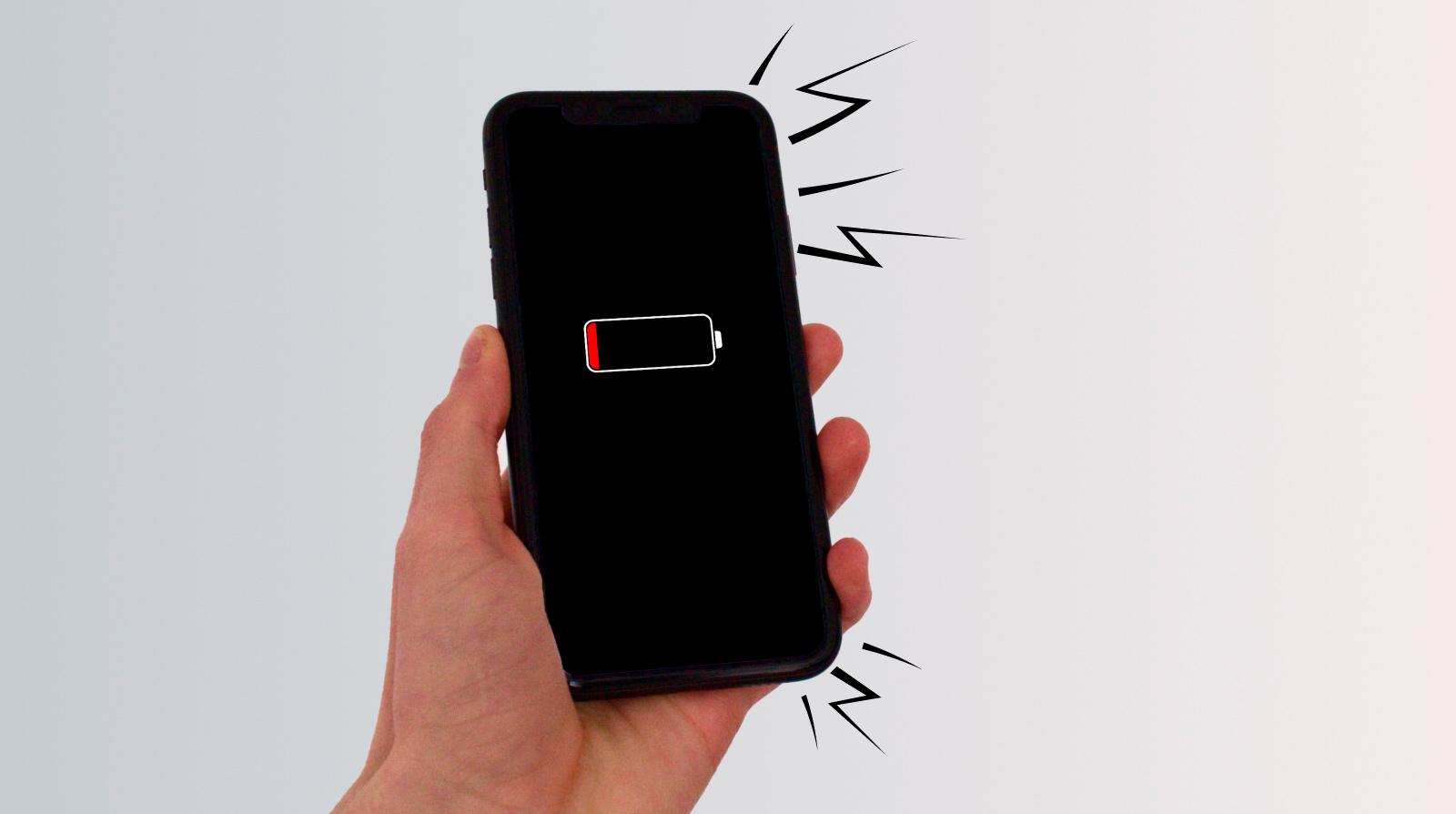
Battery life decreasing over time is practically a rite of passage for any mobile phone . Over time, the cells degrade, but your usage habits, the apps you have installed, and how you configure the system also play a significant role.
Before rushing to replace your battery, check your battery usage in Settings > Battery . There you'll see which apps are using the most power. If there's one you rarely use but it's at the top of the list, consider uninstalling it or limiting its background activity using battery optimization options.
Activate power saving mode when you're running low on battery . This option reduces background processes, lowers automatic syncing, and slightly decreases performance, but in return, it can give you several extra hours of use. On many Android devices, you can also configure "Doze mode" or other app-by-app optimizations so that apps you don't need all the time don't stay running unnecessarily.
A simple trick is to adjust screen brightness and disable connections you don't use . Lowering automatic brightness (or setting it to a medium level), turning off GPS, Bluetooth, or NFC when not needed, and disabling mobile networks in areas with poor coverage can make a big difference in daily battery life.
If you notice your battery draining rapidly even when you're not using your phone , a malicious or poorly optimized app might be running in the background. Scan your device with a trusted antivirus program (such as AVG AntiVirus Free or Norton Mobile Security) and remove any threats or suspicious apps it detects. In the future, avoid installing APKs from unknown sources or clicking on suspicious links; if you see pages opening on your phone by themselves , follow the recommended solutions.
Overheating is another symptom to watch out for . It's normal for your phone to get a little warm when you're playing games, recording high-resolution video, or using it while it's charging, but excessive or constant heat can damage the battery and internal components.
To reduce overheating, avoid heavy tasks while charging , don't leave it in direct sunlight, close resource-intensive games or apps when you're not using them, and make sure both the system and applications are up to date, as many updates fix performance issues.
When a mobile phone is several years old and the battery drains in just a few hours no matter what you do , it's probably time to replace it. For models with removable batteries, it's as simple as buying an original or high-quality replacement; for unibody phones, you'll need to go to a repair shop for the replacement.
The phone is not charging or is charging very slowly.
Another very common scenario is that the phone doesn't charge or charges incredibly slowly . You might connect it to the charger and the percentage won't go up, it will go up in fits and starts, or it will suddenly stop at a specific point.
The first step is to rule out a problem with the charger or cable . Try your charger with another compatible device and try your phone with a different charger and cable that you know work properly. This way you can determine if the fault lies with the accessory or the phone itself.
The charging port accumulates a lot of dirt over time . Lint from your pocket, dust, or small particles can prevent proper contact. Carefully use compressed air or a very thin wooden stick to remove any debris (without forcing it, using no metal objects, and without scratching). Then, reconnect the cable and check if charging improves.
If none of this works, the charging port may be damaged . In these cases, the solution usually involves replacing the port at a repair shop. There are specialized stores and websites that sell both the part and the necessary tools, but if you're not confident in your abilities, it's best to leave it to a professional.
Cracked screen, unresponsive touchscreen, and frozen screen
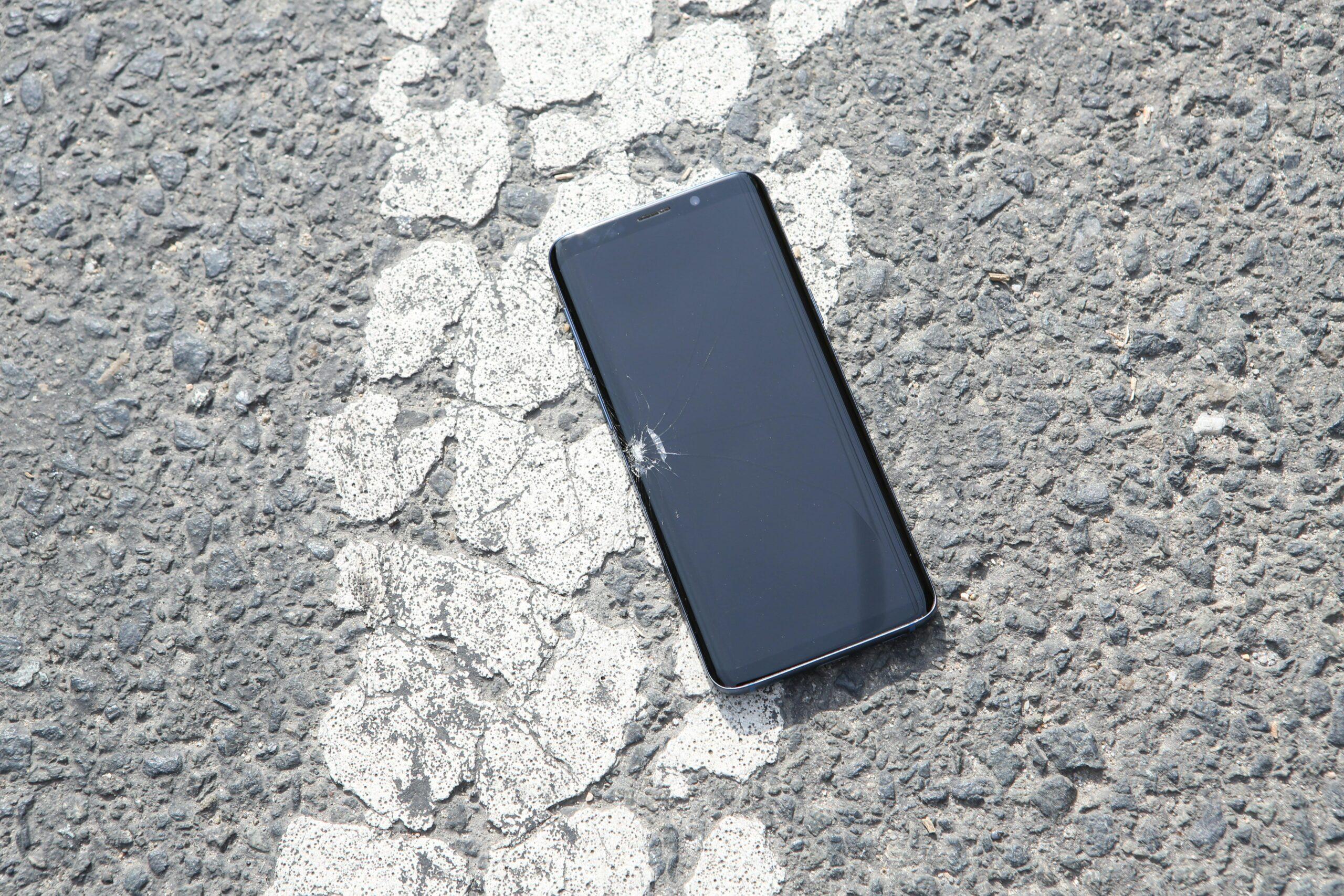
The screen is one of the most delicate parts of a mobile phone , and unfortunately, also one of the most vulnerable. Drops, bumps, or pressure in your pocket can leave it cracked or completely broken.
If there are only small cracks and the touch screen works fine , you can continue using the phone, although it's advisable to install a screen protector to prevent the crack from spreading or cutting yourself. If the crack is large, there are black spots, or areas that are no longer visible, it's best to replace the entire screen.
The screen replacement can be done at a repair shop or at home if you have the skills and are willing to follow a detailed tutorial, using quality replacement parts. Again, stores specializing in mobile phone components (iPhone, Samsung, Huawei, Xiaomi, etc.) offer kits that include the screen and tools.
When the problem isn't physical but rather related to touch response (the screen isn't detecting your fingers properly or responding incorrectly), first clean the surface with a soft, dry cloth to remove any grease or moisture. Then, check if there's a touch calibration option in your device settings.
A frozen screen that's completely unresponsive is usually resolved with a forced restart . As mentioned earlier, on many Android devices this is achieved by pressing and holding the power and volume down buttons for a few seconds. If this type of freeze occurs frequently, it's a good idea to check installed apps, free up memory and storage space, and consider a factory reset if nothing else works.
Memory full, insufficient storage, and SD card with errors
The "memory full" warning has become a common sight on older mobile phones . When internal storage is nearly full, the phone slows down, updates fail, and many apps start closing unexpectedly.
The solution is to free up space intelligently . Start by uninstalling apps you don't use, especially those that take up hundreds of megabytes (games, social media, video editing apps, etc.). Also, clear the cache of the apps that consume the most space, such as social media or streaming apps.
Photos and videos are usually the main culprits behind storage space . Check your gallery and delete anything you don't need, or move your files to a cloud service (Google Photos, OneDrive, Dropbox, etc.) or a microSD card if your phone supports it. Remember to also empty the gallery app's trash bin, as it often continues to take up space without us realizing it.
Using the web versions of certain apps can help you save gigabytes . For example, instead of installing the full Facebook or Twitter apps, you can access them through your browser and save the shortcut to your home screen. This will save storage space, and as a bonus, battery life and data usage.
Regarding SD cards, sometimes the phone stops recognizing them or displays read errors. First, restart your phone. Then go to Settings > Storage and unmount the card from the system. Physically remove it, check that it's clean and free of visible damage, and reinsert it, making sure it's properly aligned.
If it still doesn't work, try the card in a computer . Connect the SD card using an adapter and see if the PC detects it. You can use system tools (for example, "Check for errors" in Windows) to try to repair it. If nothing else works, back up everything you can and format the card; in many cases, it will work correctly again after formatting.
Audio, camera and physical button malfunctions
Sound problems are also quite common : the phone doesn't ring, calls are very quiet, or the speaker seems muffled. Before jumping to conclusions, check the obvious: make sure silent mode isn't activated, that you haven't left your phone on Do Not Disturb, and that the volume for calls, media, and notifications is turned up in Settings > Sound.
If the volume is fine but you're still noticing strange audio , carefully clean the speaker grilles and microphone with a soft brush or compressed air. Accumulated dust can muffle the sound or cause noise. For the headphone jack, a gentle cleaning can also resolve connection issues with headphones.
With the camera, the most common problems are blurry photos, slow focus, or the app crashing . Clean the lens with a microfiber cloth to remove fingerprints and dirt. Check if the camera app or system has any available updates and, if possible, reset the camera settings to their defaults from its menu. If you want to improve your photos, see how to take good pictures with your phone.
If the camera still malfunctions or displays strange spots , the module may be physically damaged. In that case, a repair shop can replace just the camera module without having to replace the entire phone.
The physical buttons (power, volume, home button on some models) can also become unresponsive with use or after an impact. First, try restarting the device (if the power button only works intermittently) and thoroughly clean the area around each button.
When a button stops working completely, there are temporary software solutions such as accessibility menus that allow you to control the volume or turn the screen on/off from the interface. However, the real solution will involve replacing the button or the connection flex cable at a repair shop.
Slow mobile phones due to malware, viruses, and hardware problems
Besides large apps and lack of storage space, malware is another major cause of slow performance . Some malicious programs run in the background without you noticing, consuming RAM, processing power, and mobile data, and filling your device with unwanted ads or apps.
To rule this out, install a trusted antivirus program from the official store and run a full scan. If it detects threats, remove everything the program indicates and see if performance improves. In the future, avoid installing APKs from unknown sources or clicking on suspicious links.
If you have tried all the software solutions (cleaning, uninstalling apps, freeing up space, restoring settings, antivirus…) and the phone is still just as slow or behaves strangely, the problem may be a hardware issue.
Damaged RAM or internal storage can cause frequent crashes, errors when installing apps, and prolonged boot times. Other issues may include touchscreen malfunctions, cut-out speakers, erratic vibration, or network antenna problems. In many cases, the device is simply too old to run the latest versions of Android or iOS.
When you suspect a hardware problem, it's best to go to a specialized repair service . They can run tests with replacement parts, check solder joints, assess the battery and motherboard, and tell you whether it's worth repairing or if it's time to get a new phone.
Using a mix of basic steps (restarts, cache clearing, freeing up space, app checks, and updates) , most users can get their smartphone working normally again without spending extra money. And, when that's not possible, at least you'll have a clear picture of whether the problem is the battery, the charging port, the screen, or the motherboard, which will help you make a more informed decision about repairing or replacing the device.
