- Configure frequent destinations, calendar, and route preferences so Waze can plan the best time and way to travel for you.
- Take advantage of collaborative alerts, the speedometer, and hazard alerts to increase safety and reduce fines.
- Use gas station searches by price, vehicle type, and battery savings to optimize expenses and resources on every trip.
- Personalize your voice, music, icons, notifications, and secure secret codes to adapt Waze to your style without losing control or privacy.
Configure your usual destinations and other key addresses
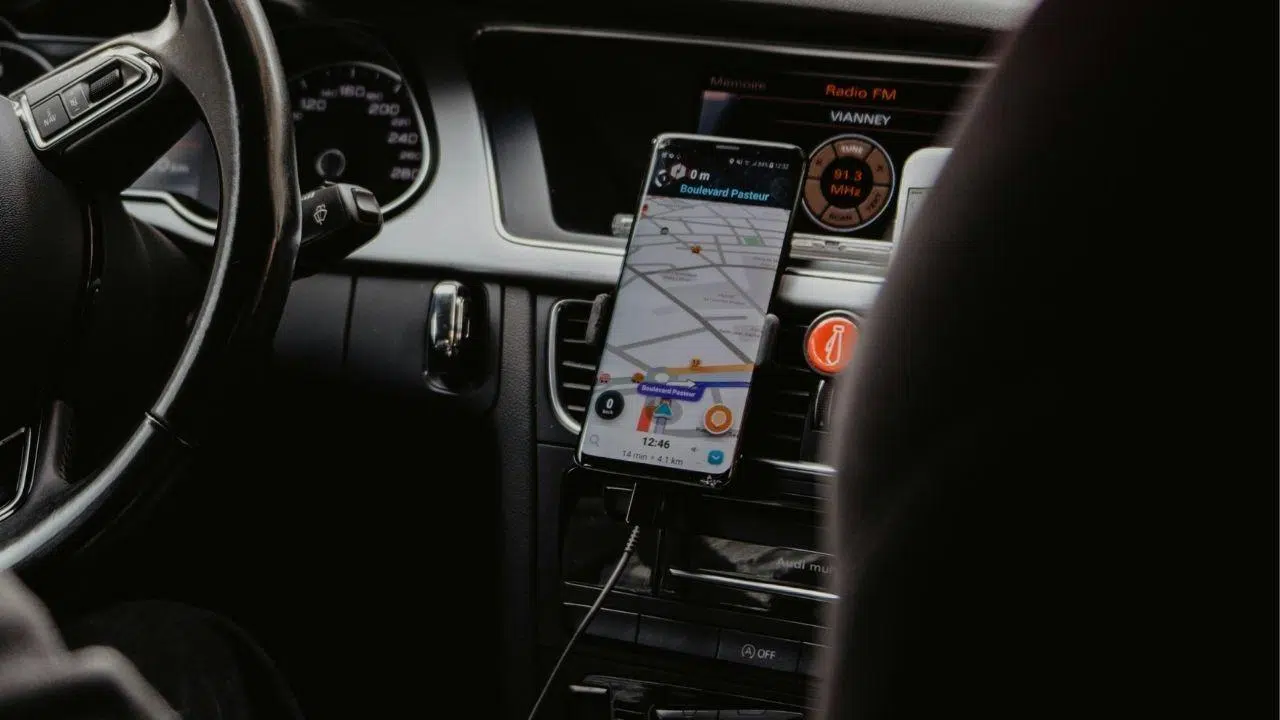
The first step to getting the most out of Waze is having your usual destinations handy . The app lets you easily save your home and work addresses so you don't have to type anything in every day.
Simply open the "Where to?" screen and assign the address to the Home and Work buttons . From then on, whenever you want to go to one of those places, just tap its icon and Waze will calculate the route instantly, without any searching or typing.
In addition to home and work, Waze can also save the addresses of friends and family . Among the destination options, you'll find something like "Friend or family member's house," which uses your contacts. If you have a contact's address saved, Waze can take you there directly from their profile.
This frequent destinations system saves a lot of time if you always make the same journeys, and it also reduces distractions while driving, because you hardly have to interact with the screen.
Sync Waze with your calendar and schedule the ideal departure time
One of Waze's most powerful tricks is linking it to your phone's calendar . From the "Where to?" panel, you'll see the option to link your calendar; when you activate it, the app will ask for permission to access your events.
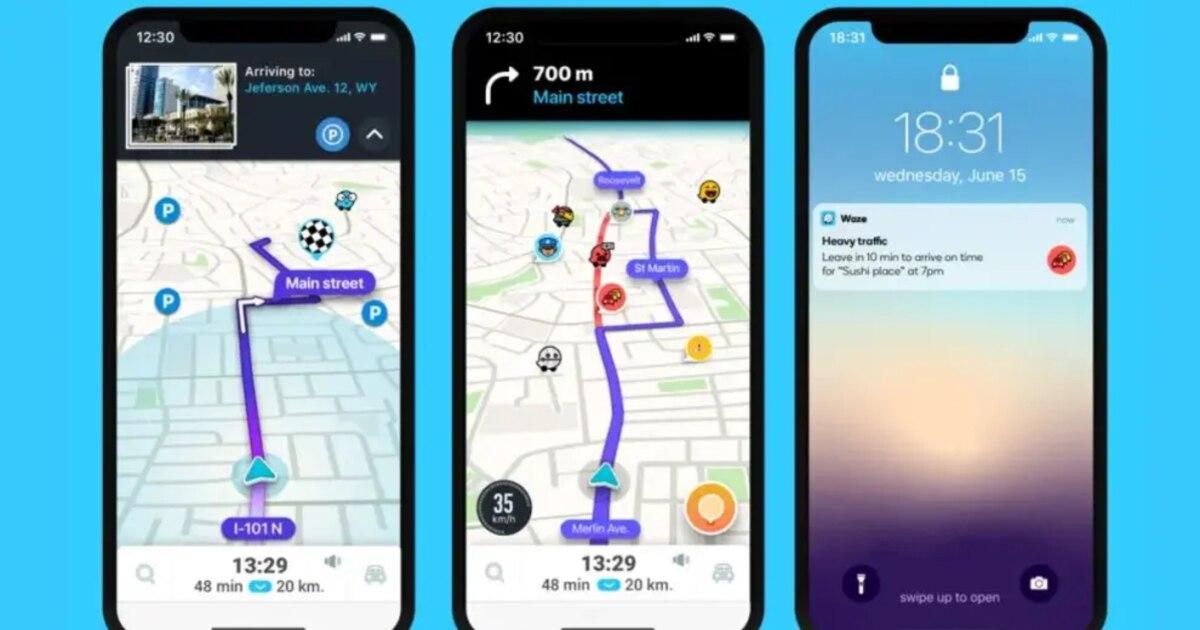
When an event on your calendar has an address , Waze will be able to detect where it's taking place and calculate what time you should leave based on real-time and historical traffic for that time slot. It not only shows you the route, but can also alert you when the optimal time to set off is approaching.
This works perfectly with the "Leave later" feature . When you choose a destination and view the route, an option appears that allows you to schedule your departure: you indicate the time you want to arrive, and Waze suggests the best time to leave, showing different times with varying levels of expected traffic.
If you enable it alongside notifications , the app itself will send you an alert when it's almost time to leave, so you don't have to keep an eye on the clock or the traffic. Very useful for important appointments, work meetings, or when you're returning from vacation and want to avoid endless traffic jams.
Maps, display and screen cleaning
Out of the box, Waze displays a lot of information on the map : other Waze users, incidents, traffic, icons of all kinds… If you find seeing so many elements overwhelming, you can simplify the interface considerably.
Go to settings and look for the "Display and map" section . From there you can disable, for example, the display of other drivers (the typical user icons), traffic conditions, or certain secondary elements. Removing layers helps make the map look cleaner and more legible.
In that same section, you can switch the map view to 3D , a much more intuitive way for many people to navigate. By changing from a flat view to 3D, streets and turns become clearer, especially in urban areas with many intersections.
You can also play around with dark mode, automatic zoom, and other visual settings , adjusting Waze to your liking and the display on your car or mobile phone. If you try it and aren't happy with the result, you can always revert to the previous settings without any problem.
Collaborative alerts, incidents and road safety
The true heart of Waze is its collaborative reporting system . Millions of users report what's happening on the road in real time, and you can too with just a couple of taps.
While navigating, tap the orange button in the bottom right corner . This will take you to the "Update Map" screen, where you can report traffic jams, accidents, speed cameras, police presence, obstacles, road closures, map errors, potholes, roadworks, and other hazards.
These alerts are automatically associated with your location when sent, helping other drivers receive advance warnings. In return, you benefit from the reports of other users, which is crucial for avoiding unpleasant surprises.
If you want to further refine your safety settings, you can find the "Alerts and warnings" section in the settings . There you can choose which types of alerts you want to receive: hazards, traffic jams, speed cameras, etc. It's a good idea to keep at least the accident and hazard alerts active, as they make a significant difference on long journeys.
Waze also includes a specific reminder to remember your baby in the car . In the "Reminders" menu, you'll find the "Baby Reminder" option: when activated, the app will display a notification when you arrive at your destination to remind you that you have a child in the car. You can even write your own personalized message.
Speed control, radars and savings on fines
One of Waze's standout features is its speedometer with speed limit alerts . It not only shows your current speed but also the speed limit and warns you if you exceed it.
In the settings, you'll find the "Speedometer" section , where you can enable the speed limit to always be displayed and configure how you want Waze to alert you. You can set it to alert you right when you reach the limit, or leave a margin of 5, 10, or 20 km/h, or even base it on a percentage of the limit.
If you activate the "always show speed limit" option , you'll have the road reference point in front of you at all times, which is very useful on roads with constantly changing signs. This greatly reduces the chances of getting a silly fine due to a minor lapse in attention.
In addition, radar and checkpoint alerts also depend on the community . You can confirm if a radar or checkpoint is still there (“Still there”) or indicate that it is no longer there, earning points and helping to make the overall information more reliable.
Gas stations, fuel types, and saving money
Waze isn't just for avoiding traffic jams; it can also help you save money when you fill up . The app lets you search for nearby gas stations and see the price of fuel at each one.
Tapping the search bar will display a gas station icon (usually labeled "Fuel"). Tapping it will show you all nearby gas stations, along with relevant information: price, distance, name, etc.
In the settings, you'll find the "Gas Stations" option , where you can change the sorting criteria. They usually appear by distance, but you can modify it to sort the stations by price . This way, you'll see the cheapest ones first, ideal when you still have plenty of fuel left.
Take this opportunity to select your fuel type (unleaded 95, 98, diesel, etc.) and, if you wish, your preferred brand. This way, the prices displayed will be the ones you're actually interested in, and you'll avoid any confusion.
Another useful feature is the price update request . If you keep the "request update" option enabled, Waze will encourage you to correct prices when it detects they might be outdated, which also adds points to your profile.
Customized routes: tolls, alternatives and intermediate stops
Waze stands out because it doesn't just give you a single route . You can customize how you want to travel and what types of roads you want to avoid.
In the "Navigation" section of the settings, you'll find a list of preferences where you can specify to avoid tolls, highways, ferries, unpaved roads, or particularly complicated intersections. This allows Waze to calculate routes that are much better suited to your driving style.
Once you've selected a route, you can quickly check alternative routes . Swipe up on the screen in navigation mode and tap "Routes"; you'll see at least two alternatives, each with its estimated time and any incidents that might occur along the way, both in list view and on the map.
For long trips, it's highly recommended to plan your stops in advance . Once you've chosen your main destination, use the "Add a stop" option before starting your route. You can add rest areas, towns, viewpoints, or any intermediate point where you'd like to rest or eat.
While driving, you can also check for potential incidents along your current route . By swiping up on the bottom card again, a graph will appear showing the expected traffic and events reported by other users along the way.
Vehicle type and settings for electric cars or motorcycles
Waze adapts its routes based on the type of vehicle you use . Driving a private car is not the same as driving a taxi or a motorcycle, and the app takes that into account.
In the settings, under "Vehicle Details" or "Vehicle Type ," you can indicate whether you use a private car, are a taxi driver, or ride a motorcycle. When you select motorcycle, for example, Waze optimizes routes considering the advantages this vehicle typically offers in traffic or on certain streets.
If you drive an electric car, you can also configure it from the same vehicle details section. The app lets you indicate that your car is electric and even specify the type of plug it uses.
With that information, Waze can take into account compatible charging points and help you better plan electric refueling on long trips, preventing you from getting stranded in the middle of nowhere.
Share journeys, locations and arrivals
Waze makes it very easy to share your location and estimated arrival time without having to manually open other apps while driving.
When you start a route, you'll see the "Share route" option at the bottom . Tapping it opens your phone's sharing menu, allowing you to choose specific contacts or apps like Telegram, WhatsApp, email, etc.
Those who receive your link will be able to follow your route and see an estimated time of arrival . This greatly reduces the classic "Where are you?" messages and allows you to focus on driving.
In addition to the route, you can send specific map locations . Simply press and hold on a point (or tap on a point of interest) and use the "Send location" option to share it. The recipient can open it directly in their Waze app.
It's a very convenient way to indicate meeting points or complicated addresses , without having to dictate endless street names or give unclear explanations over the phone.
Voice, commands, music, and audiobooks
Waze's voice and sound features are much more comprehensive than they appear . You can not only change the language or voice prompts, but also integrate music and use your voice in some very interesting ways.
One of the most fun features is recording your own voice for directions . Go to Settings, then to "Voice and sound," tap on "Waze voice," and select "Add a voice." There you can record navigation phrases (turn right, go straight, etc.) in your own voice or someone else's.
If you don't record some of the phrases, the app will use the default voice , so you don't have to complete the entire list. It's ideal for adding the voice of your kids, your partner, or a funny friend to give your trips a unique touch.
You can also use voice commands to control Waze without touching the screen . By activating voice commands in "Voice & Sound," simply say something like "OK Waze" followed by commands such as "navigate home" or "show alternate route." On iPhone, you can also link shortcuts to Siri from the corresponding section.
Finally, Waze integrates seamlessly with music and podcast services . From the audio menu, you can link Spotify, Tidal, Amazon Music, TuneIn, and other compatible services. Once connected, you'll have playback controls integrated into the Waze interface, eliminating the need to switch apps while driving.
Battery saving mode and offline use
If you often use mobile data and your battery is always running low , Waze offers a power-saving mode that's perfect for long trips.
Within the settings, you'll find "Battery Saver ." Activating this feature dims the screen when there are no turns or detours nearby and the battery is low. To brighten the screen, simply tap it, although it's recommended that a passenger do this if you have one.
You can configure it to always ask you before activating this mode , or to do it automatically when it detects that you are on the road and the battery level starts to worry you.
Regarding offline use, Waze doesn't allow you to download maps directly , but it does cache the route when you tap "Go now." This means that if you already had navigation started and lose data coverage during your trip, the app will continue guiding you along the saved route.
You won't be able to recalculate a completely new route offline , but at least you won't be stranded mid-trip if the network fails in an area with no coverage.
Notifications, avatar, car icon, and invisibility
Waze also has a social layer, with avatars, points and levels , but you can decide how much you want to get involved in that more "game" part.
In the profile menu (My Waze), you can change your avatar by choosing from different designs, and in "Map Display," you can replace the typical blue arrow with a car of a different style using the "Car Icon" option. It doesn't add anything to navigation, but it makes the experience a bit more personal and fun.
If you prefer that no one sees your location, Waze includes an invisible mode . From your profile, you can activate "Become invisible," and your icon will no longer be visible to other users on the map, thus maintaining extra privacy.
Regarding notifications, these are managed from the "Notifications" section , where they are separated into "Push" (alerts on your mobile device) and "Email." There you can disable any notifications you don't want to prevent the app from being cumbersome, both in terms of screen time and email notifications.
If you only want Waze to talk to you when it's important , it's worth spending a couple of minutes filtering what types of messages and alerts you want to continue receiving.
Points, rewards and gamification system
Waze rewards your participation with points and levels . It's not about money or real discounts, but rather internal rewards like new icons or ranks within the community.
You earn points for practically everything you do in the app : completing journeys, sending alerts, correcting fuel prices, adding photos of places, editing the map, confirming if a speed camera is still active, etc.
For example, sending a notification or adding a map update awards more points than simply completing a route , and tasks like editing gas prices or uploading photos also add up quite a bit.
The more points you accumulate, the higher your level will be within Waze , which in turn unlocks certain exclusive avatars and symbols. It's not essential, but it adds a gamified element that encourages more active participation and improves the quality of information everyone receives.
Waze secret codes: the controlled “God mode”
In addition to all the visible settings, Waze hides a series of secret codes that are typed directly into the app's search box. These codes activate debugging functions, display internal information, or adjust advanced settings.
To use them, simply open Waze, tap the search bar, and type the code exactly as shown . Then tap search, and if it's a valid code, a window will appear informing you what has been activated or deactivated.
Most codes work like switches : the first time you type them, they activate something; the second time, they deactivate it, and so on. There are codes to display your username, view exact GPS coordinates, or check the GPS's "real" position relative to the map.
There's even a code to unlock a monster avatar and others to activate or deactivate features like text-to-speech or advanced speech recognition. These are safe to use and may be of interest to curious or advanced users.
There's also a more sensitive set of code that changes the location infrastructure (between servers in the United States, Israel, or the rest of the world) or resets the app to factory settings , as if you were reinstalling it from scratch. It's best not to touch these unless you're sure what you're doing or are following specific support instructions.
In any case, all codes are reversible : if a code activates something you don't like, entering it again usually restores the settings to their previous state. And you always have the option of using a full reset code if you want to completely reset Waze.
With all these features, tricks, and cleverly configured tweaks , Waze transforms from a simple navigation app into a truly comprehensive co-pilot: it alerts you to hazards, helps you save time and money, syncs your appointments, adapts routes to your vehicle, and lets you personalize everything from the voice prompts to your car's icon. A little time spent adjusting it to your liking is all it takes to make every car trip significantly more comfortable, safer, and, why not, even more enjoyable.
