- PC hardware is based on the binary representation of information and the coordinated interaction of CPU, memory, buses, and storage.
- Motherboard, chipset, RAM, cache and interface types (SATA, USB, etc.) determine the expandability and actual performance of the system.
- Peripherals, communication ports, and monitors enable user interaction and influence the computer user experience.
- Regular cleaning and ventilation maintenance is key to preserving performance and extending the lifespan of PC hardware.
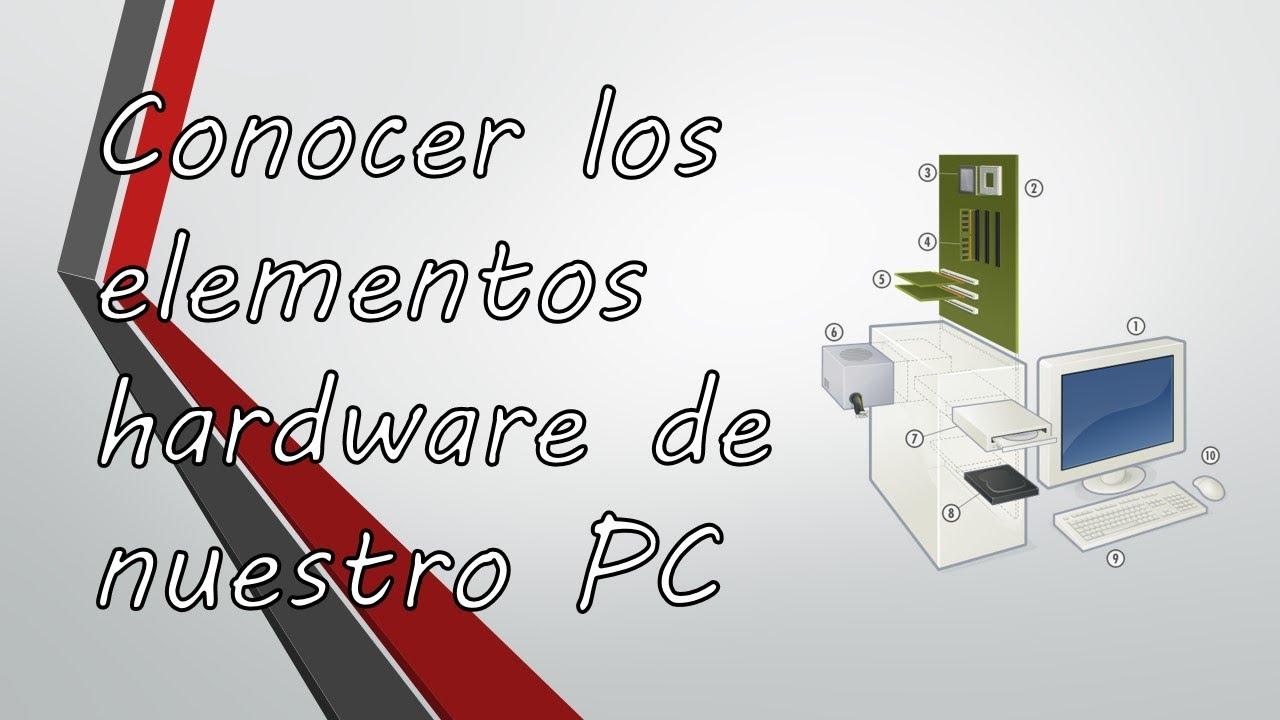
Taking good care of your computer isn't just about it booting up quickly or running smoothly when you open games and programs. A PC is a complex electronic machine involving... dozens of hardware components working togetherAnd if you don't understand them at least minimally, it's easy to make bad purchasing decisions, make useless expansions, or simply shorten the life of the equipment due to lack of maintenance.
In this guide we're going to take a complete tour of PC hardware (see the Complete guide to PC hardware analysisWe'll cover everything from how information is represented in bits and bytes to the function of the motherboard, microprocessor, memory, disks, and ports. We'll also see why it's so important. perform regular maintenance and cleaning of the computer to avoid loss of performance, excessive noise and breakdowns caused by heat and dirt.
How a computer understands us: from human language to binary
A computer doesn't "understand" letters or words as we see them on screen; in reality, it all boils down to electric current that passes or does not pass through millions of tiny switches integrated into microchips.
These electronic switches only have two possible states: on or off, which corresponds to a 1 or 0 in the binary systemEach of these states is called a bit, which is the smallest unit of information that a PC can handle.
Since a single bit barely represents any information, they are grouped into sets of 8 bits to form a a byte, which is equivalent to a character, a number, or even a blank spaceFrom there, multiples are used: kilobyte (KB), megabyte (MB), gigabyte (GB) or terabyte (TB), where each step is based on powers of 2 (for example, 1 KB is 1024 bytes, not 1.000).
In order for the letters, symbols, and numbers we use to be represented in binary form, coding systems such as the ASCII code, which assigns to each character a combination of 8 bitsThus, when you press the A key on the keyboard, you are actually sending the microprocessor the specific sequence of ones and zeros that represents that letter.
The speed at which this data moves is also measured using bytes or bits per second: B/s, KB/s, MB/s or Gb/s and Mbps, Kbps, etc.You have to pay close attention to whether the unit is in bits (lowercase b) or bytes (uppercase B), because 1 MB/s is not the same as 1 Mbps: in numbers, 1 MB/s is equivalent to 8 Mbps.
Storage units and speed measurements
In computing, when we talk about the "capacity" of a device, we are talking about the total number of bytes that it can store insideSince a byte is very small, its multiples are used: KB, MB, GB or TB, which you will find on hard drives, SSDs, USB drives, etc.
For example, a very simple text document that weighs 1 KB is composed of 1024 characters, spaces, or numbersA file of several megabytes already contains thousands of times more information, and so on. The more bytes a device can store, the greater its capacity.
As for speed, things change. To measure the speed at which data is transferred, units such as KB/s, MB/s, GB/s, in network connections, Kbps and MbpsIt's very easy to get confused here if you don't pay attention to the abbreviations, especially when you're signing up for an internet connection.
In addition to transfer speed, in hardware it is very common to talk about frequency, expressed in hertz (Hz), MHz or GHzThis unit indicates how many times per second a component repeats a specific operation, such as the "tick-tock" of the CPU's internal clock that sets the pace at which instructions are executed.
When it is said that a microprocessor operates at 3 GHz, it literally means that it can perform three billion clock cycles per secondIn each cycle it can perform a certain amount of work depending on its architecture, number of cores, cache size, etc.
Factors that determine the speed of a computer
A PC's speed doesn't depend on a single miracle component; it's the result of how several elements interact, such as the microprocessor, RAM memory, data bus, and storage unit.
On one hand, each CPU is designed to work with a specific internal bandwidth, that is, with a particular number of bits at a time (16, 32, or 64 bits). The more bits it can handle simultaneously, It processes a greater amount of information in each cycle.Today, virtually all home processors are 64-bit.
The system's internal clock sets the operating frequency and determines how many cycles per second the CPU is capable of performing. A 2 MHz processor could execute approximately two million instructions per second in their time; current ones, with several GHz and multiple cores, overwhelmingly surpass that figure.
In addition to the microphone, the so-called The data bus acts as a highway on which information travels. between the different components: memory, disk, graphics card, etc. The number of bits it can carry in parallel (its bandwidth) and the frequency at which it operates directly influence the speed of these exchanges.
Therefore, the team's overall performance is determined by several simultaneous factors: number of internal bits of the microcontroller, its clock frequency, the width and speed of the data bus, and the amount of available RAMA single very powerful component will not compensate for a bottleneck in the rest.
The PC case and the power supply
The first thing we see of a desktop computer is the tower, but far from being just aesthetic, the choice of case greatly influences the internal ventilation and in the space to install units and fans.
A small case has fewer drive bays, fewer spaces for adding fans, and tends to promote heat and dust buildup. A mid-tower or large tower facilitates airflow and cable management, which in the long run It reduces system temperature and noise..
Along with the case, the power supply is another essential and often undervalued component. Its function is convert the alternating current from the mains (220V) into low direct voltages (typically +5V and +12V) that the PC components can use without being damaged.
A poor-quality or insufficiently powerful power supply can cause restarts, freezes, electrical noise, and even damage to other components. That's why it's advisable to choose a power supply with efficiency certification, sufficient power and internal protections against voltage spikes, short circuits, etc.
Motherboard, slots and chipset
The motherboard is the "skeleton" upon which the entire system is built. The processor, memory, hard drives, graphics card, and other expansion cards are connected to it, and thanks to its internal traces All the information exchanged between the components circulates..
Each motherboard is designed to be compatible with a specific family of processors (socket type) and a set of technologies (supported memory, port types, etc.). Therefore, when assembling or upgrading a computer, it is vital to verify that motherboard, processor, RAM and cards are compatible with each other.
Over time, various types of slots and connectors have existed on motherboards. Among the most important are the following: PCI and PCI Express (PCIe) slots, used for sound, network, capture cards or graphics cardsand the specific sockets for memory modules, such as DIMMs. Today, virtually all modern expansions use PCIe.
For many years, IDE or PATA connectors were used to connect storage drives, but these are now obsolete in modern PCs. Instead, the use of SATA ports, which allow for higher transfer speeds and thinner, more manageable cables. Some devices also include external SATA connectors for portable hard drives.
Within the motherboard, much of the control logic is grouped in what is called the chipset. This set of circuits It coordinates communication between the CPU, memory, expansion buses, and various ports. (USB, PCIe, etc.), and largely determines the performance and expansion possibilities of the equipment.
The quality and characteristics of the chipset determine aspects such as the maximum amount of RAM supported, the number of PCIe lanes, compatibility with certain storage technologies, and, in general, the actual performance that can be squeezed from the installed processor.
Controllers and storage interface types
The enormous amount of data constantly moving on a PC necessitates specialized components to manage traffic to and from certain devices. These components are known as controllers or hardware interfaces.
A controller is responsible for coordinating the flow of information between the system (especially the CPU and memory) and a specific device: hard drives, optical drives, expansion cards, or even external portsThey can be integrated into the motherboard itself or be part of the connected device.
Among the best-known standards are IDE, EIDE, ATA, Serial ATA (SATA), and UltraDMA for traditional hard drives, and SCSI and FireWire for high-performance devices. Each uses its own proprietary combination of connector, cable and communication protocolwhich requires using the appropriate controller in each case.
Nowadays, in home computers, it is common for most hard drives to use SATA connections are the standard, while SCSI and FireWire have been relegated to more specific environments. or have been largely replaced by PCIe and high-speed USB.
ROM, BIOS and motherboard battery
For a PC to boot correctly when the power button is pressed, it needs to have basic instructions always available, even when the computer is turned off. Traditionally, this was provided by the ROM memory, a read-only memory in which the manufacturer recorded that small boot program at the factory.
Over time, the classic ROM has been replaced by more flexible systems such as BIOS (Basic Input/Output System) or current UEFI firmwarewhich are still stored on non-volatile chips, but allow modification of certain hardware configuration parameters.
The BIOS stores essential data: processor type, memory configuration, disk characteristics, boot order, date and time, etc. To prevent this configuration from being lost when the computer is turned off, the motherboard incorporates a small battery (accumulator) that keeps that memory powered.
When the battery runs out, the typical symptom is that the device forgets the time and date or continually reverts to factory settings, requiring a new battery. It's a simple and inexpensive repair, but without that battery... It would be necessary to reconfigure the BIOS every time we turn on the PC.
RAM, cache, and virtual memory
Main memory, or RAM (Random Access Memory), is where the computer stores the data and programs it is currently using. Unlike the hard drive, RAM is volatile memory: its contents are lost when the computer is turned off.
When we open a program, the operating system copies its instructions and data from the storage drive to RAM, because it is much faster. From there, the CPU can read and write information at high speed while the software is running.
When choosing memory modules, there are two key pieces of information: the total capacity (for example, 8 GB, 16 GB, 32 GB…) and the frequency or data transfer rate measured in MHzThe more RAM we have, the more programs we can have open at the same time without using virtual memory, and the higher its frequency (and lower latency), the better the performance.
It is possible to expand the RAM by adding additional modules, provided the motherboard allows it and they are of the correct type (DDR2, DDR3, DDR4, DDR5, etc.). If modules of different speeds are mixed, They will all operate at the frequency of the slowest one.Therefore, it is advisable to use memories that are as homogeneous as possible.
In addition to main RAM, modern processors incorporate several levels of cache memory (L1, L2, and L3). a very fast but low-capacity memory, located inside the microchip itself, where the data and instructions that the CPU needs most frequently are stored.
The L1 cache is the smallest and fastest, located right next to the cores, with typical sizes of a few hundred KB per core. The L2 cache is somewhat larger and slower, and the even larger L3 cache shares information between several cores. Thanks to this hierarchy, the processor can First check the cache and only if it doesn't find what it's looking for, resort to RAMwhich is slower.
When physical RAM is insufficient, the operating system resorts to what is called virtual memory. This is implemented reserving a portion of the hard drive or SSD space to use as if it were additional RAMThe file that manages this space is known as the paging file.
Virtual memory prevents the computer from running out of space to open programs, but it comes at a cost: the disk is very slow compared to RAM, so The device becomes sluggish and slow to respond when it is abused.If information is constantly being exchanged between RAM and disk, it's worth considering increasing the physical memory.
The microprocessor: the heart of the PC
The microprocessor or CPU (Central Processing Unit) is, essentially, the "brain" of the computer. It is the component responsible for to execute all logical and arithmetic operations, as well as to coordinate the work of the rest of the hardware.
Internally, a CPU is divided into several units, among which the following stand out: arithmetic logic unit (ALU) and control unitThe ALU is responsible for performing addition, subtraction, multiplication, division, and logical operations with the binary numbers handled by the system.
The control unit, for its part, determines the order in which instructions are executed, monitors program jumps, and coordinates the movement of data between the cache, RAM, and the processor's various internal registers. Together, these enable the CPU to... process millions or billions of instructions per second, according to its clock frequency.
When choosing a processor, there are several aspects to consider: the specific type and generation (Intel family, AMD, etc.), the socket compatible with the motherboard, the base and turbo frequencies, the number of cores and threads, cache size, and 64-bit architectureAll these factors influence its performance in specific tasks. If you're interested in ARM architecture, check out our Snapdragon processor guide for PC.
The microprocessor generates a considerable amount of heat when operating, so it requires a good cooling system. It is common practice to install a aluminum or copper heatsink with a fan on top of the CPUusing thermal paste between the two to improve heat transfer to the metal block.
If you increase the operating frequency (overclock) without improving cooling, the CPU temperature can skyrocket, causing instability, crashes, and even permanent damage. That's why it's essential. Monitor temperatures and keep the heatsink and fan clean of dust..
Computer ports and connectors
To communicate with the outside world, a PC has multiple ports and connectors, each designed for a specific type of peripheral or signal. They all act as information entry and exit points between the computer and other devices.
Among the most common ports are audio connectors (usually colored minijacks) for speakers, microphones, and other sound equipment. PS/2 ports, specifically designed for [unclear - possibly "digital console" or "digital console"], also existed for years. Connecting a keyboard and mouse, although today they have practically disappeared in favor of USB.
The USB (Universal Serial Bus) port is the dominant standard in modern computers. It allows you to connect mice, keyboards, printers, flash drives, external hard drives, and countless other devices. The most widespread versions have been USB 2.0 (with black connectors) and USB 3.0 (usually blue)each with transfer speeds higher than the previous one.
The Ethernet (RJ45) port is used for network connection, allowing the PC to connect to routers, switches, or directly to the operator's ONT. Many devices also include external SATA ports for hard drives and high-speed interfaces such as FireWire, which was primarily used in video cameras and professional devices.
On the video side, we find VGA (analog, blue) connectors, DVI, HDMI, or, on modern equipment, DisplayPort. HDMI has become extremely popular because It transmits high-definition digital image and sound through the same cablewhich makes it ideal for monitors and televisions.
Along with physical ports, many modern connections use wireless technologies. Laptops often include these as standard. Wi-Fi and Bluetooth modules for connecting to networks and wireless peripherals, and in the past infrared ports were also used for short-range transmissions.
Peripherals: input, output, and storage
Any external device connected to a computer that is used to input data, obtain results, or both, is considered a peripheral. Mouse, keyboard, printer, monitor, scanner, headphones, and USB flash drives are clear examples of peripherals. elements that expand the capabilities of the PC and allow the user to interact with it.
Input devices are used to send information to the computer (for example, a keyboard or mouse). Output devices provide results to the user, such as monitors, printers, or speakersAnd input/output devices allow both functions, like an external hard drive where we read and write data.
Among the most prominent storage devices, the hard drive is the primary unit in most computers. Internally, mechanical disks consist of several metal platters coated with magnetic material that They rotate at high speed around a central axis.
An arm with read/write heads moves across the surface of the platters to access data recorded in small areas called tracks and sectors. The rotational speed, measured in rpm (revolutions per minute), directly affects the access time and how quickly the data is accessed. the disk can deliver information to the system.
For years, 3.600 rpm hard drives were common; later, 5.400 rpm and 7.200 rpm drives became popular, and in the professional sector, 10.000 rpm or higher drives appeared. When choosing a hard drive, you should consider its capacity (GB or TB) and its speed, although many systems have now made the leap to higher speeds. SSD drives, which have no moving parts and are much faster.
At a logical level, the surface of a disk is organized into tracks, sectors, and clusters. Each sector typically stores 512 bytes, and several sectors form a cluster, which is the minimum unit of space that the operating system can allocate to a fileIf the cluster size is large, space is wasted when many small files are stored.
For a long time, computers also included CD-ROM and DVD read/write drives. These drives differed in their read and write speeds, expressed as multiples (x) of a base speedOn recorders, it was common to see three values: read speed, rewrite speed, and record speed.
In the case of DVDs, dual-layer media emerged that allow data to be stored on two superimposed layers, roughly doubling the disc's capacity. To read or write these formats, a... a dual-layer compatible reader or writerAnother relevant parameter in recorders is the size of the internal buffer, which acts as a cushion to avoid interrupting the data flow during recording.
Monitors and image quality
The monitor is the main output peripheral of a PC, and its evolution has been enormous in recent decades. Older CRT monitors, based on cathode ray tubes, were primarily measured by the screen size in inches and its refresh rate in Hz, which indicated how many times per second the image was redrawed.
A frequency that was too low caused flickering and eye strain, so 60 Hz and above were considered acceptable, and more comfortable the closer they got to 75 Hz or 85 Hz. Furthermore, the so-called "dot pitch" was important, a measurement related to the distance between the phosphor dots that formed the image, which influenced the sharpness.
With the arrival of TFT and LCD flat screens, the paradigm shifted. These monitors don't flicker like CRTs, but they have other characteristics to consider: native resolution, size, panel type, and above all, the Response time measured in millisecondsA high response time can cause trails or "ghosts" behind fast-moving objects.
A low response time (such as 5 ms or less) is considered reasonable for LCD screens to avoid visible trails when moving the mouse or playing games. Furthermore, these panels perform better at their own speed. Native resolution; if a different one is forced, the image loses sharpness and becomes blurry..
Today we also find LED, OLED, 3D monitors with high refresh rates (144 Hz, 240 Hz, etc.), designed especially for competitive gaming or demanding editing work. When choosing a monitor, it's important to balance factors such as size, resolution, refresh rate, panel type, and connectivity. adapt to the main use we are going to give the PC.
PC hardware maintenance and cleaning
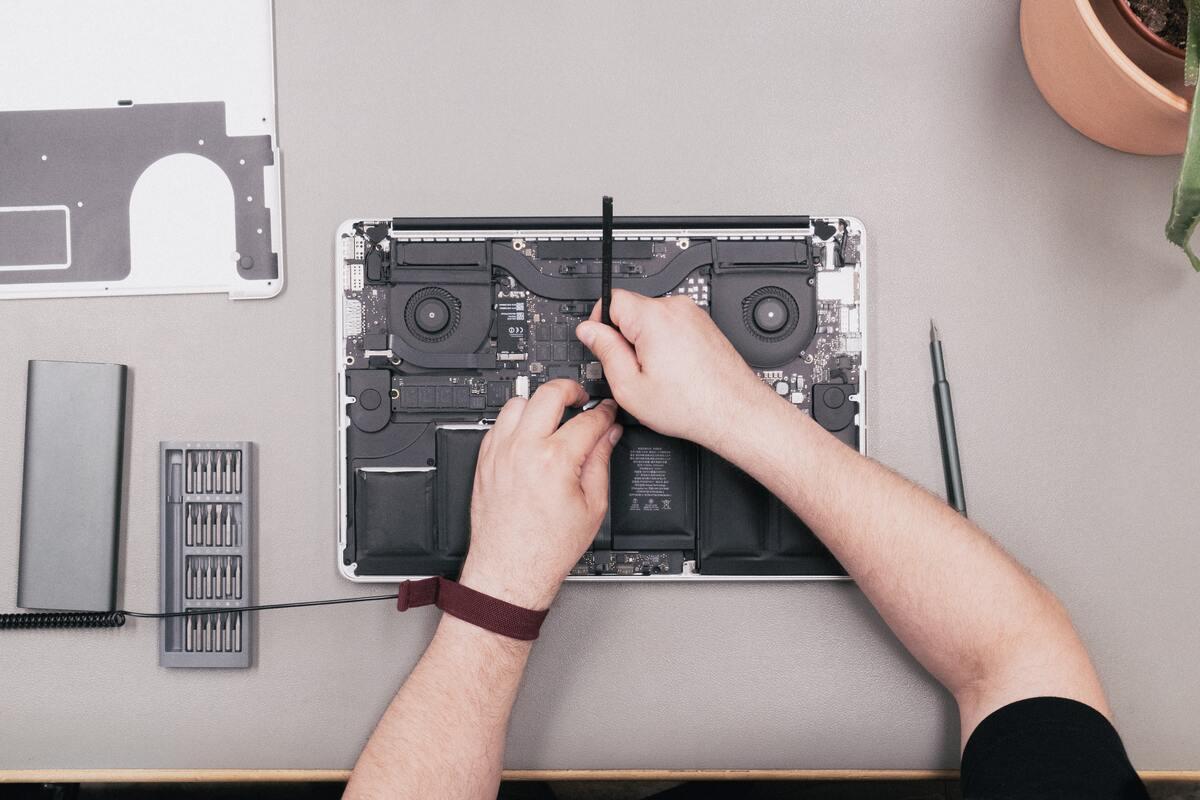
Beyond understanding the hardware components, it's crucial to recognize that a computer requires regular maintenance. With use, dust accumulates inside the tower, clogging the vents and fins of the heatsinks, and filling the fans with dirt, which drastically reduces the system's cooling capacityThat's why you should learn to optimize the airflow of your PC.
When this happens, the components operate at higher temperatures, the fans are forced to spin faster, and the equipment starts to become louder than normal. If this situation persists for a long time, the excessive heat can cause crashes, unexpected shutdowns, or even permanently damage the CPU, graphics card, or power supply.
Therefore, it's a good idea to periodically turn off your PC, unplug it, and open the case for a thorough cleaning. Using compressed air, anti-static brushes, and a little patience, you can remove dust and lint from the... fans, grilles, filters, heatsinks and critical areas of the motherboard.
It's also a good idea to check the condition of the thermal paste between the CPU and its heatsink, make sure all the fans are spinning without any unusual noises, and check the internal cables. They do not obstruct the airflow from the front fans to the rear and top of the case..
With these precautions, along with a good choice of balanced components (microprocessor, RAM, graphics card, hard drive and motherboard — see our guide to budget PC gaming), this ensures that the computer remains quiet, cool, and performs stably for many more years, avoiding the typical situation of fitting a "luxury engine" into a poor chassis that limits the whole package.
By understanding how information is stored and transmitted in bits and bytes, the roles of the CPU, RAM, motherboard, buses, disk drives, and peripherals, and assuming regular maintenance such as cleaning and ventilation, it becomes much easier to make sound decisions when assembling, upgrading, or maintaining a PC, thus achieving a balanced, reliable piece of equipment with a much longer lifespan.