- Updating the BIOS is key to enabling support for new processors and fixing system stability issues.
- It is essential to identify the exact model of the motherboard and download the firmware from the manufacturer's official website.
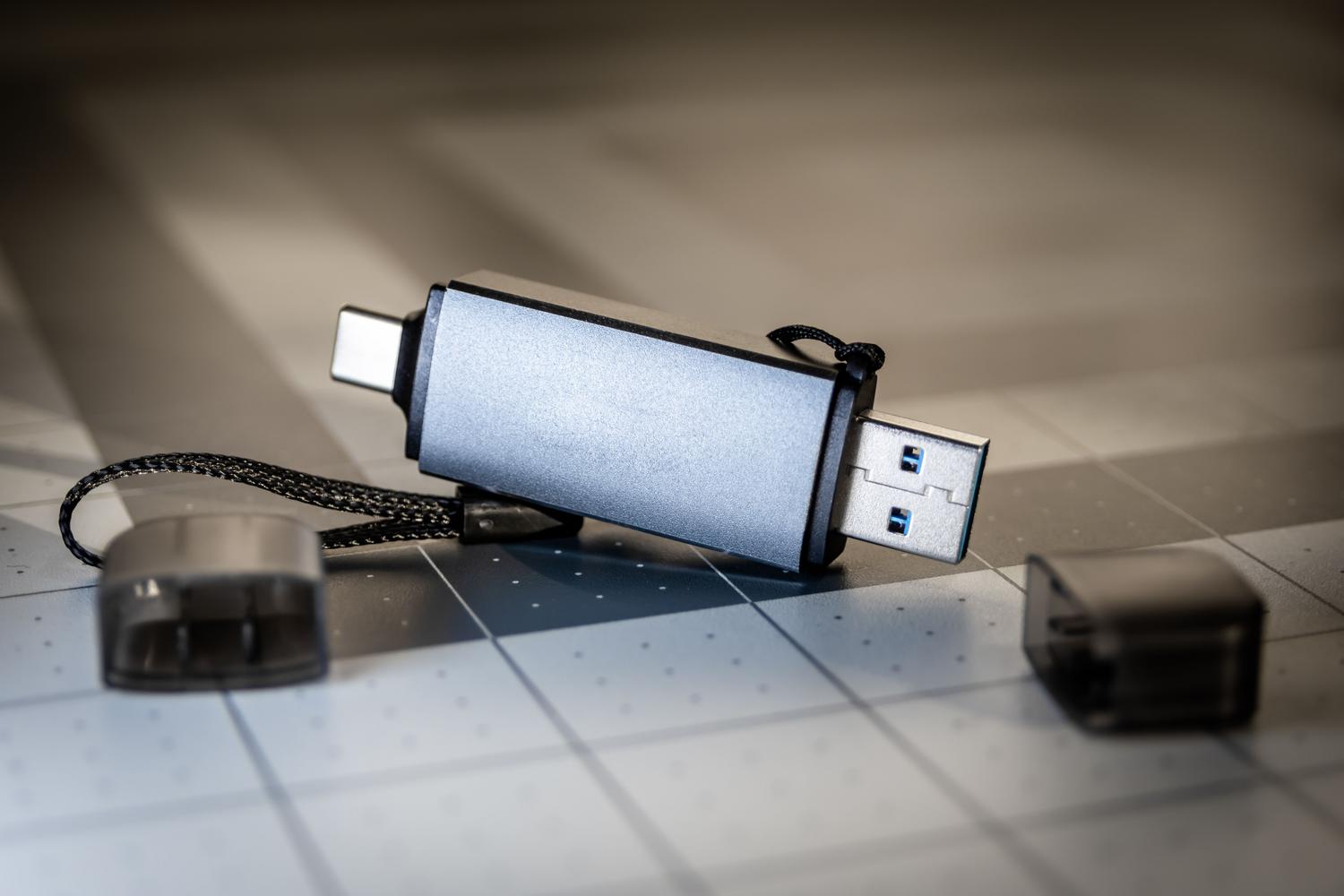
- The process requires the use of a USB device formatted in FAT32 and access to the flashing utility specific to each brand.
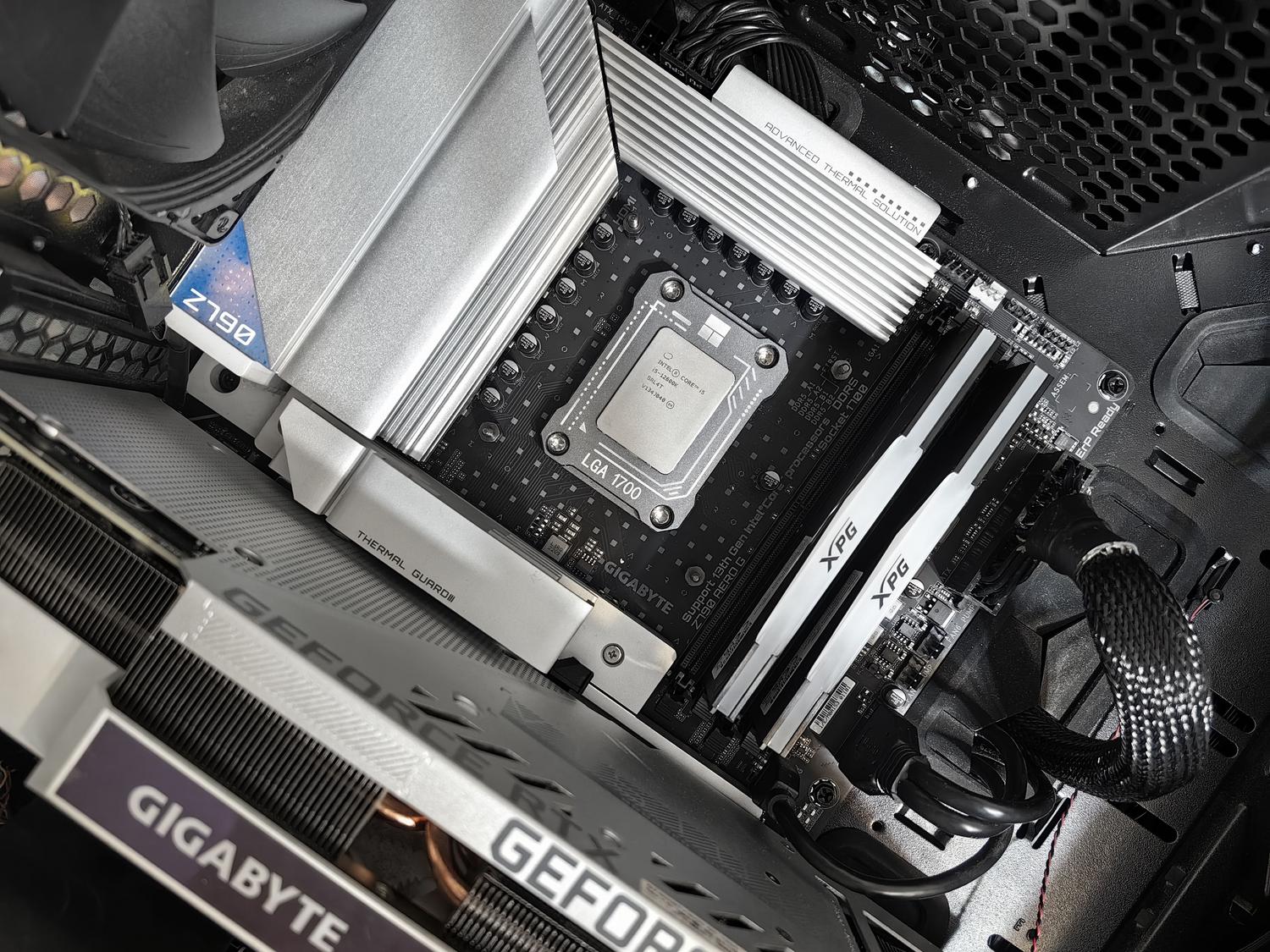
When we build a PC or buy a pre-built one, we usually focus on the graphics card's power or the processor's speed, but there's an invisible element pulling the strings from the very first second: the BIOS. This firmware, which acts as the first program to run when the power button is pressed, is responsible for starting up all the hardware and handing it over to the operating system so we can start working or playing.
Sometimes, you might wonder if it's really worth going through the hassle of updating it. While it can be a bit daunting, keeping the BIOS up to date is essential for the components to communicate with each other, especially when you want to use a new processor or fix those annoying errors that cause the computer to freeze for no apparent reason.
What is the real purpose of updating the BIOS?
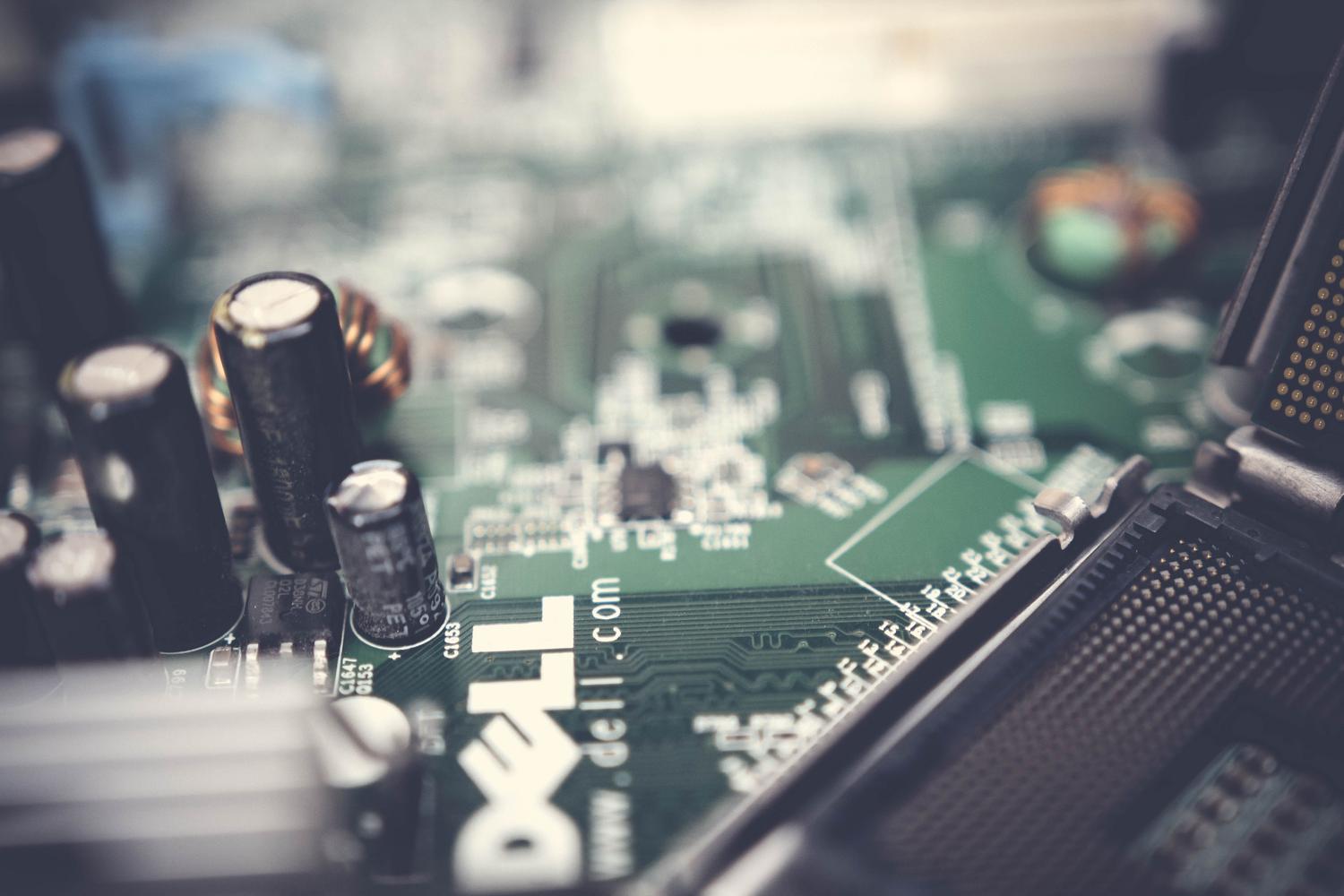
It's not about updating for the sake of updating, but about seeking a tangible improvement. One of the most compelling reasons is compatibility with recent hardware , something very common in AM4 socket motherboards for Ryzen, where an older BIOS version might not recognize a modern CPU. Furthermore, manufacturers release patches to fix stability issues and optimize overall system performance.
There are also critical security reasons. Sometimes, vulnerabilities are discovered in the chipset that can only be patched with a firmware update. Additionally, some newer versions unlock specific features or improve power and RAM management, making the PC run a bit faster.
Before you go: Essential preparations
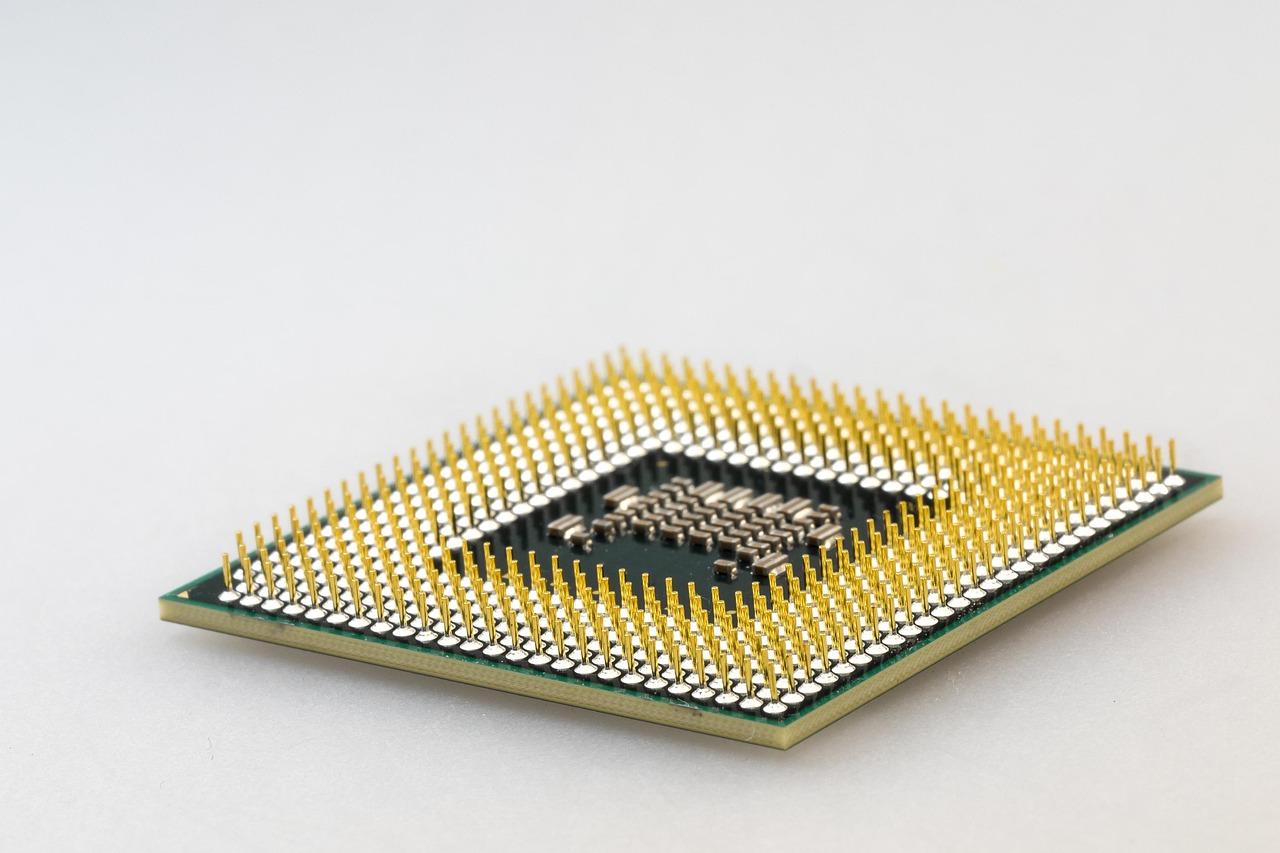
Before touching anything, it's vital to know exactly what you're dealing with. You can't install the firmware of one motherboard on a different one. To identify your model, you can use the CPU-Z tool or type "msinfo" in the Windows search bar to open System Information. There you'll see the exact model of your motherboard and the date of your currently installed BIOS version.
Once you've identified your motherboard model, go to the manufacturer's official website (such as ASUS, MSI, Gigabyte, or ASRock) and find the support section. It's crucial to download the specific file for your motherboard revision, as sometimes a single number or letter in the model name completely changes the required file. The file is usually small, generally less than 10MB, and comes compressed in ZIP format.
Step-by-step guide to performing the update
- USB preparation: You will need a USB drive formatted preferably in FAT32Unzip the downloaded file and copy the firmware to the root of the USB drive. On some specific models, the manufacturer will ask you to rename the file for the system to recognize it.
- Access to the settings menu: Restart your computer and repeatedly press the access key (usually F2, Delete, or F12) before Windows loads. This will take you to the UEFI/BIOS interface.
- Searching for the flashing utility: Each brand has its own name for this tool. At ASUS you'll find EZ Flash UtilityIn Gigabyte it's called Q-Flash, in MSI it's M-Flash, and in ASRock it's Instant Flash. You need to go to this section and locate the file on your USB drive.
- Process execution: Once you've selected the file, confirm that you want to start the update. This is the most critical moment: You can't turn off the PC Do not disconnect the USB under any circumstances, as this could render the motherboard unusable.
Alternatives and solutions to common problems
Not all motherboards update in the same way. Some high-end models include the USB BIOS FlashBack feature , which allows you to update the firmware even if you don't have the processor installed or if the computer won't boot, simply by connecting the USB drive to a specific port and pressing a physical button on the motherboard.
If after updating you notice that your PC won't boot or the screen remains black, don't panic. A common solution is to clear the CMOS (reset the BIOS to factory settings) by removing the motherboard battery for a few seconds. If the process freezes, it's recommended to wait about 5 minutes before attempting any technical action or contacting official support.
Regarding the frequency of updates, it is not necessary to go through all the intermediate versions; generally, it is enough to jump directly to the latest available version, unless the manufacturer's notes indicate that there is a mandatory bridging version.
Keeping your motherboard firmware up to date ensures that your hardware works seamlessly, resolves compatibility issues with modern CPUs, and closes security vulnerabilities. While it's a simple process if you follow the steps of identifying your model, downloading the correct file, and using a FAT32 formatted USB drive, it's wise to do it only when necessary or when the manufacturer explicitly recommends it to avoid unnecessary risks.