- System instability and crashes in VR applications can result from excessive frequency adjustments.
- Windows management software can override clock settings previously set in the BIOS.
- The presence of errors in RAM memory and Q-LED warnings are usually linked to aggressive auto-overclocking.
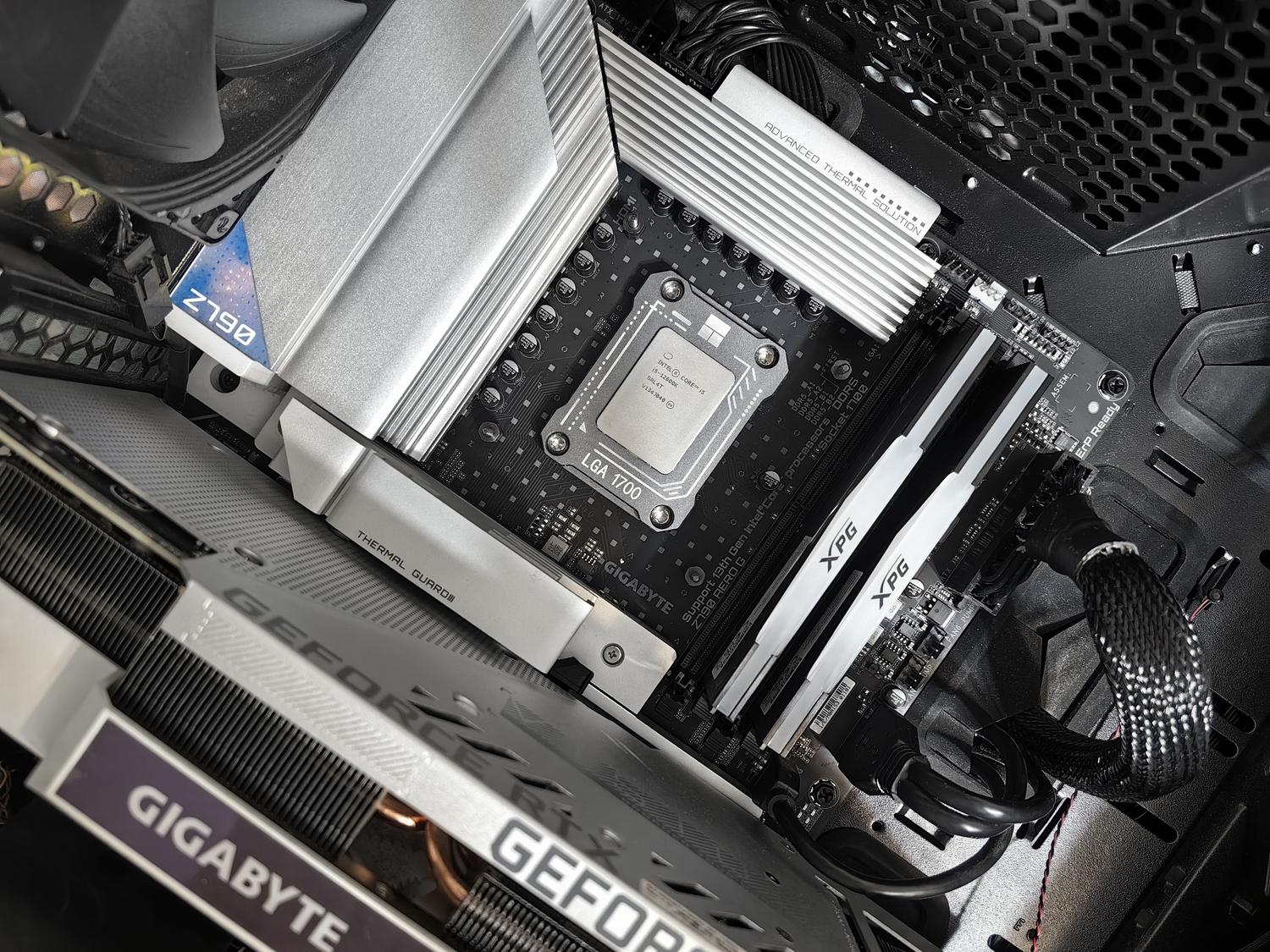
If you suddenly notice your computer freezing, especially when you're pushing it with demanding applications like Steam VR Home or Dragon VR , it's very likely you're experiencing the side effects of an overworked processor. When a system with powerful components, such as a Ryzen 9 5950x on an X470 Aorus Ultra Gaming motherboard, starts to show stability issues, the first thing to do is reverse the overclocking to ensure the system doesn't crash.
The problem is that sometimes it's not as simple as just changing a setting. Some users find that even after restoring factory settings in the BIOS, the system behaves erratically. This happens because certain software tools can override the motherboard's configuration, causing the processor to continue running at higher frequencies than desired, which can lead to crashes or complete system freezes .
The conflict between the BIOS and Windows software
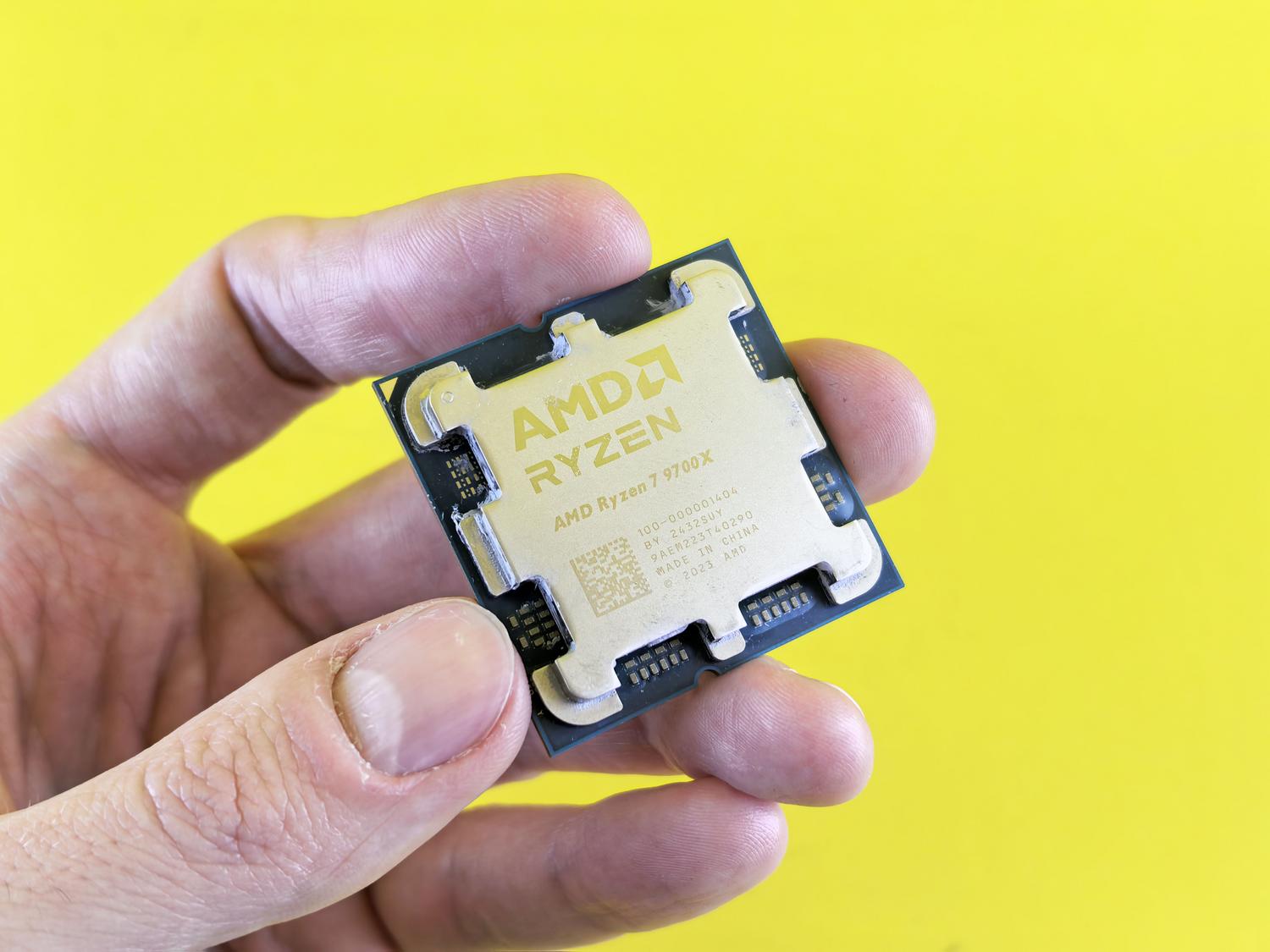
One of the biggest headaches is so-called automatic overclocking . It turns out that some tools installed in Windows 10 can completely ignore your BIOS settings. For example, if you try to limit your CPU to a specific frequency, such as 3600 MHz, but the system keeps going up to 3700 or 3900 MHz, it's a sign that a software process is interfering with the processor's clock.
To try and fix this, many people resort to cleaning their system. It's recommended to use deep cleaning tools to remove any traces of AMD Ryzen Master or motherboard management software like AiSuite. Sometimes, even after reinstalling the latest version of Ryzen Master, the application resists applying the changes, and after restarting, the frequency remains high despite having requested a decrease.
Warning signs: Q-LED and RAM memory failures
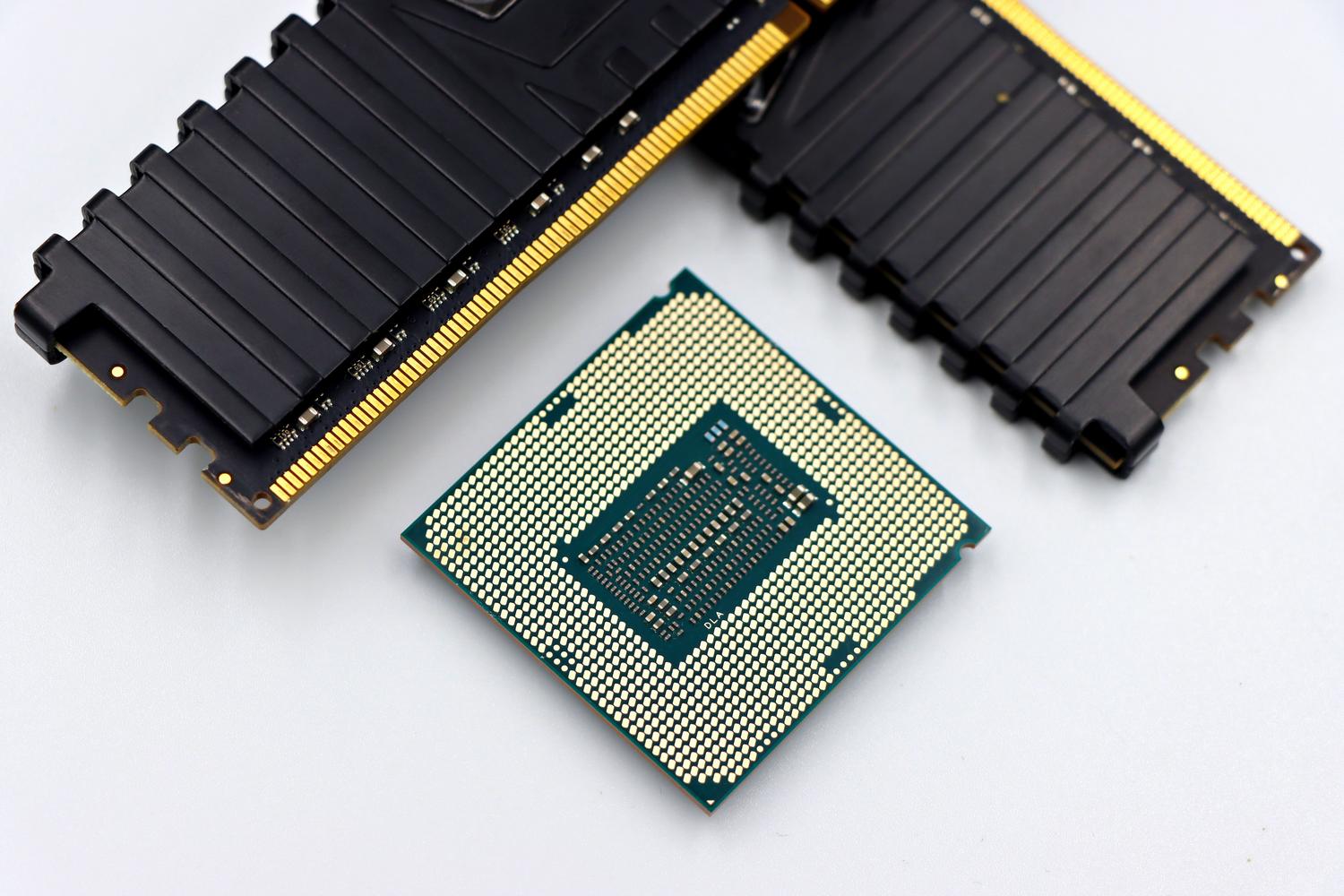
It's not always obvious that the problem is the CPU. Sometimes, auto-overclocking triggers a domino effect that affects other components. A very clear symptom is when the RAM modules start to fail , causing the PC to freeze once a week or at irregular intervals. In these cases, it's common to see the screen go black while the yellow Q-LED on the motherboard starts flashing , indicating a critical hardware problem related to the memory or the processor.
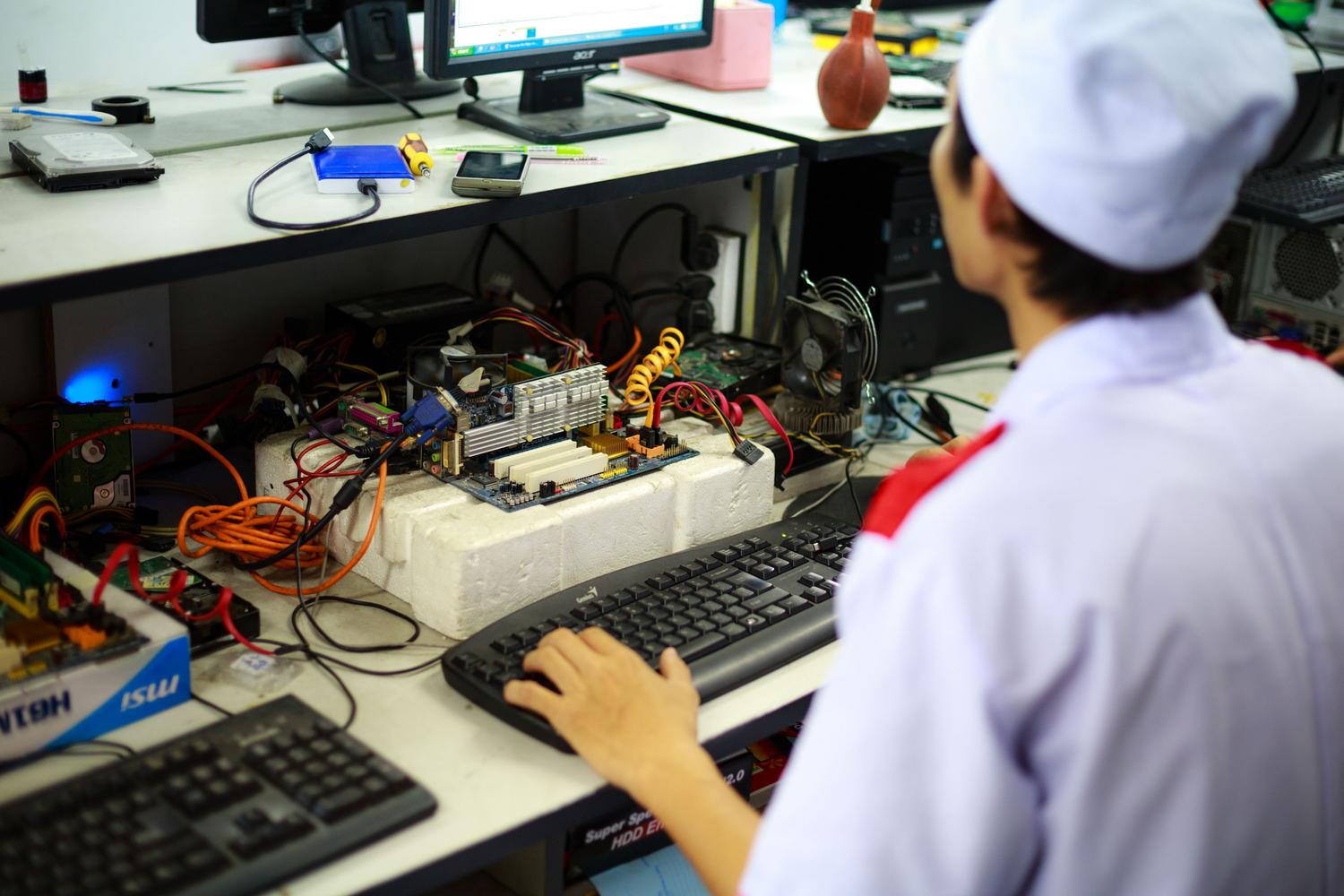
- BIOS revision: Trying to downgrade to earlier versions (such as 1001) may be an option, although it doesn't always solve the problem if it lies within the Windows software.
- Driver cleaning: It is essential to delete any overclocking utilities that may be running in the background.
- Frequency settings: Ensure that all cores operate at a stable, predetermined speed to avoid voltage spikes.
When hardware is pushed beyond its limits, stability suffers and these annoying errors appear. To regain peace of mind, it's vital to ensure that the maximum frequency doesn't exceed recommended limits and that no hidden programs are stressing the processor. Ultimately, the most important thing is to ensure the system is robust and doesn't crash mid-game or work session by eliminating any manual or automatic settings that might be compromising the health of the RAM and CPU.