- Advertising in HyperOS and MIUI comes from services like msa and multiple system apps with recommendations enabled by default.
- Disabling MSA, ad personalization, and recommendations in Security, Downloads, Music, Themes, and other apps drastically reduces advertising.
- Using private DNS like AdGuard helps block more ads and trackers without needing root access or complex external applications.
- Removing bloatware and limiting GetApps improves the overall performance of the Xiaomi and further reduces the appearance of annoying ads and notifications.

If you have a Xiaomi, Redmi or POCO phone with MIUI or HyperOS, you've probably encountered ads on the screen at some point. lock screen, system apps, notifications, or while installing appsYou're not alone: in-system advertising is part of the brand's business model, but luckily it can be significantly reduced.
In this comprehensive guide you will learn how to Remove virtually all ads in HyperOS and MIUI step by stepFrom the dreaded MSA service to recommendations in apps like Security, Downloads, Music, Themes, or even the launcher itself. You'll also see how to use private DNS services like AdGuard to block more ads and trackers without too much hassle.
Why do ads appear in HyperOS and MIUI?
Xiaomi maintains very aggressive prices thanks to the fact that It supplements its revenue with advertising integrated into the personalization layer.This first appeared in MIUI and is now also present in HyperOS (including HyperOS 2). This means that many system features display "recommendations," banners, or app suggestions.
This strategy means that You can see ads in many different places.From the lock screen wallpaper carousel to notifications, including the application installer or native apps such as Security, Downloads, Music, Mi Browser, Themes, Gallery or the video player.
It is important to be clear that, at least as of today, there is no A magic button that instantly turns off all advertising in HyperOS or MIUI.What you can do is disable services and recommendations one by one, as well as use tools like private DNS to block a large portion of the ads at the network level.
Another detail to keep in mind is that The number of ads varies depending on the country, phone model, and system version.On some Xiaomi phones you'll hardly see any ads, and on others they can be very intrusive, especially when you first get the phone if you don't change any settings.
MSA and MIUI System Ads: the core of advertising on Xiaomi
The first step to regaining some peace is stifle the system's advertising service, known as msa (Mobile System Ads or MIUI System Ads)It can't be uninstalled like any other app, but its capabilities can be restricted: notifications and special permissions.
This service is responsible for the fact that promotional notifications and recommendations appear in different parts of the systemAlthough it's dormant in some markets, Xiaomi can activate it whenever it decides, which is why it's so important to have it properly set up from the start.
To limit MSA from the applications section you need to Go into system settings and show all apps, including pre-installed onesOnce there, you will locate msa, you can access its profile and disable notifications so that it stops sending you advertising messages.
The second blow comes from the HyperOS/MIUI special permissions menu, where the section for “Authorization and Revocation”Within this list appear internal components that the system gives free rein to, including msa and, depending on the version, also MIUI Daemon.
The trick is to revoke authorization for msa (and MIUI Daemon, if it appears)so that you minimize the collection of ad-oriented data and lower the level of telemetry, while still being able to use your mobile phone normally.
Where are ads displayed in HyperOS 2 and MIUI?
With HyperOS 2, Xiaomi has polished the interface and fluidity, but Advertising hasn't disappeared completely, it's just become better disguisedMost ads still appear in the form of recommendations or suggested content within system apps.
The most common areas where you'll find advertising on a modern Xiaomi are the following, and in all of them you can act from the settings specific to each application to trim ads:
- System applications such as Security, File Explorer, Downloads, Gallery, Music, My Browser, Themes, Video, App Vault, or even the Themes app itself.
- System notificationsespecially those that arrive through the msa service and GetApps (Xiaomi's own store, different from Google Play).
- App installation and analysis processwhere the security analyzer often sneaks in banners or suggestions every time you install or update something.
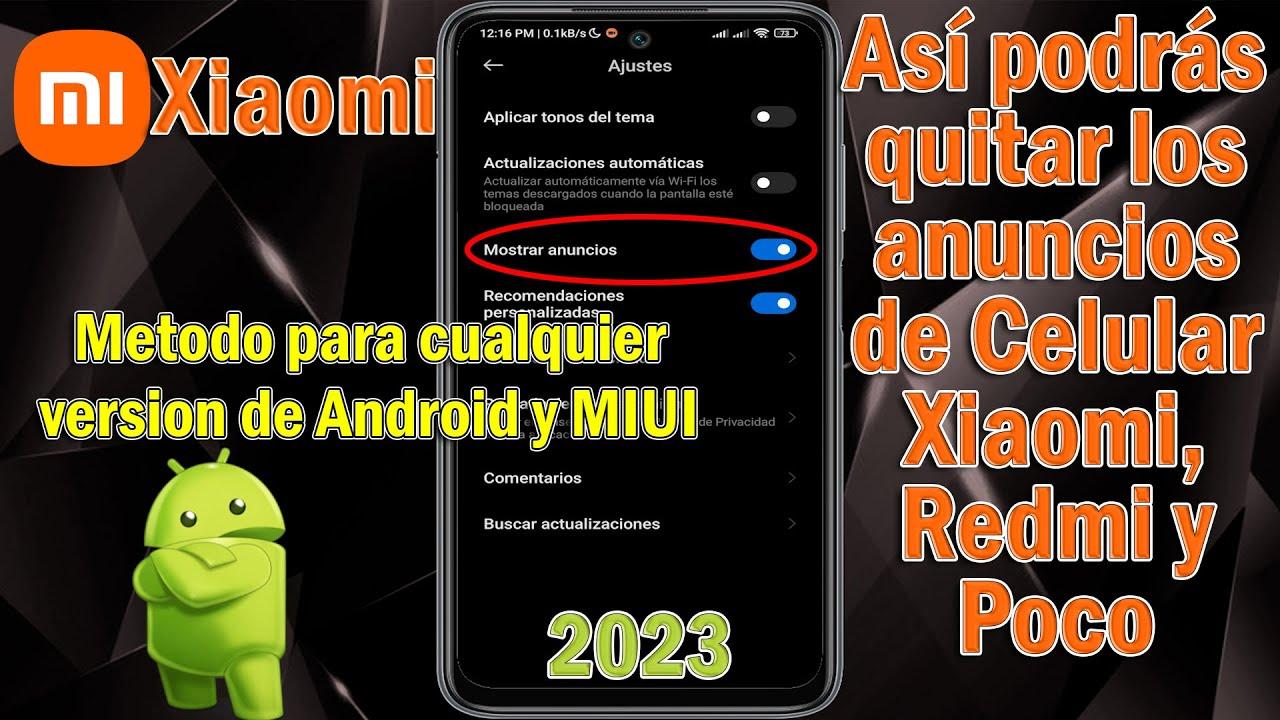
Although the brand has not implemented a master switch that disables all of this at once, Yes, it allows you to manually disable "Recommendations" or "Show ads" in almost all affected apps.It takes a few minutes to do, but the difference is very noticeable.
Configure private DNS to block ads and trackers
Besides playing with the internal settings of HyperOS and MIUI, you can take it a step further by using a Private DNS specializing in blocking ads and trackingOne of the best known is AdGuard DNS, which filters a large part of the connections to ad servers.
The private DNS system works at the system level, so This affects ads from Xiaomi apps as well as those from many third-party apps.It's not a perfect solution, but it is one of the most effective without needing to root your device or install complicated apps.
To configure it on your Xiaomi, you need to go into the network settings, then to the section on Connectivity and sharing (or More connectivity options) and look for the private DNS option. Once inside, select that you want to use a provider by hostname.
In the text field you must enter the AdGuard address, for example dns.adguard.com or dns.adguard-dns.comDepending on which one you prefer to use. Save the changes, exit the menu, and from that moment on, some of the advertising will be blocked directly at the DNS resolution level.
If you register on the AdGuard website you can even create a custom DNS configuration to further fine-tune the blockingby choosing what type of content you want to filter or by adding additional blocklists.
Disable personalized ads and advertising services
Beyond the announcements themselves, HyperOS and MIUI feature an advertising personalization system that uses your data to tailor advertising to your interests. If you don't want to be profiled in this way, you can disable this option in your privacy settings.
In the latest versions of the layer, the usual route involves going to Fingerprints, facial data and screen lock, and then enter the Privacy sectionYou can also type "ads" in the internal settings search bar and access it directly.
Once inside the advertising section you will see options such as “Personalized ads and services”, “Advertising privacy”, “Ad topics”, “App-suggested ads” or “Ad measurement”They are all designed to adapt advertising to your mobile usage.
If you turn off all those switches, you'll ensure that, although some recommendations will still appear, They shouldn't be so personalized or based so much on your usage history.It's a good way to improve your privacy and reduce the feeling that your phone is "spying" on you.
Some models also include a specific entry called “Advertising services”There you can turn off both personalized ads and the use of an internal advertising identifier. If you have it, it's worth checking that everything is unchecked.
Remove ads from Xiaomi system apps
Once MSA and the ad personalization aspect are under control, it's time to attack the System applications that display banners, game suggestions, or recommended contentThe good news is that almost all of them have a specific setting to turn them off.
The pattern usually repeats itself: you must Open the app in question, go to its settings menu (gear icon or three dots) and look for options such as “Receive recommendations”, “Show ads” or “Show recommended content”Turn off anything that sounds like advertising.
Let's look at the most important ones one by one so you don't miss any, both in MIUI and in HyperOS 1 and HyperOS 2, where the names of the menus may vary slightly, but the idea is the same.
File explorer and download manager
Xiaomi's File Explorer and Downloads app usually show banners and app recommendations upon openingThis is quite annoying when you just want to manage your documents or what you're downloading.
In the browser, the first thing to do is open the application and tap the icon of Press the gear icon at the top to enter its settingsInside you will find a switch called "Receive recommendations" or similar, which you must uncheck to make the ads disappear.
In the case of Downloads, when you enter the app you will see it in the upper right corner the three vertical dots menuFrom there you access Settings and uncheck the "Show recommended content" box, which will make the ad blocks disappear.
Security application and app analyzer
The Security app is one of the nerve centers of HyperOS and MIUI, since It is responsible for checking system status, battery usage, permissions, and application analysis.And, of course, it's also a place where Xiaomi takes the opportunity to place advertisements.
Every time you install or update an app, your phone performs a security scan where Take this opportunity to display an advertisement or recommendation.To disable it, you have to go to Security, click on the gear icon in the upper right corner and look for the "Receive recommendations" option.
By unchecking that box, the analyzer will stop showing you ads during checks. If you want to go even further, you can enter the section “Security analysis” within these settings and remove the “Scan before installing” option, although that implies sacrificing an additional layer of protection.
Music, Video and other multimedia apps
Xiaomi's multimedia applications, such as the Music player or video appThey also include content recommendations, ads, and persistent notifications that, if you don't use them much, end up being a nuisance.
In the Music app, the usual way is to go to your profile (icon in one of the corners) and access the menu of Settings, then Advanced SettingsInside you will see an option usually called "Show ads" or "Get recommendations"; disable it to stop the ads from appearing.
In some models you will also see a type switch “Allow persistent notifications”which keeps a constant notification in the status bar. If you don't want to see that all day, it's also a good idea to turn it off.
In the Xiaomi video player, the process is similar: you enter the app, access your profile, tap the settings icon (the gear) and uncheck the “Personalized Recommendations” boxThat should get rid of almost all the ads that appear when you open videos.
Themes, App Vault, and Launcher
The Themes app is another major player in advertising, since It showcases banners, sponsored collections, and design recommendations. Everywhere. If you're interested in customizing your phone but don't want so many ads, you can reduce their presence.
Open Themes, access your profile by tapping the account icon, and tap on the Press the gear icon at the top to enter SettingsInside, you'll see two key interrupts: "Show ads" and "Personalized recommendations." Ideally, you should disable both to clean up the app as much as possible.
The Application Vault (the quick access panel and cards on the left of the desktop, if you have it enabled) also often gets in the way. suggestions for apps and promotions that offer little valueTo turn them off, enter the vault, press the three-dot menu and select “Manage services”.
Inside you'll see options like "App suggestions" and "Promotion": Turn off both of them so that this panel stops showing you sponsored content. and stay cleaner, with only shortcuts and tools that you actually use.
Finally, the Xiaomi home launcher may include App or game suggestions on the desktop or in the app drawerTo disable them, press and hold an empty space on the home screen, go to Launcher Settings, go to the "More" section if there is one, and uncheck "Show suggestions".
Remove bloatware and control GetApps
Besides the straightforward advertising, many Xiaomi devices come with pre-installed third-party applications (bloatware) such as Netflix, Amazon, and similar that you don't really need and that, in some cases, may also show you advertising or consume resources.
The initial recommendation is that, if you don't use them, Uninstall all third-party apps that come pre-installed and don't add any value to your life.If you miss them in the future, you can always reinstall them from Google Play as normal.
Once this is done, it's worth checking out GetApps, which is the Xiaomi's own app store and another potential source of notifications and recommendationsAlthough it cannot always be uninstalled, its permissions can be restricted to make it less intrusive.
A useful trick is to go into Settings, look for GetApps in the list of applications, erase all your data to leave it "like new" and clear cache and then go back to the “Authorization and Revocation” menu to also disable its entry, if it appears in the list.
With that combination (uninstalling bloatware, resetting GetApps and revoking its special permissions) the phone It's much lighter, with fewer background processes and fewer notifications from apps you don't even use.Everything adds up to achieve a cleaner HyperOS or MIUI.
Additional adjustments to refine the HyperOS experience
HyperOS boasts being a very fluid system even on basic phones, and reducing advertising helps even more to make it so. The phone runs fast, smoothly, and without unnecessary background tasksIn addition to all of the above, there are some extra settings worth reviewing.
On the one hand, it helps a lot to take a look at notifications from each application from the general settings menuSome system apps have notification channels dedicated solely to promotions or recommendations that you can mute one by one without missing important alerts.
On the other hand, in models with HyperOS 2 the change is quite noticeable after cutting MSA, personalized ads, app recommendations and suggested content: The system feels lighter and less burdened with things you didn't ask for., which improves both speed and the feeling of order.
In any case, it's a good idea to review these settings from time to time because Each new major update to HyperOS or MIUI may reactivate some advertising option.A quick check after updating will save you from surprises in the form of banners or strange notifications.
After applying all these changes, it is normal that Advertising on your Xiaomi device will be reduced to a minimum.The odd ad might still slip through, but you'll leave behind the feeling of using a phone plastered with banners and suggestions everywhere.
The result of spending a few minutes properly configuring advertising, ad services, private DNS, system apps, and bloatware is a Xiaomi, Redmi, or POCO. much more pleasant to use, faster, and with somewhat better privacy protection., coming quite close to the experience of an Android without a heavy-duty skin.
Those who take the time to adjust HyperOS or MIUI following these steps usually notice that their mobile phone changes completely: Fewer distractions, fewer pointless notifications, fewer banners in basic apps, and a greater sense of control over the device.It's a small initial effort that pays off for as long as you have the phone.