- Dragon City allows you to build and manage a dragon city with over 1000 different creatures.
- Playing on PC enhances the experience thanks to the large screen, better performance, and mouse and keyboard controls.
- Emulators like BlueStacks, MuMu Player, and LDPlayer make it easy to run Dragon City Mobile on a computer.
- It is also possible to play from the Microsoft Store or a browser, maintaining progress and social features.

If you're wondering how to play Dragon City on PC and overcome the limitations of the mobile version, you've come to the right place. In this article, you'll discover all the available ways to enjoy Dragon City on your computer , both with Android emulators and the Windows version, as well as plenty of tips and tricks to get the most out of it.
Dragon City is one of those games that hooks you with its blend of simulation, collecting, and combat, and playing it on a computer multiplies the convenience: a larger screen, better performance, mouse and keyboard controls , and no battery worries. Let's take a clear, step-by-step look at all the real options you have for playing it on PC and how to get the most out of your dragon city.
What is Dragon City and why is it worth playing on PC?
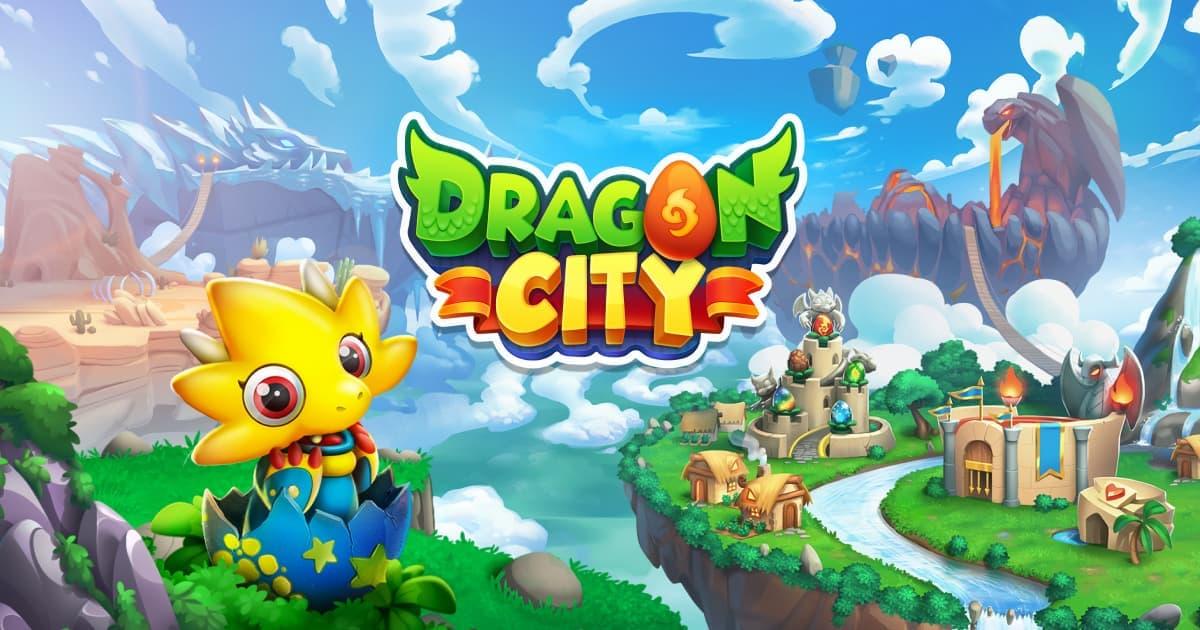
Dragon City is a social networking simulation game where you build and manage a city teeming with dragons on floating islands. Your mission is to raise, feed, train, and collect all sorts of creatures, then test them in battles against other players and in various challenges.
Instead of a typical farm, in Dragon City you build a veritable dragon metropolis on islands in the sky , filled with farms, habitats, special buildings, and advanced structures that you unlock as you progress. Every decision about where to place buildings or which dragons to raise affects your development.
There are currently over 1000 different dragons , with combinations of elements like fire, nature, pure, legend, and many others. The fun of the game lies in experimenting with crossbreeding, completing the Book of Dragons, and obtaining unique hybrids that then become the foundation of your battle team.
Playing on a PC has several clear advantages: seeing the city in greater detail on a large monitor, managing menus and collections more easily with the mouse, and avoiding the lag and battery issues typical of mobile devices . Furthermore, with an emulator you can open multiple instances or accounts simultaneously, something unthinkable on many mobile devices.
Options for playing Dragon City on PC
Today, you have several legitimate ways to enjoy Dragon City on your computer. Some rely on Android emulators that run the mobile game on your PC , while others involve using versions adapted for Windows or even your web browser. Let's take a look at the main ones.
The most common way is to use emulators like BlueStacks, MuMu Player, or LDPlayer, which allow you to install the Dragon City Mobile app directly from Google Play within the emulator itself. It works similarly to an Android phone , but with all the resources of your computer.
There are also options to play directly from your browser using services that run Dragon City Mobile in the cloud, so you don't need to install anything large on your PC . Simply log in and start playing, provided you have a good internet connection.
In addition, Dragon City is available on the Microsoft Store, making it easy for many Windows users to download it directly as a system application without having to deal with advanced settings.
Play Dragon City on PC with BlueStacks
One of the best-known solutions for playing Dragon City Mobile on PC is BlueStacks. This emulator transforms your computer into a kind of "magic box" capable of running Android games with more powerful graphics and more precise controls than many phones.
With BlueStacks, when you launch Dragon City Mobile on your device, you'll have a much larger play area , where the entire city, habitats, farms, and menus are clearly visible. This extra space makes a huge difference when managing many dragons and buildings.
Another important advantage is the control. Instead of relying solely on the touchscreen, BlueStacks lets you play using a mouse and keyboard . You can configure shortcuts, quick presses, and more precise movements, which is especially useful when navigating menus or performing repetitive actions.
Furthermore, the emulator typically offers additional features such as multi-window support, game recording, and key mapping, allowing you to customize your Dragon City experience on PC to your liking. All of this contributes to a generally more stable performance compared to many low-end mobile devices.
Play Dragon City in your PC browser
Another option offered by some services is the ability to launch Dragon City Mobile directly from your computer or mobile browser , without downloading or installing the game. In this case, the provider runs the game on its servers and streams it to you.
The key benefit of this mode is that you don't need to use disk space or configure emulators . You just click, wait a few seconds, and you're inside your dragon city, ready to manage, fight, breed, and keep progressing.
This type of service is usually very useful for those who don't want to complicate things or have computers with limited storage capacity . You only need a compatible browser and a stable connection; the remote infrastructure does the rest of the heavy lifting.
Keep in mind that, although you can play without installation, you are still using the mobile version of Dragon City, so your account, progress, and purchases remain synchronized with what you have already done on your phone or tablet.
Play Dragon City on PC with MuMu Player
MuMu Player is another Android emulator for PC designed to deliver smooth performance with demanding games like Dragon City. Its goal is to let you enjoy the game with good graphics, customizable controls , and no technical hassles.
Dragon City is a game heavily focused on progression and collection, so a stable experience is key. With MuMu Player, you can build your island, erect buildings, manage habitats, and train dragons with responsive controls well-suited to the mouse —something that's especially noticeable during long sessions.
One of the emulator's attractions is that it works as a kind of complete assistant for mobile games on PC: you can configure your own control system , adjust the resolution and performance according to the power of your computer, and access support if any startup problems arise.
In fact, the MuMu developers indicate that if the emulator gets stuck on startup (for example, at 10%, 30%, 45%, or 99%), it's advisable to follow their troubleshooting tutorial and, if that doesn't fix the problem, contact them via Messenger for personalized assistance . This demonstrates that there is active support available to resolve issues.
Steps to download Dragon City on PC using MuMu Player
For those who prefer a step-by-step guide, the general process with MuMu Player boils down to a few logical steps that any user can follow without too much difficulty. The idea is that, in just a few minutes, you'll have Dragon City fully operational on your computer.
First, you need to download the MuMu Player installer from its official website. It's important to make sure you download it from the correct page to avoid modified or unsafe versions of the emulator that could compromise your computer.
Once you've downloaded the file, simply run it and follow the installation wizard. In just a few clicks, you'll have MuMu Player installed on your PC . When you open it for the first time, the program will take a moment to finish preparing the internal Android environment.
The next step is to log in to the Google Play Store from within the emulator. Use your usual Google account, the same one you use on your phone, if you want to keep your progress synced and your purchases recognized in Dragon City.
Once logged in, search for “Dragon City” in the store and tap install. When the download is complete, you'll see the game icon on the MuMu Player desktop: simply click it to launch Dragon City on your PC and start playing as if you were on an Android device.
Advantages of playing with MuMu Player
MuMu Player stands out for its attempt to offer an experience as close as possible to that of a dedicated mobile gaming device, but within the PC. By playing Dragon City in this environment, you can make better use of your computer's resources and take advantage of some extra features.
Among the most notable advantages are the ability to adjust the graphics quality, resolution, and CPU and memory usage, so you can find the ideal balance between performance and visual quality in Dragon City according to your hardware.
Customizing the control scheme is also important. If you wish, you can map frequent actions (such as navigating menus, opening specific sections, or activating skills) to specific keys, reducing the time you spend dragging the mouse and streamlining the management of your city.
Finally, MuMu Player notes that after completing a few setup steps, you'll be able to enjoy Dragon City on PC with improved controls, powerful graphics, and more stable performance , making it easier to compete in leagues, beat events, and keep expanding your collection without constant lag.
Play Dragon City on PC with LDPlayer
LDPlayer is another very popular Android emulator among PC gamers. It's especially geared towards mobile action and strategy titles, but it also works very well with simulation games like Dragon City Mobile , where you spend many hours managing resources and collecting creatures.
When using Dragon City Mobile with LDPlayer, all content appears on a large screen with good clarity , which greatly helps in locating buildings, checking habitats, or consulting dragon statistics without straining your eyes, especially during long sessions.
As for controls, LDPlayer allows you to play the game with the mouse and keyboard instead of relying on the touchscreen. Thanks to this, actions are usually faster and more precise , and errors from missed touches or small areas of the interface that are awkward to access on mobile are reduced.
Another advantage is that when playing on a PC, you no longer have to worry about your phone or tablet's battery life. Dragon City can stay open while you do other things on your computer, without fear of running out of battery at the worst possible moment or your device overheating.
Advanced features of LDPlayer for Dragon City
LDPlayer includes a number of features designed for users who want to take things a step further. One of the most interesting is the ability to open multiple instances of the emulator and synchronize them, making it easier to manage several accounts or applications simultaneously.
With this multi-opening and synchronization feature, you can, for example, have two Dragon City instances open at the same time , or use another instance to chat, review guides, or manage support tools. All from the same computer.
LDPlayer also offers a file transfer tool that makes it easy to move images, videos, and documents between your PC and the virtual Android environment . This can be useful if you want to share screenshots of your dragons or save game-related content.
Overall, LDPlayer's goal is to let you download Dragon City Mobile, run it on your PC, and enjoy high-quality visuals on a larger screen , taking full advantage of the hardware's power and the possibilities of a desktop environment.
Dragon City in the Microsoft Store and Windows ecosystem
Dragon City is also available through the Microsoft Store for Windows , which greatly simplifies the process for those who prefer not to use emulators or external setups. You can search for the game directly from the official Microsoft Store and add it to your library with just a few clicks.
Being listed in the Microsoft Store means that Dragon City integrates better with the operating system, receiving updates centrally and ensuring a minimum level of compatibility with different versions of Windows, which is important if you don't want to get bogged down with technical adjustments.
By running the game from this environment, you still enjoy all the features of Dragon City: island building, combat, events, dragon breeding, and social connection with other players, but taking advantage of the convenience of a traditional PC.
Combining this version with the options offered by emulators and browsers greatly expands the possibilities: you can choose the mode that best suits your equipment, your connection and your way of playing, without giving up the content or the constant updates that the game receives.
How to play Dragon City: building, breeding and combat
Beyond the platforms, it's worth reviewing how to play Dragon City to get the most out of its systems. The core of the experience lies in building a dragon city on floating islands , filling it with farms, habitats, and special buildings that generate resources and unlock new features.
On farms you grow food for your dragons, while in habitats you house different creatures according to their elements. As you feed your dragons, they level up, gain stats, and become much more powerful and resilient beasts for combat.
Dragon breeding is one of the most addictive systems. By combining creatures of fire, nature, pure, legend, and many other elements, you can obtain unique and very rare hybrids . The goal is to complete the Book of Dragons, a kind of internal encyclopedia that records everything you've achieved.
There's also a strong competitive aspect. Through Dragon Leagues, special trials, and PvP Arenas, you can pit your dragons against those of other Dragon Masters, earning exclusive rewards, warrior chests, and unique dragons that can only be obtained in these modes.
Events, special islands and new dragons
Dragon City stays alive thanks to a constant rotation of limited-time events and special islands . New dragons are added to the game every week through these activities, so you'll need to keep an eye out if you want to maximize your collection.
These special islands typically feature unique mechanics: routes to explore, event coins to spend, and specific missions. Active participation unlocks cool skins for your dragons , new hybrids, and additional rewards that enhance your progress.
In addition to cosmetic enhancements, many events offer orbs and materials that can further boost your dragons' combat strength . This means that even if you already have a specific dragon, it's worth continuing to gather resources to level it up.
All this content integrates seamlessly when you play on PC, whether using an emulator, the Windows version, or a browser, so you won't miss any new dragons or activity by playing off-screen . In fact, extended event sessions are often more comfortable on a computer.
Upgrade your dragons: orbs, ranks, and abilities
In addition to the basic level gained through food, Dragon City features a deeper progression system for dragons. You can enhance their power using orbs, rank increases, perks, and new abilities that make a significant difference in battles.
Orbs are used to power up dragons and unlock more advanced forms, causing their stats to skyrocket. As you accumulate and use orbs, your dragon becomes a true fighting machine , ready to face tougher leagues and better-trained enemies.
There are also ranks, perks, and expert skill appearances that add extra layers of customization. Working on these aspects requires time and planning, as it involves participating in events, missions, and competitive modes to acquire the necessary resources.
Consistent training is essential: the more you practice with your team, the better you understand which dragon and attack combinations work against specific opponents. Playing on PC is a big help in this regard, as you have a clearer view of the menus and statistics during battles.
Advanced features: Ancient World and Guardian Towers
Once you've played Dragon City for a while, the game grants you access to more advanced features, such as the Ancient World and the Guardian Dragon Towers . These features add content and mechanics that deepen your management of your dragon empire.
The Ancient World introduces a distinct setting and new objectives, expanding the experience beyond the traditional islands. Here you can work with dragons and special resources , further broadening the possibilities of your collection and your strategies.
On the other hand, the Guardian Dragon Towers provide passive benefits and strategic advantages. Unlocking and building them requires investing time and resources, but in return you gain bonuses that facilitate daily progress and make managing your city more efficient.
All these features are more conveniently enjoyed on PC, where it's easier to navigate menus, compare options, and plan your long-term development as a Dragon Master , without the limitations of a mobile phone's screen size.
Social component: Alliances, exchange and community
Dragon City isn't just about raising dragons alone. It's a decidedly social game where you can join alliances with other Dragon Masters from around the world to cooperate, chat, and share resources.
Within an alliance, you can participate in joint events, open alliance chests, share gifts, and use the exchange to trade orbs with other players . This greatly helps in obtaining specific dragons or powering up your favorites faster.
Communication is important. Dragon City encourages interaction through internal chats and also through external communities: Discord servers, accounts on Instagram, Twitter, Facebook, and a YouTube channel where news, previews, and useful content about the game are published.
Playing from a PC makes it easier to follow all these social channels: you can have Dragon City open in one window, and in another the official Discord or social networks, so you don't miss any news, tips or special events that the developers announce.
Free-to-play model, purchases and privacy
Dragon City is completely free to download on mobile devices, emulators, and the Microsoft Store. The game includes optional in-app purchases , some of which are for random items such as chests or special packs.
Information about the odds of these random items appearing is available within the game itself, so users can check the rates before spending real money and make a more informed decision about whether or not it's worth investing.
If you prefer not to make purchases, or if the game will be used by a minor, you can easily disable in-app purchases from your device settings (or from the associated account), thus reducing the risk of unintentional or unwanted expenses while playing.
Regarding privacy, the publisher offers options such as not selling your personal data and maintains updated terms and conditions that you can consult whenever needed. It's advisable to take a look at them, especially if you plan to play Dragon City on different devices and platforms.
By combining all these options, Dragon City becomes a very flexible game: you can play completely free from your PC using emulators or the Microsoft Store, take advantage of occasional offers if you are interested in progressing faster, and maintain control over your personal information and expenses.
With emulators like BlueStacks, MuMu Player, and LDPlayer offering a wide range of features, plus Dragon City's availability on the Microsoft Store and the option to play directly in a browser, it's clear that the options for enjoying the game on PC are extensive and varied . Whichever method you choose, you'll be able to build your dragon city more comfortably, see every detail more clearly, take advantage of extra features like multi-window support, and forget about your phone's battery limitations while you strive to become the world's greatest Dragon Master.