- An APK file is the standard installation package on Android, similar to an .exe on Windows, and can come from official stores or external sources.
- Since Android 8, installing APKs requires granting permissions per application for unknown sources, whereas in previous versions it was done through a global setting.
- Using trusted repositories and tools, checking permissions, and then disabling installation from unknown sources drastically reduces security risks.
If you use an Android phone, the usual way is to download your apps from Google Play, search for them, tap install, and forget about it. But Google's system is much more flexible and allows you to install applications in APK format from almost anywhere (useful if Google Play isn't working ), which opens up a world of possibilities… and also risks if you're not careful.
This guide is designed to help you fully understand exactly what an APK file is, how to install it on any version of Android, and what security precautions you should take to avoid problems. You'll see the entire process step by step, the differences between older and newer Android versions, examples of alternative app stores and useful tools, and also why not everything is acceptable when it comes to apps from outside the Google Play Store.
What is an APK file and why is it so important in Android?
On Android, the usual way to get applications is to go to Google Play, but underneath that "pretty layer" what is actually installed is a package in APK format (Android Application Package) , which is the standard system installer file, similar to the .exe files in Windows or the .dmg files in macOS.
An APK file contains all the elements necessary for an app to run on your device : code, graphics, sounds, configuration files, manifests, etc. In other words, it's the compressed package that Android unpacks to turn it into a ready-to-use application for your phone or tablet.
When you download an app from Google Play, Amazon Appstore, Galaxy Store, or repositories like APKMirror or APKPure, what ends up on your phone is an APK (or a set of split APKs, the famous split APKs) that the system installs more or less transparently to the user.
For years, Android exclusively used APK as the format for distributing apps, but Google introduced Android App Bundles (AABs) as the new standard in its store. An AAB file isn't installed directly on your phone: it contains the necessary "pieces" for Google Play to generate the APK or multiple split APKs appropriate for your device (language, screen size, CPU architecture, etc.).
That's why you'll often see that outside of Google Play you download a single APK file, while from the official store you actually receive several packages tailored to your phone . Tools like APK Installer by Uptodown or some backup managers take care of precisely that: combining these components (base APK + split APK + OBB data, if available) into a single installable XAPK file so you don't have to complicate things.
Where to get APKs and examples of stores and repositories
Besides Google Play, there are many legitimate sources for downloading APK files , provided the developer allows it and the site is trustworthy. Not everything from outside the official store is bad, but neither is everything reliable.
Among the best-known alternatives are app stores like Amazon Appstore or Galaxy Store (on Samsung mobiles), which work similarly to Google Play but with their own catalog and distribution system.
There are also very popular APK repositories, such as APKMirror, APKPure or Uptodown , where original files of applications and games are published, often with newer versions or variants not available in the official store (for example, apps that are restricted or limited in certain countries).
In addition, it's common for some developers to offer direct downloads of their apps on their own websites, whether for compatibility reasons, regional restrictions, or simply to avoid relying on Google Play . This is the case, for example, with security companies like Protectstar, which allow users to download APKs of solutions such as Anti Spy, Antivirus AI, or iShredder from their website, usually accompanied by an activation code.
Finally, there are more "homemade" ways to obtain APKs: forums, Telegram groups, GitHub repositories, or by sharing them directly from your own mobile device . Tools like Google Files allow you to share the APK of an already installed app with someone else so they can install it on their device without going through the app store.
Difference between APK, XAPK and split APK: why sometimes a single file is not enough
Over time, the installation system on Android has become more complex due to size limitations and dynamic distribution. Some games and large apps began using OBB files with additional data (videos, audio, large resources) because APKs had a maximum size limit allowed on Google Play.
The problem is that, if you wanted to manually install an app with OBB, you had to place those files in specific folders on the device in addition to installing the APK, which for many users was a considerable hassle.
To simplify this process, the XAPK standard emerged , a container that includes both the APK and OBB data in a single file and requires a compatible external tool (such as APK Installer by Uptodown) to unpack and install it correctly.
With the arrival of App Bundles, Google Play generates split APKs: a base APK plus several additional APKs with specific resources (language, screen resolution, processor architecture, etc.). When you install from the store, you won't even notice, but if you make a local backup, you need to take all those pieces into account.
That's why some advanced utilities allow you to create backups by packaging the base APK, split APK, and OBB files into a single XAPK file . When you want to restore or manually install that app, the tool itself extracts each part and puts them in their correct place, saving you from having to know about formats, paths, or internal structures.

How APK installation works on Android 8 and later versions
Starting with Android 8 (Oreo), Google changed the permission system for installing apps from outside the official store to strengthen security against malware . Previously, there was a single override toggle to allow "unknown sources," but now permission is granted app by app.
This means that each application you want to use to install an APK (for example, Chrome, your file explorer, Telegram, or any other) needs its own permission to install unknown apps . You can't just enable it once and forget about it for all apps.
The typical process when downloading an APK on Android 8 or higher is as follows: you download the file (usually using your browser), tap on it, and the system warns you that the installation is blocked because the source is not trusted. From that warning, you can go to Settings and enable the option to install from that source.
On many phones, you'll see a message like "Trust this source" or "Allow from this source ." Enabling this will allow Android to remember your choice for future installations from the same app. If you later install an APK using a different program, you'll have to repeat the process with that second application.
If at any point you decide that you no longer want an app to be able to install APKs, you can easily revoke the permission from the settings , by looking for the "Applications", "Special access" or "Install unknown apps" section and unchecking the box for the app in question.
Detailed steps to install APK on Android 8 or higher

In modern versions of Android, the general procedure for installing an APK file from an external source usually follows this sequence, with slight variations depending on the brand (Samsung, Xiaomi, etc.) and the customization layer:
First, you need to get the APK file on your device . You can download it using your browser (for example, Chrome), receive it by email, Telegram, a cloud service like Google Drive, or copy it from your PC using a USB cable or Bluetooth (check where downloads are saved if you have any questions).
Once downloaded, open the file from the notification bar or a file explorer (File Manager, Google Files, the file manager included with your phone, etc.). Tapping it will launch the package installer in Android.
If the app you're using to open it doesn't have permission to install unknown apps, you'll see a message like "Installation blocked" or indicating that apps from unknown sources can't be installed. At that point, you'll have the option to access "Settings" directly from the message.
On the settings screen, you'll see an option called something like "Allow from this source," "Allow app installation," or "Install unknown apps ." Enable it only for that app (for example, Chrome). Go back, tap the APK file again, and this time the installer should continue without crashing.
Before finishing, Android will show you the permissions the app will have access to (depending on your version's permission system). If you agree, tap "Install." Once finished, an "Open" button will appear to launch the app immediately, and in most cases, an icon will be added to your app drawer or home screen.
Install APK applications on older versions: Android 7 and earlier
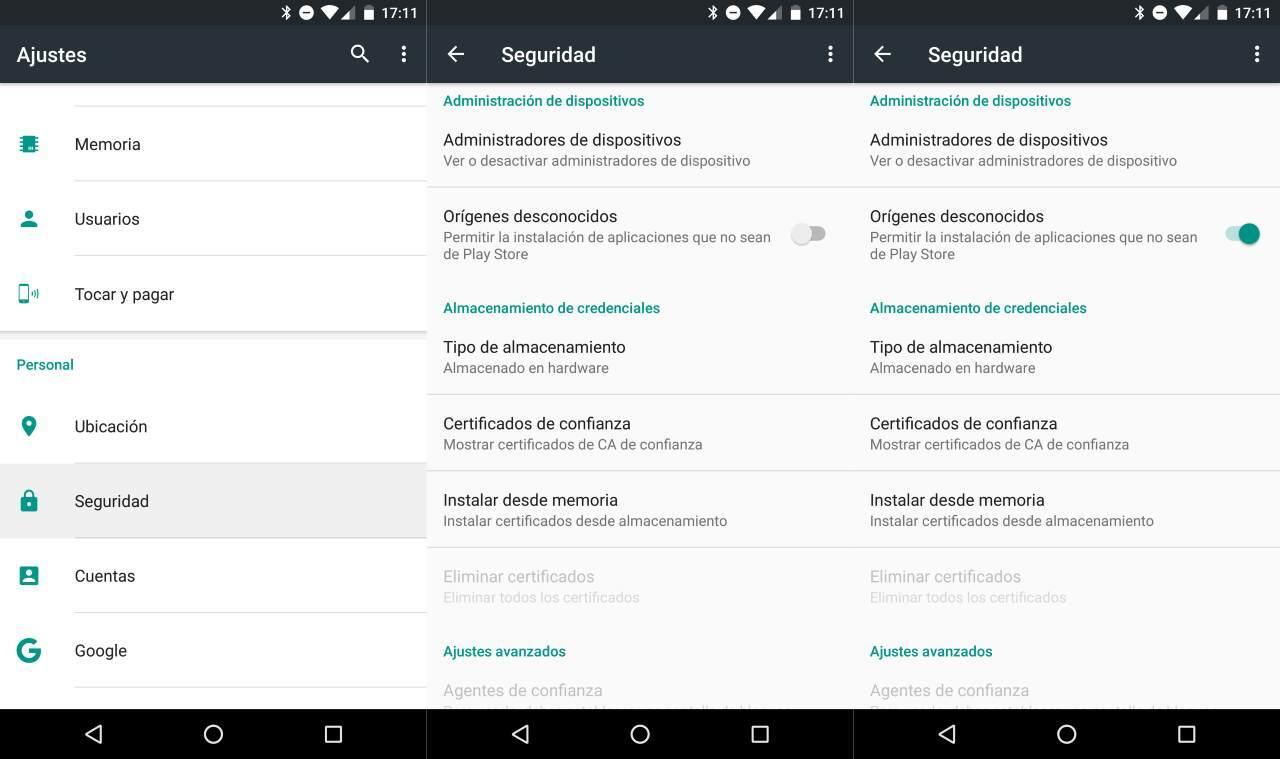
On phones with Android 7 or earlier versions, the process is simpler, but also less granular in terms of security . Here, permission isn't granted per application; instead, you activate the installation of apps from any unknown source all at once.
The first step is to go to your system settings and look for the "Security" section (sometimes it may also be called "Lock screen and security" or something similar depending on the manufacturer). Within that menu, you'll find the "Unknown sources" option.
Enabling "Unknown sources" will prompt Android to display a warning that you are allowing the installation of apps from sources other than Google Play , which increases the risk of malware. If you confirm, any APK you attempt to open from that point forward will be able to install without further restrictions.
After enabling the option, you only need to download the APK file or copy it to your device , locate it with a file explorer (or from the download notification), and tap on it. The installer will open with permission information and the "Install" option.
As with newer versions, once the app is installed, an icon will be added to your home screen or app drawer . If you don't plan on installing any more APKs, it's best to go back to Settings and disable "Unknown sources" again to prevent potentially malicious apps from being installed in the future.

Other ways to enable manual installation on recent mobile devices
On some modern devices, especially those with highly customized interfaces, in addition to the classic settings in the Security menus, you can grant permission to a specific app from its own icon or from contextual settings.
For example, on some phones, pressing and holding the app icon (like Google Chrome) brings up a pop-up window with information and shortcuts where you can enable the option to install apps from that source. It's not available on all models, but it's a quick way to install apps if you can find it.
Another common practice is that when you try to open an APK without the necessary permissions, the system itself takes you directly to the exact settings section for that app. This greatly simplifies the process and avoids having to navigate through multiple menus to find the correct setting.
In any case, even though there are quick access options, the usual way to find the settings is in sections such as “Applications” → “Special app access” → “Install unknown apps” , where you will have a list of all the apps that can request this permission.
From that list you can enable or disable the ability to install APKs for each individual application , giving you total control over who can "put" software on your mobile from outside the store.
Tools to easily manage, search, and install APKs
Beyond the basic installer that comes with Android, there are specific applications that greatly facilitate working with APK files , especially if you tend to test many apps, make backups, or handle formats like XAPK or split APK.
One of the best-known utilities is APK Installer (there are several with similar names), which usually includes features such as automatic APK search on your internal storage and SD card, batch installation, and multiple deletion of leftover files.
These tools allow you, for example, to search for all APKs present on the device , see how many there are, check if they are already installed or not, install several at once, and delete those that only take up space after installing the corresponding app.
In the specific case of APK Installer by Uptodown, in addition to managing standard APKs, the app is compatible with the XAPK format and with split APKs , packaging all the necessary elements (base APK, split APKs and, if applicable, OBB files) into a single backup file.
Thanks to this, you can create local private copies of your applications and install them later, even offline or on other devices, without having to worry about placing data in specific folders or understanding the internal structure of each package.
Risks and security issues when installing external APKs
The downside of all this freedom is that installing APKs from unknown sources can be very dangerous if you're not careful. Most malware infections, scams, and Trojans on Android come precisely through apps installed from outside official app stores.
In practice, anyone can take the original APK of a popular app, modify its code to introduce malware or spyware , and re-upload it to a website, forum, or P2P network, changing only the bare minimum to make it look like the same old app.
The big problem is that when you install that modified APK, the permissions screen you see doesn't necessarily reflect the hidden traps . The permissions show what the app has access to, but they don't tell you the purpose of those accesses, nor do they easily reveal if there's hidden malicious code.
That's why companies specializing in development and cybersecurity insist that downloading APKs from unknown or unreliable websites is not a good idea . In professional environments, for example, it's recommended to use them only for internal testing and development, after thoroughly verifying the file's origin.
A good practice is to scan suspicious files with services like VirusTotal before transferring them to your phone. You upload the APK, it's compared against dozens of antivirus engines, and if any detections are found, the wisest course of action is to delete the file and forget about it.
Best practices and tips when downloading and installing APKs
To minimize risks when you need to install an app from outside the official store, it is advisable to follow a series of very simple but effective recommendations on a daily basis.
First, limit downloads to trusted and well-known sites whenever possible : reputable alternative stores, official developer websites, or repositories like APKMirror with a good reputation and clear policies.
Be especially wary of forums or websites offering paid games and apps "for free" in APK format . This is the perfect breeding ground for them to slip in Trojanized versions, backdoors, aggressive adware, or banking malware that steals sensitive data.
If you have no choice but to install an APK outside of the usual channels (for example, in a development environment, for internal testing of your own app), always check the file's origin, its integrity, and, if possible, scan the package with an antivirus tool before running it on a device containing personal data.
Additionally, it's highly recommended that you keep the option to install unknown apps disabled when you're not using them . Enable it only during installation and, once it's finished, revoke the permission for the app that had it; this way you close off potential entry points for unwanted installations.
Finally, avoid clicking on links you receive via instant messaging or email that encourage you to install APKs directly, even if they appear to be from known contacts. If in doubt, it's best to delete the file and search for the app yourself from trusted sources.
As you can see, the APK format is the heart of Android applications and allows you to bypass the limitations of the official store when needed, whether to access special versions, test apps in development, or use alternatives available only on certain websites. As long as you carefully control where you download from, how you grant installation permissions, and what tools you use to manage these files, you can take advantage of its enormous flexibility without turning your phone into a malware haven, maintaining the balance between freedom and security that makes the Android ecosystem so appealing.
