- WiFi interference comes from electronic devices, neighboring networks, and physical obstacles that degrade the signal.
- Channel and signal power analysis tools allow the identification of saturation, dead zones, and radio frequency noise.
- Changing the channel, relocating the router, and reducing the density of connected devices significantly improves stability.
- Using 5 GHz, Ethernet cable, Mesh systems and keeping the firmware up to date helps minimize long-term interference.
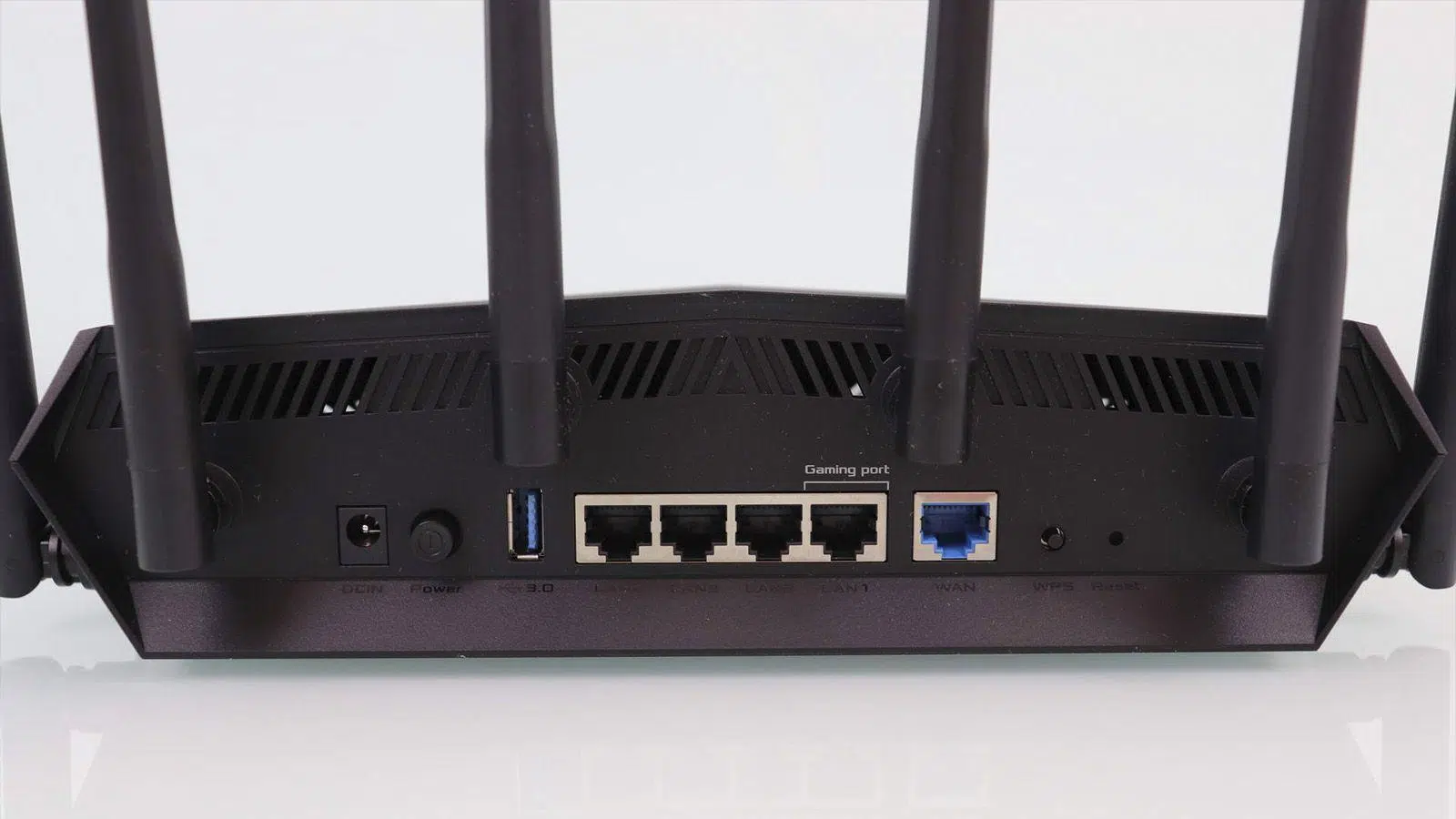
If your wireless connection is making your life miserable, with random dropouts, videos that stop, and games that freeze , it's very likely that the problem isn't just your internet provider. In many cases, the real culprit is Wi-Fi interference you're experiencing at home without even knowing it: other devices, neighboring networks, walls, electrical wiring, or even your microwave could be saturating the air.
The good news is that, by understanding what's happening, you can detect these interferences, diagnose their cause, and apply specific solutions to improve stability, make your Wi-Fi reliable , reduce latency, and truly get the most out of the data you're paying for. This guide will show you, step by step and in detail, what to look for, what tools to use, and how to make your network much cleaner, without going crazy or switching providers at the first sign of trouble.
What is WiFi interference and why does it ruin your connection?
When we talk about WiFi interference, we're referring to anything that adds noise or disrupts the radio waves your router and devices use to communicate. WiFi isn't a cable; it's a radio signal operating on specific bands (mainly 2,4 GHz and 5 GHz) that shares space with a multitude of devices and structures.
This noise can come from two sources: other devices transmitting on the same frequencies (microwaves, Bluetooth, wireless cameras, neighbors' networks, etc.) or physical barriers and elements within the home itself (concrete, metal, mirrors, unshielded wiring, dense outdoor vegetation). All of this reduces signal strength, increases packet loss, and causes retransmissions to spike, which you perceive as slowness, buffering, and disconnections.
Furthermore, most Wi-Fi networks are grouped into channels. If several nearby routers and devices use the same channel or overlapping channels, traffic gets congested, reducing available airtime, and all devices perform worse even if they have a very high contracted speed . That's why so many people measure 300 Mbps in a speed test and then experience buffering while watching a show.
Physical and material obstacles that block your WiFi
At home, it's not just the speed of your internet connection that matters, but also what's between the router and your device . The building's structure can be your worst enemy if you don't position the access point correctly.
Thick reinforced concrete walls, load-bearing walls, and pillars significantly reduce the signal, especially on the 5 GHz band. If you have several walls of this type between your router and your laptop, you'll notice the network signal drops dramatically when moving from one room to another. The effect is even more pronounced when the walls have metal mesh, steel reinforcements, or metal panels , which are very common in stucco facades or some modern renovations.
Other elements such as metal-insulated ceilings, elevator shafts, armored doors, or even large metal cabinets can create veritable "shadow zones ." In these areas, even if the router is relatively close, the signal arrives weak, bounced around, and with a lot of multipath propagation, resulting in a very unstable connection.
Large mirrors and highly reflective surfaces are also a classic problem: they tend to reflect the signal in unusual directions, creating interference. Not only do they slow down coverage, but they can also cause Wi-Fi to practically disappear in a very specific spot in the house for no apparent reason.
In buildings with complex wiring, unshielded electrical and video conduits running inside walls can add electromagnetic noise to the equation. These cables act like antennas, picking up and emitting interference, degrading the signal-to-noise ratio that Wi-Fi needs to function properly.
Devices that cause interference with your WiFi
We live surrounded by devices that emit radio frequencies, and many operate on the same bands as your router. Some cause occasional interference, while others directly and constantly sabotage your Wi-Fi.
Among household appliances, the microwave is one of the most problematic. It operates at around 2,4 GHz, very close to the standard Wi-Fi band, and when it's on, it emits a lot of noise that interferes with nearby channels. If you notice that every time you heat something in the kitchen, the video cuts out or video calls freeze, it's no coincidence.
Older cordless phones (especially DECT models that still operate on 2,4 GHz) and some phone bases remain a constant source of connection conflict. If the cordless base is next to the router, they can compete for the same spectrum all day long, causing brief dropouts and lag at the slightest provocation.
Another major problem is wireless surveillance systems and video baby monitors. These devices continuously transmit image and sound, often on the same 2,4 GHz band, saturating the radio spectrum inside your home . The result: even with good coverage, the network becomes noisy and retransmissions spike.
Bluetooth speakers, wireless headphones, game controllers, and other Bluetooth-enabled gadgets also interfere with Wi-Fi. Bluetooth uses frequency hopping in the 2,4 GHz band, so if you have many of these devices around your router or laptop, you might notice increased ping in games, video buffering, or a weak connection when they're all active.
In more complex environments, two-way radios, walkie-talkies, certain home satellite systems, or even direct service satellite (DSS) equipment come into play. These can transmit in part of the 2,4 or 5 GHz range, causing co-channel or adjacent channel interference that is noticeable as packet loss and abrupt speed variations.
Neighboring networks and channel saturation
If you live in an apartment building or a densely populated urban area, your biggest enemy might be your neighbors. Each neighbor has their own router, many operate with default settings, and everyone shares the same air. When multiple networks are set up on the same channel, channel congestion occurs.
There are 14 theoretical channels in the 2,4 GHz band, but in Europe, channels 1 through 13 are primarily used, and only channels 1, 6, and 11 do not overlap. If you are on channel 1 and your neighbors are too, or if they are on channels 2, 3, and 4, a significant portion of their traffic will be congested with your channel. The consequence is not only a lower maximum speed but also increased latency, collisions, and wait times for any device trying to communicate with the router.
There are many more channels available at 5 GHz and less saturation, but congestion can still occur in buildings with many offices or apartments, especially in the most used bands of the spectrum (for example, 36-48 or 149-165). If all the routers on your landing are configured to automatically choose a channel, it's easy for several to end up competing in the same band every night, just when everyone is streaming 4K series or downloading.
Furthermore, there are extreme situations where, rather than interference, there are attacks or malicious configurations . It's possible that someone in your building is spoofing BSSIDs (the MAC addresses of the access points) and sending deauthentication frames to disconnect devices from their networks. From your perspective, it seems like the Wi-Fi is dropping for no reason, despite having a good signal and low channel congestion.
Advanced packet and RF analysis tools can detect this type of activity: bursts of deauth frames with weak signal strengths, cloned MAC addresses, and unusual behavior in Wi-Fi network management . In these cases, enabling management frame protection (802.11w/PMF) and updating access points is often key.
How to tell if you're experiencing WiFi interference
Interference isn't visible to the naked eye, but it leaves a fairly clear trace in everyday life. If you pay attention to how your network behaves, you can identify patterns that point directly to the problem.
A typical symptom is intermittent connections: the Wi-Fi seems to be working fine, then suddenly drops out for a moment and comes back . This is especially noticeable in video calls and video streaming, where the image freezes or the content buffers even though the signal strength bar doesn't significantly decrease. The importance of latency is clearly demonstrated here.
Another indicator is the variation in performance throughout the day. If everything works perfectly in the morning, but in the afternoon or evening, when all the neighbors are home, the Wi-Fi starts to stutter, it's likely that nearby networks are overloading the same channels your router uses.
It's also worth paying attention to specific situations: if every time you turn on the microwave, a baby monitor, or a Bluetooth speaker near the router your connection drops or your game ping spikes, that's a very clear indication of domestic interference in the 2,4 GHz band.
On the other hand, there are cases where you're right next to the router, with full signal strength, and yet pages still take a long time to load or files upload and download incredibly slowly. This usually indicates that the problem isn't the signal itself, but rather a channel conflict or high RF noise that forces the router to repeat many data packets.
There are more subtle scenarios: a specific corner of the living room where the internet seems to die, while just a few steps away everything works perfectly. Most likely, you're in a dead zone created by a physical obstacle (a metal wall, a wardrobe, a large mirror, a utility column, etc.) that breaks the signal path.
Tools to analyze your network and interpret results
In addition to monitoring your connection's behavior, it's very useful to use apps that show you what's happening on your home's Wi-Fi spectrum. There are free tools for mobile and computer that allow you to see nearby networks, busy channels, and signal strength.
On Android, apps like WiFi Analyzer and similar ones are classics: they scan the environment and draw a graph of the channels, showing which SSID is on each one and its signal strength. On Windows and macOS, programs like NetSpot or WiFi analysis utilities perform the same function, allowing you to see if your network is sharing a channel with many others or if there are freer channels where you could switch. Furthermore, our complete guide to mastering your connection offers more details and practical tips.
These apps also give you signal strength readings (in dBm). A signal around -50/-60 dBm is very good, while below -75 dBm things start to get weak. It's very useful to walk around the house with your phone and check how the signal changes room by room to locate dead zones and problematic walls.
Other apps like Signal Strength or Fing let you see both the channels and the devices connected to your network, helping you detect if you have too many devices drawing from the same access point. Some professional tools, included with certain enterprise access points, can even perform RF scans and packet captures to identify non-Wi-Fi interference (pure noise, misconfigured devices, attacks, etc.).
With this data in front of you, you can correlate what you see on screen with your real experience: if the scanner shows that your channel is saturated and, in addition, you notice a lot of lag and buffering at night, the diagnosis of interference from neighboring networks becomes much more likely.
Advanced sources of interference: beyond typical devices
In addition to the classic household sources, there are a number of more advanced sources of interference that should be on your radar, especially in large buildings, old houses, or environments with a lot of surrounding infrastructure.
On one hand, there are wireless frequencies that compete directly with Wi-Fi : video baby monitors, IP security cameras with their own connection, special service radios, DSS satellite equipment, and other systems that operate at 2,4 GHz (and sometimes also at 5 GHz). These devices aren't just band "neighbors": they constantly send traffic, generating continuous noise that eats up your airtime.
On the other hand, dense, metallic structural materials have a devastating effect: metal panels hidden in ceilings or walls, wire mesh under stucco, reinforced concrete walls with rebar, and steel structures. All of this reflects, absorbs, or almost completely blocks WiFi waves, causing coverage to plummet behind this barrier.
Then there are external power sources and unshielded cabling. Power lines near windows, electric train lines, substations, or transformers close to the building can emit electromagnetic interference that seeps into Wi-Fi frequencies. Inside the home, unshielded power, audio, or video cables running alongside the router or your desk can act as unwanted antennas, adding noise right where it hurts most.
Environmental factors shouldn't be overlooked. Dense vegetation, especially thick hedges and waterlogged pine trees, absorbs 2,4 GHz signals very effectively, so if your access point tries to reach a shed or terrace by passing through a green wall, you'll lose a lot of signal quality . Furthermore, intense solar activity and certain weather conditions (heavy rain, very high humidity) can affect outdoor links and satellite internet service connections.
Advanced steps to reduce interference and improve your WiFi
Once the possible causes have been identified, it's time to apply concrete measures. Some are simple and free, others involve a little reorganization of the house or investing in better equipment, but together they can transform an unstable network into something fully usable.
The first step is to experiment with your router's channels. Access the administration panel (usually at 192.168.1.1 or a similar IP address), go to the Wi-Fi settings, and disable automatic channel selection if it's not choosing the right channel. For 2,4 GHz, manually select one of the non-overlapping channels (1, 6, or 11), and before making your choice, use your Wi-Fi analysis app to see which one is least congested in your area.
In the 5 GHz band, check which channels appear freest on your scanner and choose one with low usage, usually within the 36-48 or 149-165 ranges. The goal is to move your network to an area of the spectrum where there are as few neighboring networks and competing devices as possible.
Another very effective step is to establish the most direct line of sight possible between the router and the devices that matter most to you. When setting up your desk or workspace, try to ensure that there are no metal panels, reinforced concrete walls, or bundles of unshielded cables between your computer's Wi-Fi adapter and the router . Sometimes, simply moving the router from a low corner of the house to a more central and elevated location makes more of a difference than any cheap repeater.
If you have a large number of connected devices in the same room (smart speakers, cameras, Wi-Fi plugs, Chromecast, IoT sensors, etc.), you're creating a local radio "cloud" where they all compete for the same airtime. Do a quick audit and relocate some devices to other areas or unplug the ones you're not using . Reducing the density of devices in the same spot improves airtime availability for important equipment.
It's also worthwhile to move as many devices as possible off the 2,4 GHz band. If your cameras, monitors, or wireless devices can operate on 5 GHz, on dedicated bands like DECT 6.0, or even via Ethernet (PoE in the case of cameras), switch them. Every device you migrate to another technology frees up space in the Wi-Fi spectrum and reduces interference.
Finally, check the cables near your router and computer. If you're using unshielded power, audio, or video cables attached to the access point, consider replacing them with shielded versions or, at the very least, physically separating them by a meter or more from the router and antennas. This reduces electromagnetic noise precisely where it most negatively impacts your signal.
Additional tips for a more stable and faster network
In addition to directly combating interference, there are network design adjustments and decisions that can significantly improve your quality of life. It's not just about "getting Wi-Fi," but about managing traffic effectively and prioritizing critical devices.
Migrating to the 5 GHz band whenever possible is highly recommended. Although its range is slightly shorter and it has more difficulty penetrating obstacles, it is usually much less congested and offers more channels . For stationary devices such as televisions, game consoles, or desktop computers, using 5 GHz can represent a significant improvement in stability.
If you have a relatively modern router, enabling or properly configuring Quality of Service (QoS) allows you to prioritize certain traffic: for example, voice and video over large downloads. This way, even with interference or significant background noise, the router will attempt to reserve airtime and bandwidth for what truly cannot wait.
Mesh WiFi systems represent a significant evolution from traditional repeaters. Instead of creating independent networks or inefficient links, they generate a single, unified network with multiple nodes that coordinate with each other to cover the entire home . This architecture typically manages interference and dead zones better, especially in large or multi-story houses.
Another option is to use a wired connection whenever possible. Devices like desktop computers, game consoles, smart TVs, and certain work devices (NAS, network printers, etc.) are prime candidates for Ethernet connections. Each device you switch to a wired connection stops competing for the Wi-Fi spectrum , helping the rest of the network run more smoothly.
In some large homes or those with complex layouts, Powerline adapters are an interesting option: they use existing electrical wiring to carry data to areas where Wi-Fi signal is weak, creating a new access point. They work best in modern, well-maintained electrical installations and are especially useful when reinforced concrete walls or ceilings prevent direct signal extension.
Finally, regular router maintenance (physical cleaning, firmware updates, and checking security and channel settings) helps the internal interference management algorithms do their job. Many manufacturers introduce improvements to how the equipment selects channels, allocates airtime, and negotiates connections with each new software version.
Ultimately, the key to enjoying decent WiFi lies in understanding what's polluting the air in your home, using analytics tools to see the reality of your environment, and applying a few smart adjustments: changing channels, repositioning the router, freeing up the 2,4 GHz band, prioritizing critical devices, and, when necessary, opting for technologies like Mesh, Ethernet, or Powerline. With these steps, a network that seemed destined for constant outages can become solid, fast, and much more reliable in everyday use.
