- Knowing the difference between deactivating and deleting your account is essential to deciding whether you want a temporary pause or a permanent deletion.
- The Meta Account Center centralizes the options to manage, deactivate, or delete your Instagram profile from mobile and computer.
- Before deleting your account, it's a good idea to download a copy of your data to preserve photos, videos, and important information.
- During the period prior to deletion, you can recover your account simply by logging back in with your credentials.
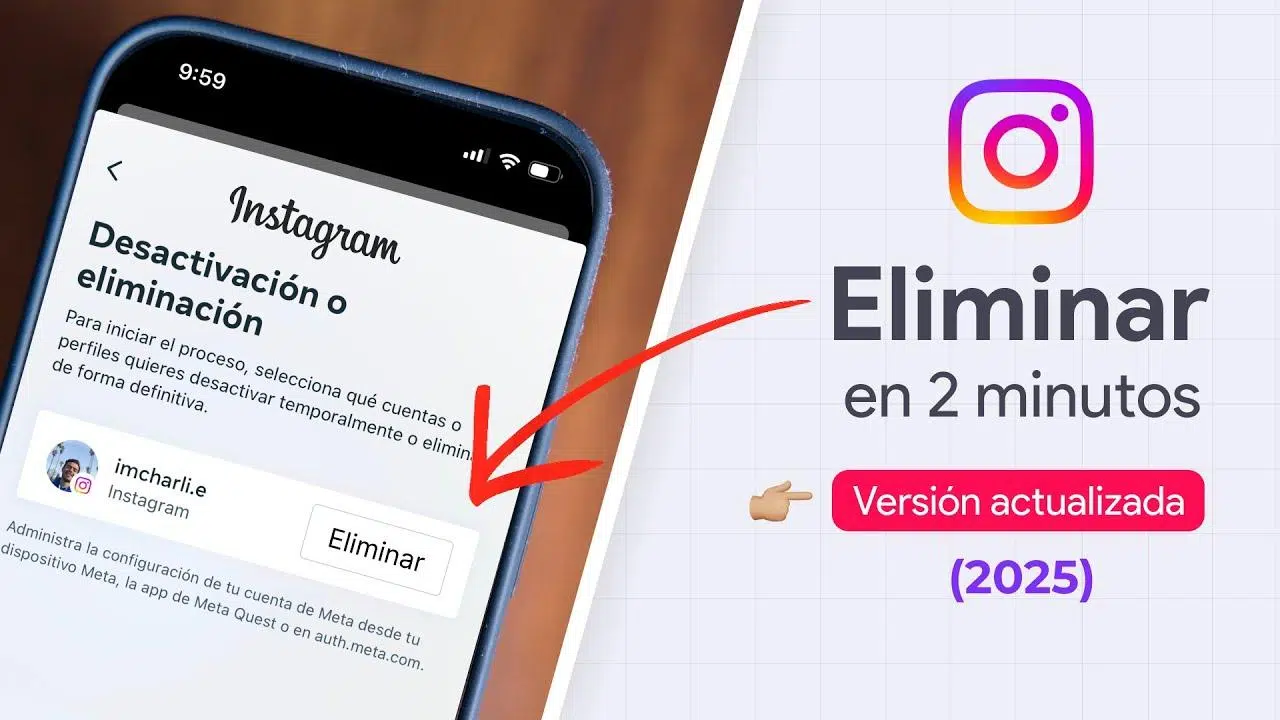
If you've made it this far, it's because you're taking this very seriously. Close your Instagram account, either temporarily or permanently.You may be tired of the social network, want to disconnect for a while, or it may simply no longer make sense for you to continue being there.
What many people don't know is that Instagram “hides” the deactivation and deletion options quite well.And in the app, it only seems you can deactivate your profile. But the option to permanently delete it exists; you just need to know where to tap and what steps to follow so you don't lose anything important in the process.
Deactivating or deleting Instagram: key differences you should be aware of
Before you touch anything in your account settingsIt's important to be very clear about what deactivating and deleting your profile entails. They're not the same, and if you choose the wrong option, you could lose your content forever.
When you decide temporarily deactivate your Instagram accountWhat you do is "turn it off" for a while: your profile disappears from searches, your photos, videos, comments and likes cease to be visible and it will seem as if you do not exist on the platform, but in reality everything is saved in case you ever regret it.
Instead, if you choose to permanently delete the accountYou are requesting that Meta (the company that owns Instagram) delete your profile, your content, your followers, and your interactions. For approximately 30 days (in some cases, they mention "a couple of months"), the account will be deactivated and hidden, but if you don't log back in during that time, everything will be deleted permanently.
It is also worth knowing that The username is released when the account is permanently deleted.So, someone else could register later with your same username if it's still available.
Therefore, if you just want a break or you're not entirely sure, the most sensible thing to do is usually temporarily disable profile Instead of deleting it all at once. You can always return by simply logging back in.
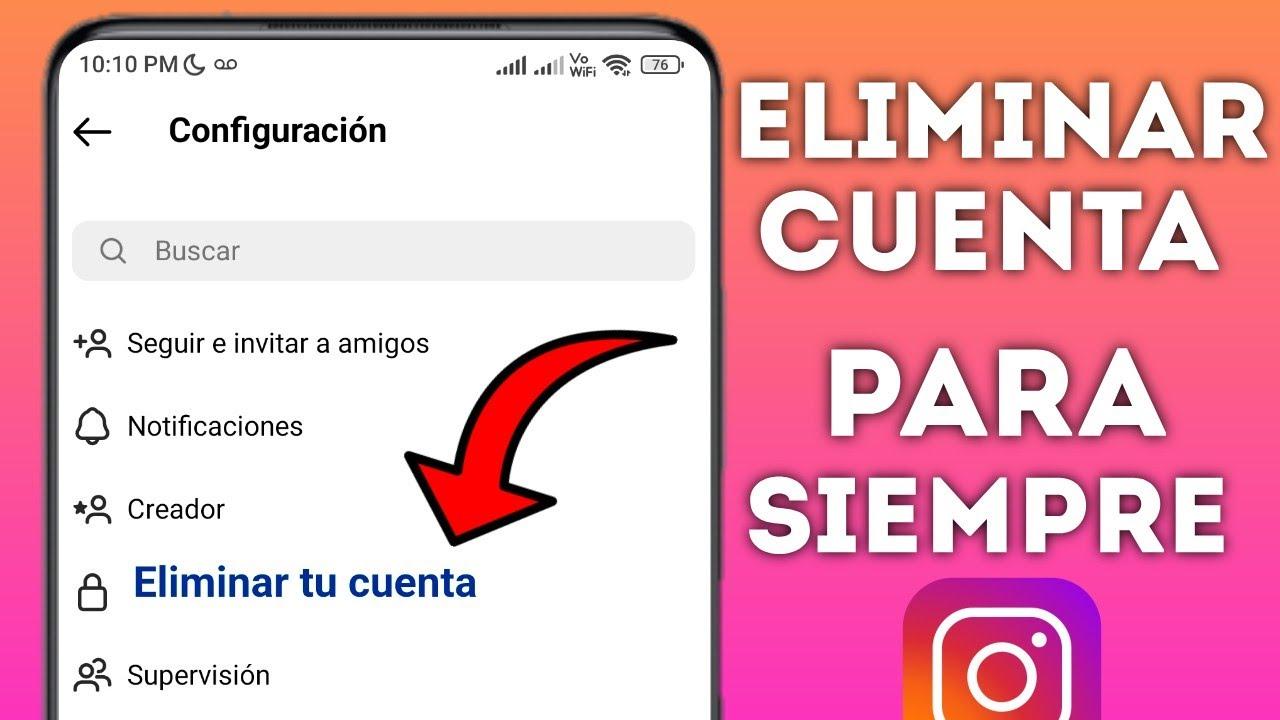
How to delete your Instagram account from the Meta Account Center
Today, the “official” and most direct method for delete or deactivate your Instagram account It goes through the Meta Accounts Center, where Facebook, Instagram and other group services are managed together.
You can access this center from both your mobile device and your computer. A quick way is to go directly to the URL. accountscenter.instagram.comalthough it can also be accessed from the app itself or from the web version of Instagram through the profile settings.
Once inside the Accounts Center, you'll see different sections for controlling shared settings between your profiles. The one we're interested in is within Account settings, in the "Personal data" section, where things like your phone number or your date of birth appear.
From that data screen, you will find the entry “Account Ownership and Control”This is the menu where Meta groups all the options related to advanced account management: deletion, deactivation, commemoration (on Facebook), and long-term changes.
When you enter “Account Ownership and Control” you will see the option “Deactivation or deletion”It is, literally, the point from which you can choose what you want to do with each of the profiles you have linked in Meta.
When you tap on “Deactivation or deletion”, you will see a list of associated accounts (For example, your Instagram username and your Facebook profile if you have them connected.) Select the specific Instagram account you want to manage.
At that moment a screen will appear where you can choose between temporarily deactivate the account or delete it permanentlyInstagram will briefly explain what each option entails and ask you to confirm which one you want.
After selecting the action (deactivate or delete) and tapping on “Continue”, you will have to Enter your password to verify that it is really youThen you'll see a drop-down menu or list with reasons such as "I spend too much time on Instagram," "Privacy issues," "Other reason," etc.
It is not mandatory to give a very detailed explanation, so You can choose any reason or even select something generic like "Other reason" If you don't want to justify yourself, it's simply a form that Meta uses to collect internal statistics.
Finally, a last confirmation screen will appear summarizing what you are about to do (deactivate or delete) and how it will affect your profile. If you press the final button, You will be logged out on all your devices and the deactivation period or "on hold for deletion" period will begin.
During that period —which in practice is usually about 30 days until effective elimination— Your account will no longer be visible to anyone. If you don't log back in, the process will continue and your profile will disappear along with your posts, comments, likes, and followers.
Old method: Delete Instagram from the specific deletion page
Although Meta is increasingly pushing the use of the Accounts Center, The classic method using a website dedicated to deleting Instagram is still active.It's not easy to find by browsing the menus, but the URL works.
The address you need is something like instagram.com/accounts/remove/request/permanentIt's a specific page designed solely for requesting the irreversible deletion of the profile, and it's not heavily promoted within the app itself.
If you enter that URL while already logged in to your Instagram account, The page will automatically recognize your account. And you'll skip previous login steps. In many cases, the process is reduced to choosing a reason, entering your password, and confirming.
In the form you will see the question "Why do you want to delete your account?" along with a drop-down menu with various typical reasons. You must choose one answer to be able to move forward: privacy concerns, excessive use, creation of another account, etc.
Depending on the reason selected, Instagram may show you helpful articles or alternatives to try and stop you from leavingsuch as temporarily deactivating your profile or changing certain privacy settings. If you're still sure you want to leave, simply continue to the end.
At the bottom, a text field will appear in which you must re-enter your passwordIt's an additional security step to prevent someone from deleting your account without your permission if, for example, they have been able to access it from your device.
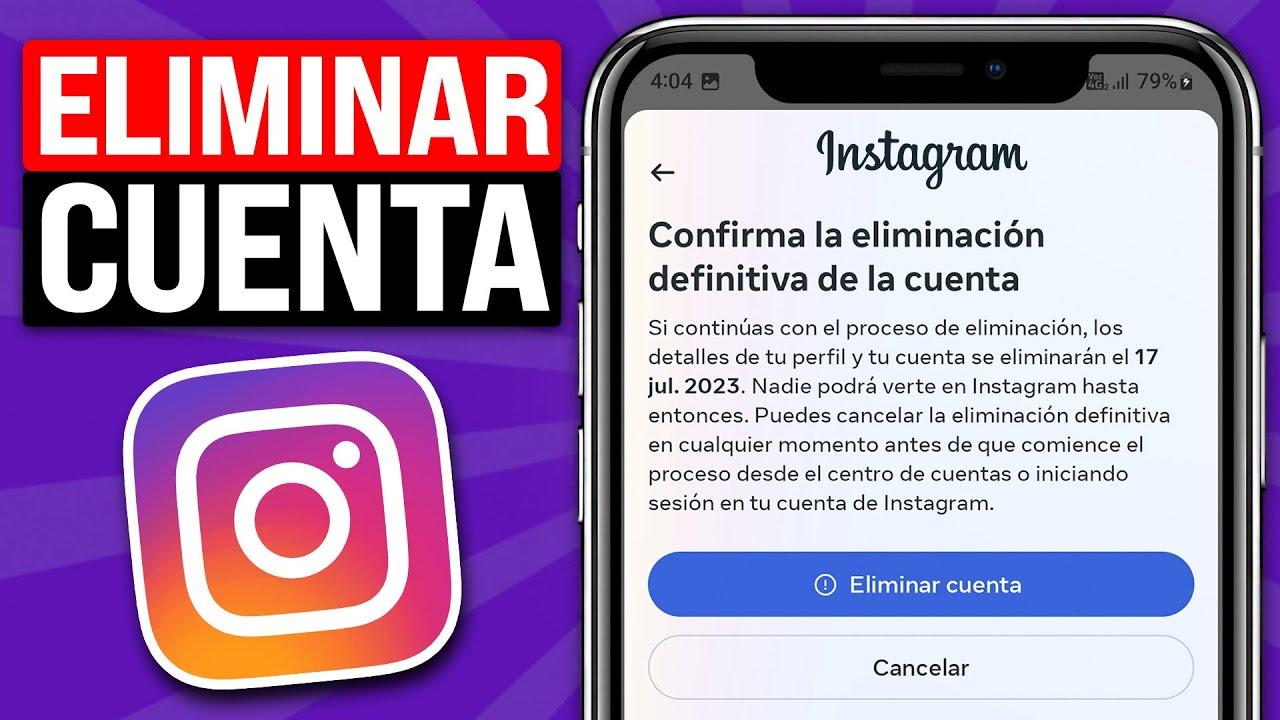
Once you've entered the password, all that's left is to press the button. “Delete” that appears next to your username, below the text that indicates the exact date on which the account will be deleted if you do nothing else.
Next, the browser will display a confirmation message such as “Are you sure you want to delete your account?”. If you confirm, the session will be closed and Your profile will become completely inaccessible. for the rest of Instagram users during the period prior to total deletion.
As long as there is no further login before the indicated date, All your photos, videos, comments, followers, and likes will be permanently deleted.From that moment on, there will be no way to recover the content or the old profile.
Delete your Instagram account from your mobile device step by step
If you prefer to manage everything from your smartphone, you can do so on both Android and iOS. Delete your Instagram account directly from the appwithout having to go to the website. The process still goes through the Accounts Center.
In the app, the first thing to do is access your profile by tapping your photo in the bottom right corner, and then open the menu of the three stripes in the upper rightThere you will see the "Settings and privacy" section, which is where all the important settings are grouped.
Within that setting you will find the option “Account Center”Tapping it will open a new screen with different sections: Account Summary, Personal Data, Ad Preferences, etc., depending on how Meta updates the interface.
In our case, you have to log in “Personal data” and then “Account ownership and control”From this menu, you will be able to manage everything related to deactivating or deleting Instagram and other associated profiles.
Once in “Account Ownership and Control”, tap on “Deactivation or deletion”Your linked accounts will be displayed; choose the specific Instagram account if you have several.
The app will then ask you if you want to temporarily disable or delete your accountSelect “Delete account” and click “Continue” to proceed with the wizard.
they will ask you to Please provide a reason for leaving Instagram. in a drop-down menu similar to the one shown on the web version. After choosing an option, you will need to log in again by entering your password to confirm that you are the account holder.
When you complete these steps, you will see a final screen where you must accept the eliminationFrom there, Instagram will show you a message with the date on which the account will be permanently deleted if you don't change your mind during the grace period.
Delete Instagram from your computer: access via settings or direct link
If you prefer browsing from a PC or a Mac, you can also Delete or deactivate your Instagram account from your browserHere you have two options: use the direct link to the removal page or access it from the settings menu.
The first method involves logging into Instagram from your browser and going to the page of request for irreversible disposal using the specific deletion URL. Once there, you choose the reason from the drop-down menu, enter your password, and click "Delete."
The other option is to do it from the settings. To do this, once you're logged into the website, open the "More" menu (usually shown as three lines or a menu icon in the bottom left corner) and enter "Configuration".
Within that configuration you will see access to Account centerFrom there, the path is practically the same as on mobile: “Personal data” > “Account ownership and control” > “Deactivation or deletion”.
Choose the Instagram account you want to delete, select “Delete account” and click on “Continue”The system will ask you to enter your password to verify your identity, select a reason for cancellation, and finally, confirm with the permanent deletion button.
In either method, Removal is not instantaneousYour account will remain deactivated and invisible for approximately 30 days. If you log back in during that time, you will cancel the process and your profile will be restored to its previous state.
How to deactivate your Instagram account without deleting it
If you're looking to take a break without losing anything, then what you're interested in is temporarily deactivate your Instagram accountThis option is designed to allow you to disappear from the network for a while without giving up your content.
Deactivation is requested from the same menu as deletion, both on mobile and on computer: Account Center > Personal Data > Account Ownership and Control > Deactivation or Deletion.
When choosing the account to manage, instead of “Delete account” you should select “Deactivate account”Again, you'll need to enter your password and choose a reason from the list that Instagram displays on the screen.
Once the action is confirmed, Your profile will be completely hidden.No one will be able to see your photos, videos, comments or likes, and your name will no longer appear in searches and follower lists.
To reactivate the account, simply Log back in with your username and passwordIn some cases, Instagram will ask you to accept the terms of use again if they have changed since your last visit.
If you need to stay disconnected, you can even Renew your deactivation period Repeating the same procedure when you log back in, so that your profile remains hidden without losing anything.
How to save your photos and information before deleting Instagram
When an Instagram account is deleted permanently, Not only are posts lost, but also comments, messages, statistics, and all associated information.That's why it's highly recommended to make a backup before taking the plunge.
The platform itself includes a tool for download all your dataThis includes photos, videos, stories, profile information, and even some activity data. The process can be done from the app or the web version.
On your mobile device, go to your profile, tap the three-line menu, and access the “Account Center”Inside, you'll see an option called something like "Download your information" or "Download or transfer information." That's the function you need.
By entering that option you will be able to choose what type of content you want to include in the copy (publications, scheduled information, etc.) and whether you prefer to download the data to your device or transfer it to cloud services such as Google Drive or Dropbox.
Once you confirm, Instagram will prepare the file with your information. Depending on the volume of content, It may take a while, and they may even send you a download link via email.It's a good idea to save it in a safe place to preserve your memories even if you delete your profile.
Account disabled by mistake or deleted by someone else: what you can do
It may happen that, when trying to log into Instagram, You may encounter a notification indicating that your account has been disabled.This usually happens when the platform believes that its community guidelines or terms of use have been violated.
If you believe this is an error, when you try to log in you will see a link or option to request a review of that disqualificationThe process usually involves following the steps shown by the app itself, providing some information, and waiting for the Instagram team to review your case.
On the other hand, if what has happened is that Someone has accessed your account and deleted it.However, the situation is much more complicated. If the deletion process has finished after the grace period, the data is destroyed and there is no way to recover it.
What you can do, if you want to stay online, is Open a new account using the same email address that you had before. What cannot be reused, if it is already taken, is the exact same username from the old profile.
For all these reasons, it's important to always protect your account with a strong password and two-step verificationminimizing the chances of someone else accessing your profile without permission.
Deciding to leave Instagram, whether temporarily or permanently, can be difficult, especially if you use the platform for your personal brand, professional projects, or simply as a memory album. Thanks to options like deactivation, gradual deletion, and data download, You can manage your exit from the social network calmly and without losing control over your information.Choosing at each moment whether you prefer a pause, a total deletion, or to keep a copy of everything you have shared.