- The "JavaScript required" warning is usually due to scripts being blocked or disabled in the browser or in Windows components.
- It's key to review your JavaScript settings and clear your cache and site data to remove old blocks.
- Windows 11 is also influenced by optional features such as VBScript and the classic script host.
- Combining a good browser configuration with an up-to-date system reduces many script errors.
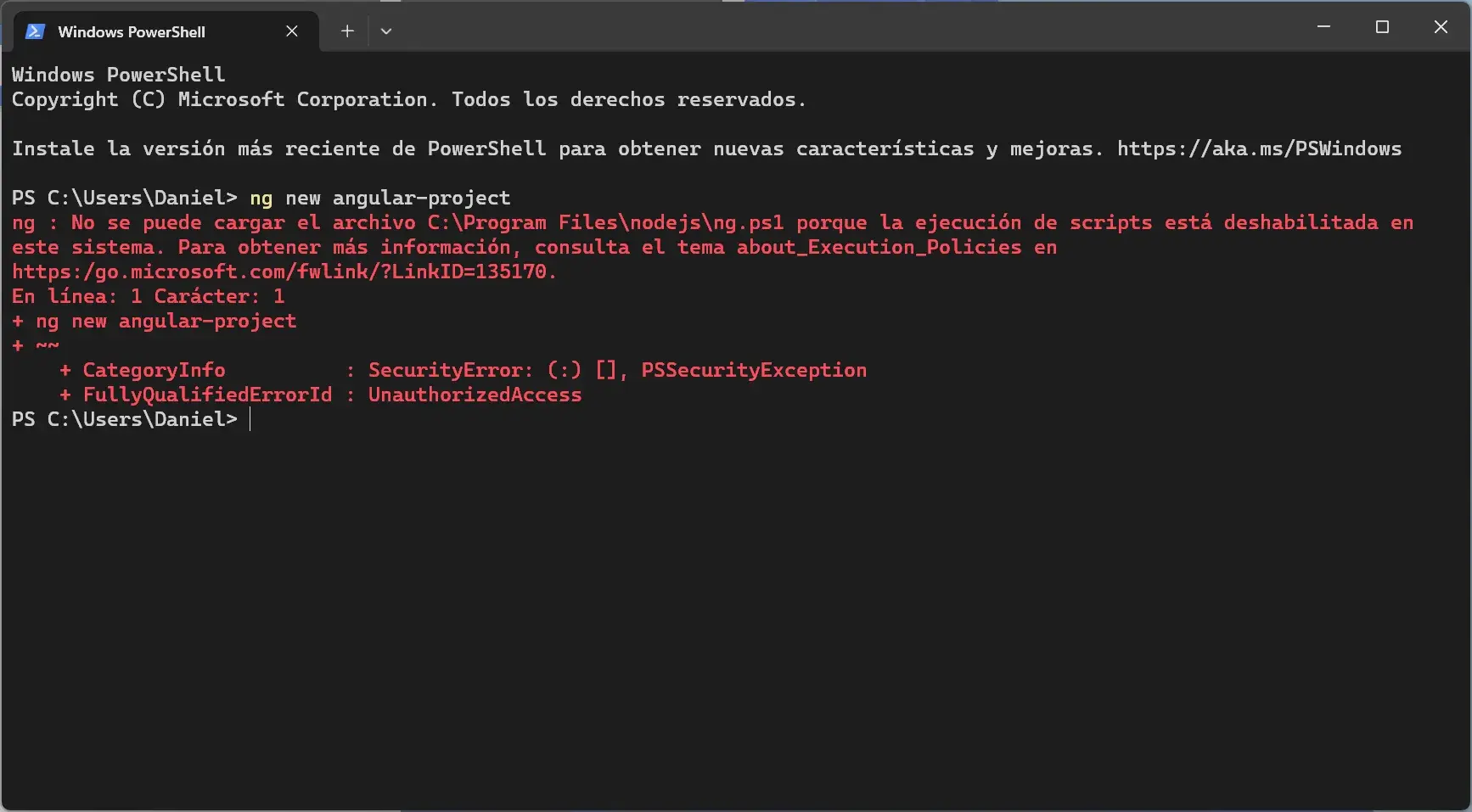
When the warning appears "JavaScript required" in Windows 11 just as I tried open a website or run a script, the usual result is to be left with a poker face: the page does not load properly, certain buttons do not respond and, sometimes, it is not even clear if the problem comes from the browser, from Windows itself or from some recent change in the system.
This type of message usually indicates that The browser or scripting environment has blocked the execution of JavaScript or VBScriptOr something in the Windows 11 configuration has changed (for example, optional features like VBScript or the Windows Script Host). Additionally, some errors related to accessibility, slide players, or interactive controls can trigger strange warnings that end up being even more confusing. In the following paragraphs, we'll break all of this down in detail.

What does the message "JavaScript required" mean in Windows 11?
When a website displays a notice of the type «This site requires JavaScript» or «JavaScript required»What it's saying is that it needs to run JavaScript code in your browser to function correctly. If your browser has it disabled or blocked, the page cannot:
- Update content dynamically.
- Validate forms and required fields.
- Display sliders, drop-down menus, or interactive elements.
- Manage advanced accessibility (ARIA roles, keyboard navigation, etc.).
In Windows 11, this problem is usually related to browser settings (Edge, Chrome, Firefox, Safari on Mac if you're accessing from another device) or with Windows scripting components When we talk about VBScript or the classic "Windows Script Host," sometimes small changes like uninstalling an optional feature or deleting a component can cause scripts that previously worked to stop working.
It is also common for the message "JavaScript required" to appear when interacting with complex web componentsImage sliders, pagination systems, play/pause controls, accessibility links, or elements that manage keyboard focus. The code you've seen with references like slidesjs-pagination, slidesjs-play, slidesjs-stop, ARIA roles, tabindex and keydown events It's a clear example: without JavaScript, all that logic simply doesn't exist.
Therefore, before going crazy tinkering with Windows, it's a good idea to check both the browser settings and cache such as the status of Windows 11 scripting features (VBScript, Windows Script Host) when the error is linked to local .js or .vbs files.
Enable and check JavaScript in your browser
The first thing you must do when you see a "JavaScript required" message is verify that the browser actually allows JavaScriptAlthough most people have it enabled by default, it may have been disabled for security reasons, by an extension, or due to a change in configuration.
The content you provided includes a very specific case: safariAlthough Safari isn't the typical native browser for Windows 11, it's relevant for those accessing the site from Macs or other Apple devices who see the same message. The procedure for enabling JavaScript and clearing the cache in Safari serves as an example of what to look for in other browsers.
To enable JavaScript in Safari This route is described:
- From the Safari menu, select Settings.
- Go to the tab Security.
- Check the box Enable JavaScript.
- Close and reload the browser or the page in question.
If after that you still see a message like "this site requires the use of scripts, which your browser doesn't allow", the recommendation is clear browser cache, cookies and history, which sometimes get stuck with outdated policies.
In the case of Safari, the detailed process for clearing the cache is:
- Open the Safari menu again and enter Settings.
- Go to the tab Privacy.
- Click on Manage Website Data.
- Select Remove All.
- Confirm with Remove Now.
This pattern can be applied to other browsers in Windows 11: Check that JavaScript is enabled and clear the cache and cookiesAlthough the options may have different names in Edge, Chrome, or Firefox, the goal is the same: to ensure that there is no outdated or corrupted configuration blocking the scripts.
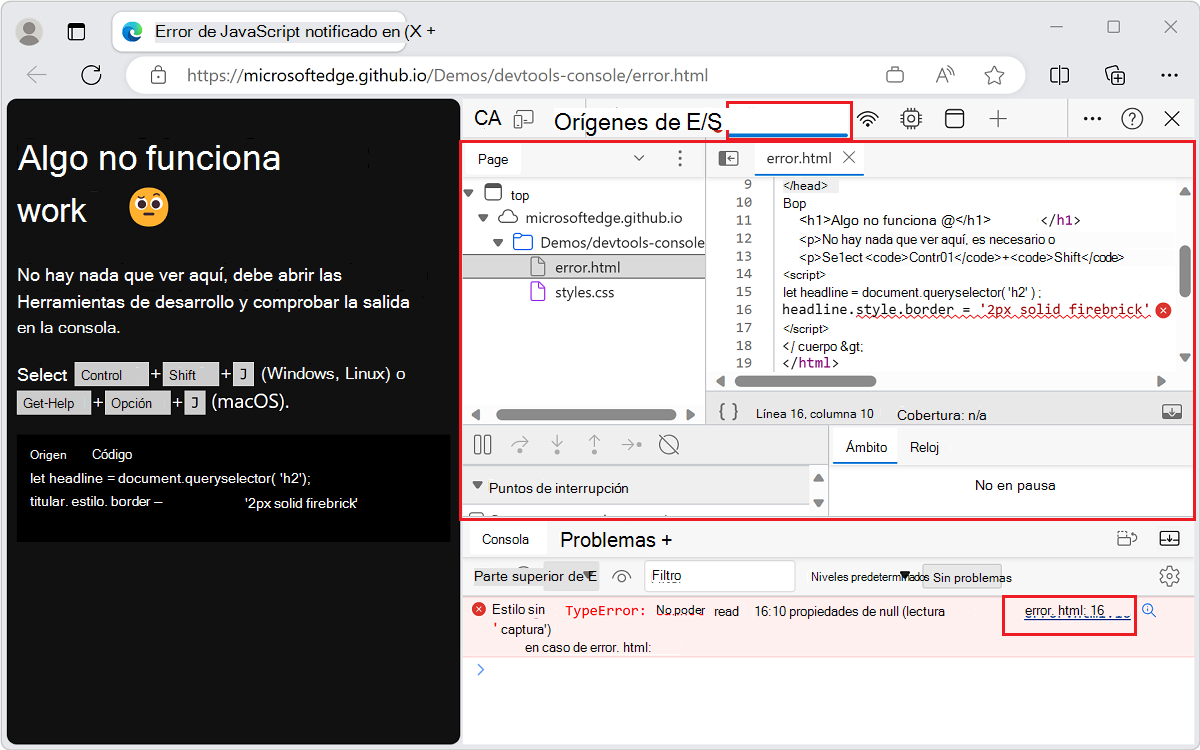
The role of cache and site data in script errors
The guide you mentioned emphasizes a lot about clear browser cache and history When an error appears indicating that the site needs scripts but the browser doesn't allow them, it's not a whim: there are several compelling reasons for doing so.
On one hand, the browser saves cookies, local data (localStorage, IndexedDB) and cached files which may contain outdated policies or JavaScript versions that no longer match what the server expects. If the website has changed its security requirements or modified its code, and a CDNs like Cloudflare It is delivering cached versions, which can lead to seemingly absurd errors.
On the other hand, site data can also store Prior permissions and blocksIn other words, at some point the user may have indicated that they didn't want to allow scripts on that specific page, and that setting is saved. By deleting "website data" in Safari or the equivalent site data in other browsers, those blocks are reset.
In the case of Safari, the process is clearly detailed, but in Windows 11 with Edge or Chrome, the equivalent would be to enter Settings > Privacy & Security > Clear Browsing Dataand make sure to check:
- Browsing history.
- Cookies and other site data.
- Cached files and images.
If you are dealing with the "JavaScript required" message on a specific page, First, try deleting only the data from that website. Before deleting the entire history, many browsers allow you to click the padlock in the address bar or go to "Site Settings" to clear only the data related to that domain.
When the problem isn't the browser: scripts, accessibility, and web components
The large block of code you shared shows a A fairly complex example of how a page uses JavaScript to control an image slider with next, previous, play, and stop buttons, in addition to a whole layer of accessibility (ARIA attributes, roles, tabindex, focus management, keyboard reactions, etc.).
There you can see how elements like ".slidesjs-pagination", "slidesjs-play", "slidesjs-stop", "slidesjs-next", "slidesjs-previous" and how properties such as the following are added to them:
- tabindex to control the tab order with the keyboard.
- role=”tab”, “tablist”, “list” so that screen readers can understand the structure.
- aria-hidden, aria-busy, aria-describedby to indicate visibility, charging status, and additional descriptions.
In addition, events such as "click", "keydown", "keyup", "mouseover", "blur", "mouseleave", and the focus of the elements is adjusted when the user interacts with the play, stop or move between slides buttons using the keyboard arrows (codes 37 and 39).
If your browser has JavaScript disabled, or if something prevents this code from running, the entire system will crash: The buttons are unresponsive, the slider doesn't advance, the "play" and "stop" links are dead, and the tooltips (tip1 and tip2) are not displayed. And the carousel's accessibility goes out the window. The result, often, is precisely a generic message indicating that JavaScript is needed to view the content correctly.
These types of scripts also often appear linked to third-party tools or enhancements developed by external companies (Your code mentions "iTalent" and references internal tickets like "iTrack 1859082" or "COMPL-455"). If, for any reason, the domain for these resources is blocked or a dependency is broken, the browser may stop executing part of the code, generating errors that result in that annoying "JavaScript required" message.
In short, although the warning may seem generic, there is usually something behind it. A lot of script-based interface and accessibility logic that can't function without JavaScript enabled or without all the necessary .js files being loaded correctly.
VBScript, Windows Script Host and the mess of optional features in Windows 11
Another key point you mention has to do with VBScript as an optional feature in Windows 11 And with the disappearance of the classic "Microsoft Windows Based Script Host" from the taskbar. Here we're no longer talking about JavaScript in the browser, but about system scripts (files like .vbs, .js, etc.) executed by Windows.
In older Windows systems, this was quite common. Pin the "Windows Script Host" to the taskbar to have it handy. In Windows 11, script management has changed a bit and many things have been integrated into PowerShell, plus Microsoft is gradually phasing out VBScript as a supported technology by default.
In the case you describe, the original recommendation you saw indicated that to "pin a script" to the taskbar, it was enough to:
- Create a shortcut from the .js file.
- Right-click on the shortcut.
- Choose the option "Pin to taskbar".
However, you mention that when you right-click on that shortcut You didn't see any option to pin itThis is quite typical when the system does not recognize that file as a "pinnable" application on its own, or when the file type is associated with an executable that Windows does not consider pinnable.
Furthermore, you mention that you entered Settings > Optional features > View or edit optional features and you located an element called VBSCRIPTWhen selected, it was removed instead of added. Then, when attempting to add it again, the process took forever and was eventually canceled, so the history shows that VBScript was "Removed" and then "add canceled". From there, VBSCRIPT is no longer listed as an optional feature.
From that experience you draw two conclusions: on the one hand, that VBScript has probably been uninstalled or is stuck in limbo. And, on the other hand, even if you manage to restore it, it may not solve the original script message problem, but it may prevent future conflicts with programs that still depend on VBScript.
This type of issue with optional features is relatively common in Windows 11. In many cases, if an optional feature disappears or becomes unresponsive, you may need to:
- Force your reinstallation using PowerShell or DISM.
- Repair the Windows image to restore damaged components.
- Check if Microsoft has changed official support for that feature (in the case of VBScript, the trend is clearly towards removing it).
Two separate problems: pinning scripts to the toolbar and restoring VBScript
From everything you've described, it appears that you're facing two separate but related fronts regarding scripts in Windows 11:
On the one hand, you have the doubt of How to pin something to the taskbar that previously appeared as "Microsoft Windows Based Script Host"The advice you were given (create a shortcut to a .js file and then pin it) doesn't fit what you want, because you don't want that specific file, but the generic script host, and besides, the shortcut doesn't even offer the "Pin to taskbar" option.
In Windows 11 you may need to resort to shortcuts to the executable that interprets the scripts (for example, wscript.exe or cscript.exe inside the System32/SysWOW64 folder) and from there try to pin it, or else use PowerShell and .ps1 scriptswhich are the most modern approach to automation.
On the other hand, there is the matter of Restore VBScript as an optional featureSince you removed it from the features screen itself, and the installation was canceled when you tried to add it back, it's understandable that you feel like it's "no longer there" and doesn't appear in the list. This intermediate state can cause strange behavior in anything that depends on VBScript.
Even so, you yourself point out that VBScript was already present when you experienced the initial problem with scriptsRecovering it might not fix the "JavaScript required" message displayed on the website, but it will save you from potential errors with older applications that still use .vbs.
In summary, the message about JavaScript on the web and the mess with VBScript in optional features are different problems that coincide in timeBut they must be approached in different ways: browsers and cache, on the one hand, and Windows component management, on the other.
Best practices for avoiding script errors in Windows 11
From all this information, it is possible to extract a series of general good practices that help minimize problems with "JavaScript required" messages and with scripts in Windows 11 in general.
On the browser side, it is advisable to:
- Periodically review security and content settings, making sure that JavaScript is allowed for trusted sites.
- Clear cache and cookies when a website changes radically or starts to malfunction while it works fine for other users.
- Avoid extensions that block scripts aggressively on all pages, unless you really know what you're doing.
- Keep the browser open always updated to support the latest JavaScript APIs and security policies.
On the Windows 11 side and its internal scripts, the following is useful:
- Do not uninstall optional features lightly such as VBScript, .NET, or compatibility components, especially if you use older programs.
- If something stops working after tweaking optional features, review the change history (like that "Removed" and "add canceled" you saw with VBScript) before doing more testing.
- Arise migrate old scripts based on VBScript towards PowerShell or more current languages, given the direction Microsoft is taking.
- Check regularly that Windows Update has not left an installation or repair that affects script components unfinished.
And, of course, if you use corporate websites or applications that rely on complex scripts, like the slider example with slidesjs, ARIA roles, keyboard navigation, and playback controlsIt's worth it Don't mess with the security settings too much without knowing what each change will break..
Ultimately, the coexistence of JavaScript in the browser, Windows scripts like VBScript, and modern tools like PowerShell in Windows 11 means that any small detail (a security checkbox in Safari, a misconfigured extension, or the removal of an optional feature) can trigger "JavaScript required" messages that seem like a simple warning but actually conceal quite profound changes in how scripts run on your system.
Everything we've reviewed shows that behind a seemingly simple message that "JavaScript is required" there can be anything from a silly browser setting or a rogue cache to Accidental uninstallation of components such as VBScript or changes in how Windows 11 manages the script hostThat's why it's worth carefully reviewing both the browser settings and the status of optional Windows features before jumping to conclusions or placing all the blame on the website.