- Check your connection, access IP address, and hardware version before logging in.
- Access via browser or with the Tether app depending on the model and firmware.
- Update firmware from official support according to your hardware version.
- Availability and features vary by region and equipment revision.
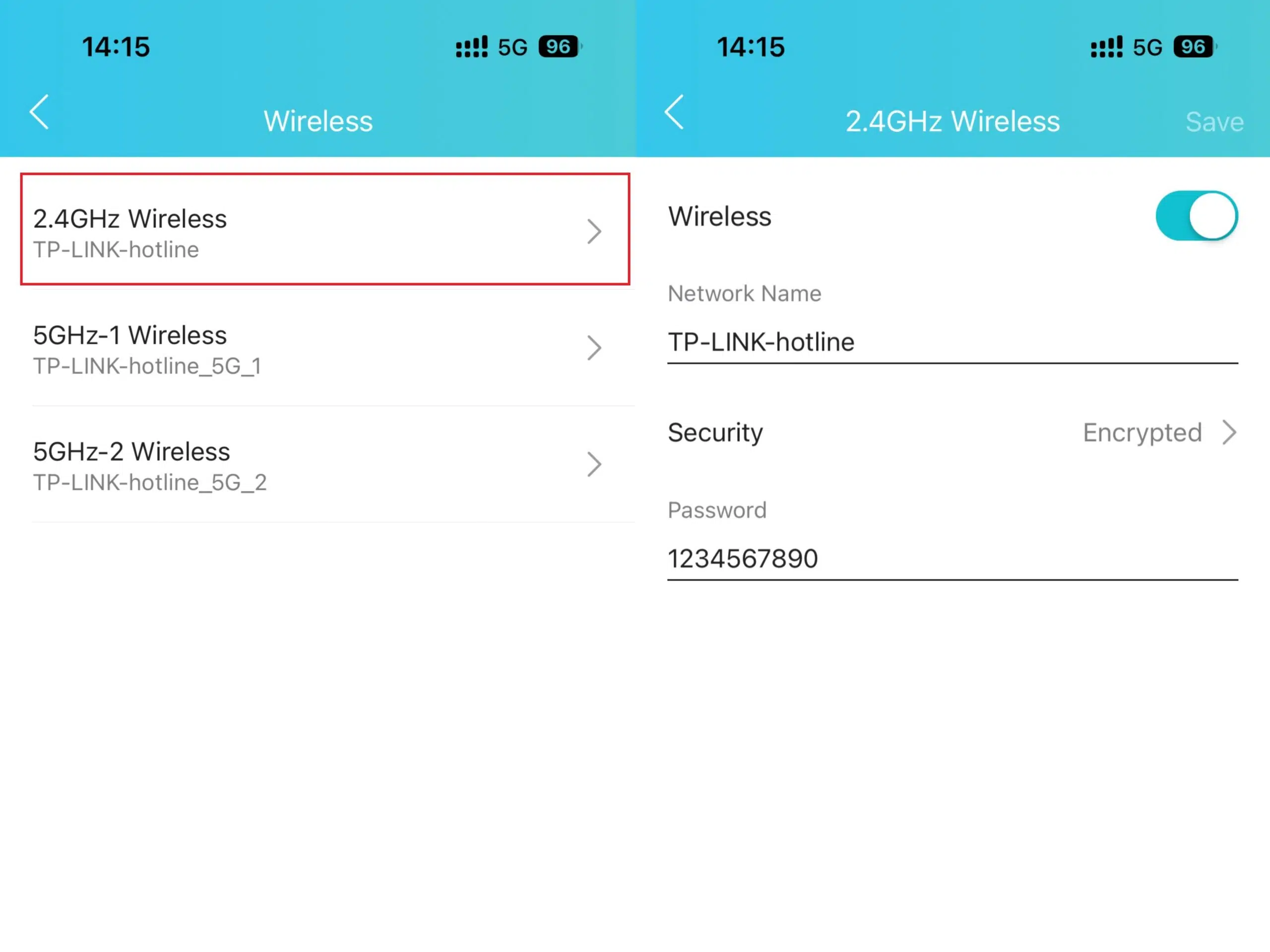
If you need to access your TP-Link router settings To change your Wi-Fi password, update the firmware, or adjust any network parameter, here's a clear and detailed guide with everything you need to know so you don't miss a thing. We have gathered the models involved, particularities by families and various access routes depending on the interface and device type.
This article is intended for users of any levelIt ranges from basic access steps to finer recommendations for specific TP-Link models, including neutral routers, DSL and the Archer family. We also include important notes on hardware, firmware, and regional availability., plus an official link to a quick PDF guide that you might find really useful.
What do you need before you start
Connect to the router Connect via Ethernet cable or Wi-Fi to the network broadcast by your TP-Link; if possible, use a cable to avoid interruptions during critical changes such as firmware updates. Without a connection to the router itself, you will not be able to access its control panel..
Have the team's data located. which are usually found on the bottom label: access IP, default username and password, or the method for creating credentials on the first startup. Also check the hardware version indicated as Ver or V, since it determines which firmware you should use.
Check your device's gateway. In case the router is using a different IP address than usual. On Windows, use ipconfig; on macOS, go to Network Preferences; on mobile devices, check the Wi-Fi network details. That gateway is the web address of the router's control panel..
Avoid power outages or disconnections while making delicate changes, especially when updating firmware. A cut at the wrong time can render the equipment unusable.
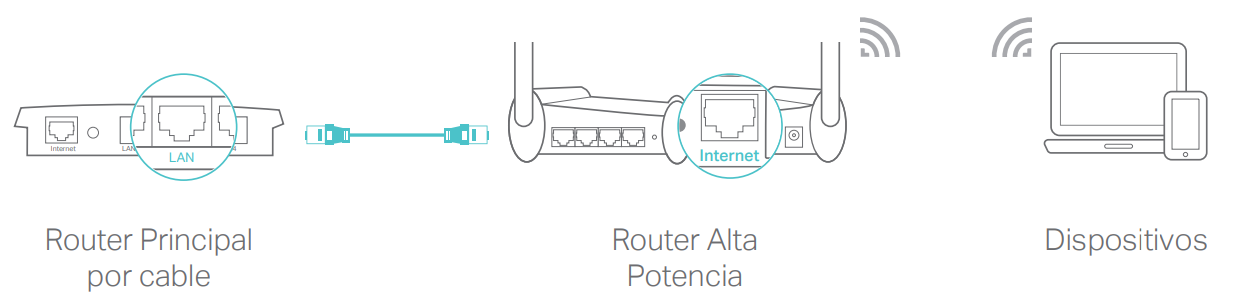
Quick access to the TP-Link router interface
The most direct way is through the browser.Enter the typical access address: tplinkwifi.net, 192.168.0.1 or 192.168.1.1. If none of those work, use the gateway detected on your device.which almost always coincides with the router's IP address.
- Open your browser preferred and type tplinkwifi.net or 192.168.0.1 in the address bar.
- Enter username and password when the system prompts you. In older models, it's usually admin as both the username and password, unless it has been changed.
- In newer models, create credentials If the assistant asks you to do so on your first login, write them down so you don't lose them.
TP-Link Tether appIf your router is compatible, you can manage basic settings from the official app on iOS and Android. Connect to the router's network, log in, and locate your device. to access your panel from your mobile device.
Routers provided by operators They may have custom firmware or different access levels. If your model is a carrier variant (for example, with vendor suffixes), there may be simplified menus or specific credentials on the label.
Access by product familiesIn practice, TL-WR and Archer share routes such as 192.168.0.1 or 192.168.1.1; TD-DSL usually use 192.168.1.1. If you're unsure, check the device label or its support page..
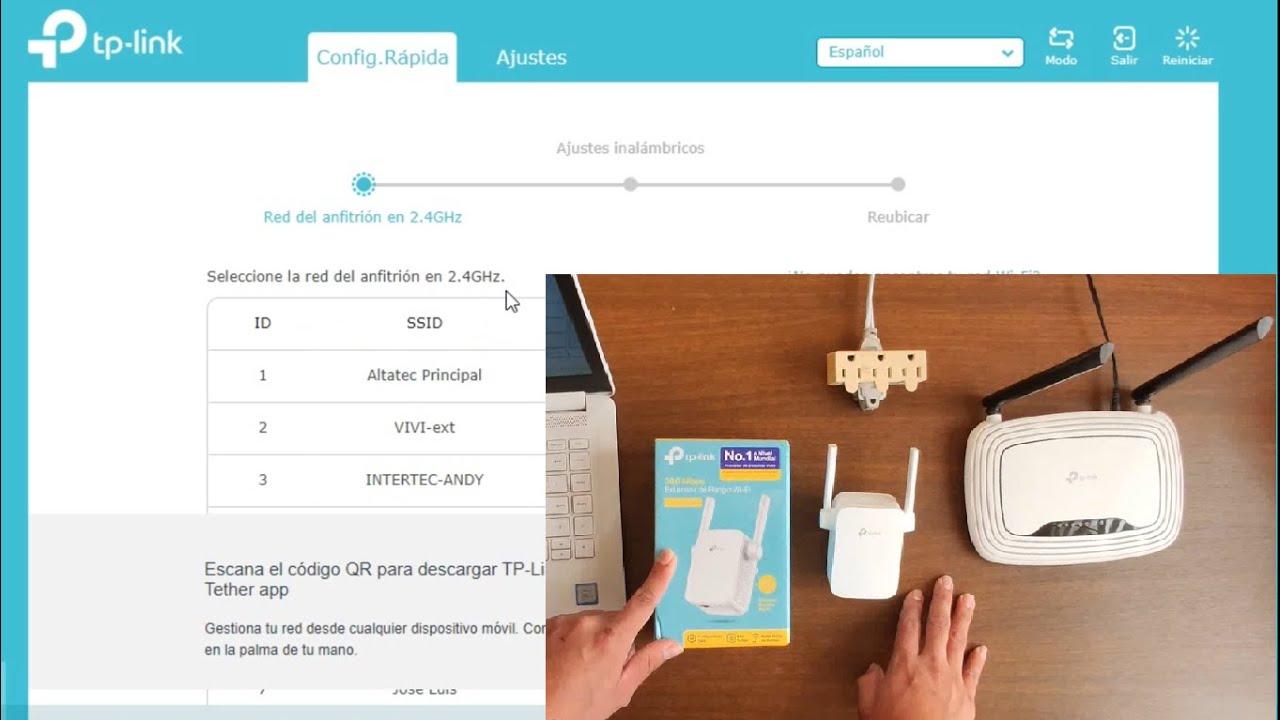
Default credentials, recovery, and security
Default credentials In many older TP-Link devices: admin as username and admin as password. In recent models, the wizard requires you to create an administrator password. in the first start to improve safety.
If you don't remember the password And if you can't get in, locate the Reset or WPS/Reset button on the back. Press and hold for 10 to 15 seconds with the device turned on. until the LEDs blink; this restores the factory settings.
Beware of DSL routers and those that depend on operator data (PPPoE, VLAN, VoIP). Restoring factory settings may leave you without an internet connection until you reconfigure your ISP settings, so keep them handy or contact your provider.
After regaining accessChange the administrator password to a strong one, disable WPS if you don't use it, and enable updates when appropriate. These are basic steps that reinforce the security of the team.
Compatible models and scope of this guide
The guide covers accessing the settings on a good number of TP-Link modelsBelow you have comprehensive lists by family, as they appear in the reference documentation, so you can identify your device.
TL-WR family and close variants (widely used domestic models): TL-WR841ND, TL-WR842ND, TL-WR843ND, TL-WR720N, TL-WR841N, TL-WR710N, TL-WR842N, TL-WR740N, TL-WR741ND, TL-WR840N, TL-WR940N, TL-WR743ND, TL-WR841HP, TL-WR941ND, TL-WR1043ND, TL-WR1042ND, TL-WR702N, TL-WR700N, TL-WR810N, TL‑WR843N. They all share similar access patterns And, depending on the hardware and firmware, they can receive improvements with updates.
Important note for this TL-WR familyRecent updates may have expanded access to features discussed in this guide. Visit your product's support page and choose the correct hardware version. and check the technical specifications or the firmware section for recent improvements. Product availability varies by region and Some models may not be available in your country.
TD-DSL Family (routers with integrated ADSL/ADSL2+ modem): TD-8840, TD-8810, TD-W8950ND, TD-W8950N. On these devices, the access address is usually 192.168.1.1 And the internet configuration depends on your operator's parameters.
Note for TD-DSL: here too There may be new features or fixes After updating the firmware, consult the model's support page, select the exact hardware, and review the specifications or downloads. Remember that The availability of each model is regional. and may vary.
Archer family and related models (wide range of AC, AX and special routers): Archer C1200, Archer C5400, Archer C4, Archer C5, Archer AX10, Archer C2, Archer C59 (EU), Archer AX96, Archer C5v, Archer C6U, TL‑WR940N, Archer C80, Archer AXE95, Archer C8, Archer AX10000, Archer C9, Archer C6, Archer C7, Archer C20 W, Archer AX90, Archer C5400X, Archer A20, Archer C60, Archer A1200, Archer C64, TL-WR941N, TL-WR941ND, Archer C59, Archer C58, Archer AX4200, Archer C3200, Archer A2, Archer AX75, Archer AX73, Archer A10, Archer C50, Archer C55, Archer C54, TL‑WR841N, Archer AXE75, Archer A6, Archer A7, Archer AX72, Archer A5, Archer A8, Archer A9, Archer AX68, Archer AX5300, Archer C4000, TL‑WR1043ND V3, TL‑WR841HP, Archer AXE300, Archer AX1500, Archer AX60, TL‑WR1043ND V1, Archer AX3000, Archer A2600, Archer AX55, Archer C5200, Archer AX53, Archer AX51, Archer C50 V3.0, Archer C5 V4, Archer A2200, Archer C5 W, Archer C3150, Archer AX50, Archer C20 V4, Archer AX6000, Archer C25, Archer C24, Archer A64, Archer C2 V1, Archer AX10/A, Archer C2600, Archer C21, Archer C20, TL‑WR840N, Archer C2 V3, Archer A10 Pro, Archer AX1800, Archer AX206, Archer C900, Archer AX4400, Archer C3000, Archer C50, TL‑WR941HP, Archer A54, Archer AX4800, Archer C20(RU), Archer C1900, Archer A2300, TL‑WR740N, Archer C20i, Archer C2(RU), Archer A2600 Pro, Archer C5 v4.0, Archer AXE5400V, Archer AXE200 Omni, Archer GX90, TL‑WR942N, Archer C5 Pro, TL‑WR841HP V1, Archer C2(EU), Archer C2300, Archer C1210, Archer AX23, Archer AX20, Archer C3150 V2, Archer AX21, Archer AX3000V, Archer A3000, Archer C2700, Archer C7i, TL‑WR741N, Archer C90, Archer C50(RU), Archer AX11000, Archer AX3200. This list reflects devices with similar access behavior, although with very different interfaces. according to generation.
Another list of Archer and AX models with access and firmware considerations: Archer C5400, Archer A2600, Archer AX55, Archer AX53, Archer AX10, Archer AX51, Archer AX96, Archer AXE95, Archer AX10000, Archer C3150, Archer AX50, Archer C7, Archer AX90, Archer AX6000, Archer C5400X, Archer A20, Archer C2600, Archer AX1800, Archer AX206, Archer AX4200, Archer C3200, Archer AX75, Archer AX4400, Archer AX73, Archer A10, Archer AX4800, Archer A2300, Archer AXE75, Archer A2600 Pro, Archer A7, Archer AX72, Archer AXE5400V, Archer AXE200 Omni, Archer A9, Archer AX68, Archer C2300, Archer AX5300, Archer AX23, Archer AX3000 Pro, Archer AX20, Archer C4000, Archer AX21, Archer AX3000V, Archer Air R5, Archer AXE300, Archer AX1500, Archer AX11000, Archer AX3200, Archer AX3000. Again, access via browser and Tether app is the norm., with differences in menus and advanced features.
General note for the Archer familyIt is common for updates expand features or improve accessAlways visit the product support page, choose the exact hardware version, and review the technical specifications and firmware section. Regional availability also applies to these models.
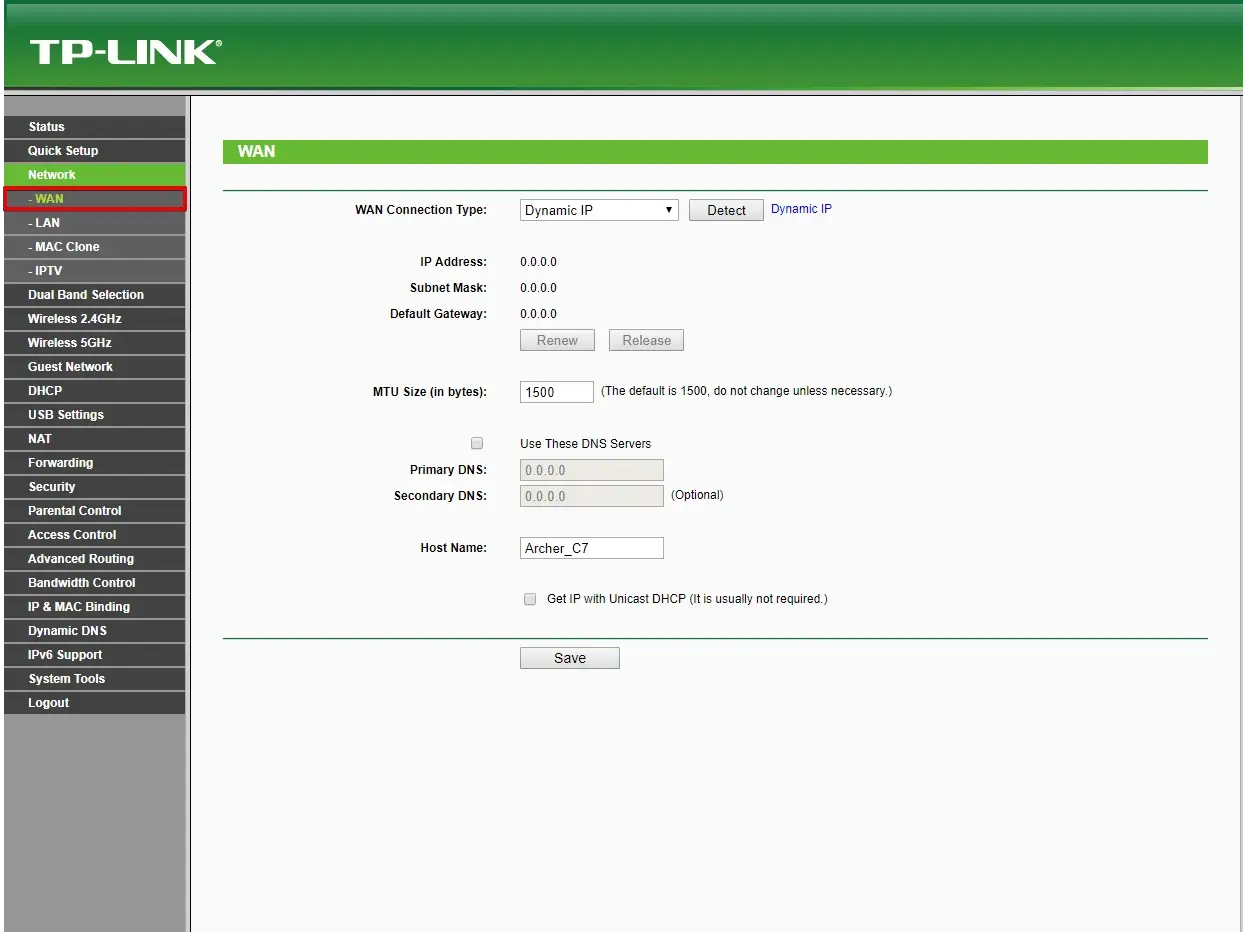
Classic and new interface: differences that affect access
Classic interface In many TL-WR and some older Archer models: side menus with a simple structure. Access with admin and default adminand clear sections for Wireless, DHCP, Security and System Tools.
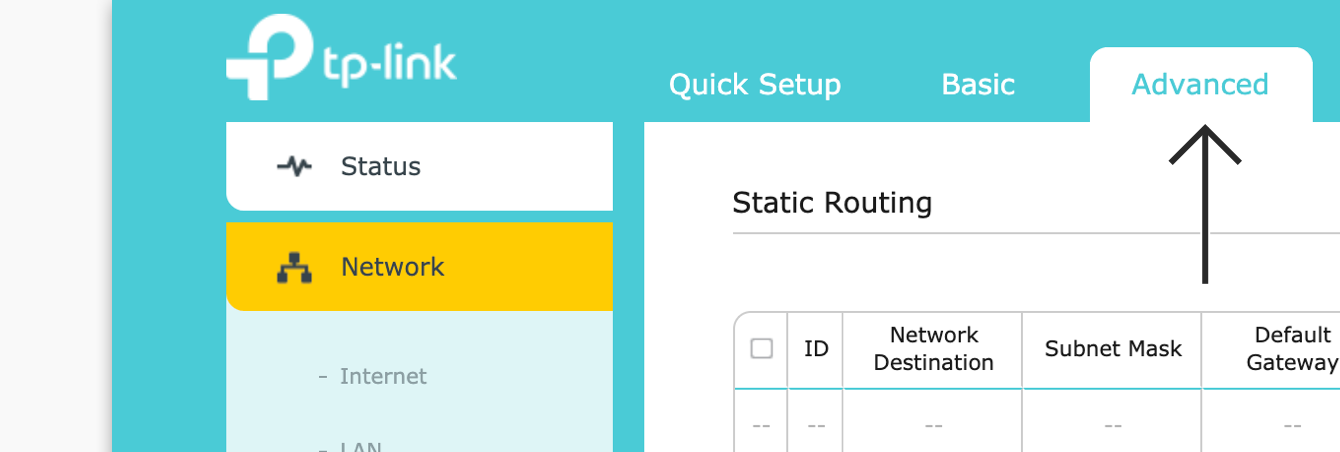
Modern interface In recent Archer and AX versions: dashboard with Basic and Advanced tabs, initial setup wizard and mandatory administrator password creationThe sections change names but the logic remains the same.
Remote access mode On compatible models: you can manage the router from outside your home using TP-Link ID and the Tether app. Activate it only if you need to and with strong credentials.
Different access paths depending on firmware: Some devices change from 192.168.1.1 to 192.168.0.1 or tplinkwifi.net when changing firmware. If you still can't log in after updating, check your gateway or DHCP settings..
What settings should I check once inside?
Administrator PasswordChange it if it's still the default or if the assistant left you with a weak one. Avoid using the same password as your Wi-Fi password.
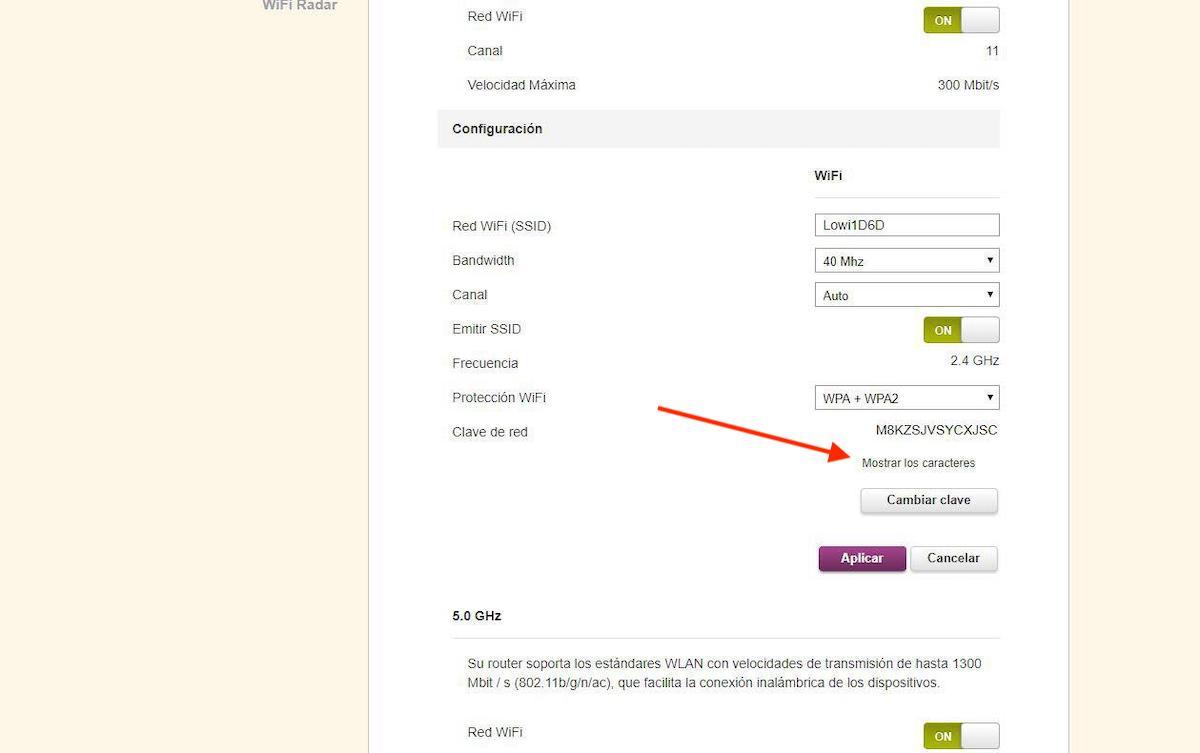
Wi-Fi name and passwordCustomize the SSID and use WPA2 or WPA3 encryption if available. In dual-band networks, it separates 2,4 GHz and 5 GHz. with different names to better identify where to connect.
Channel and bandwidth: at 2,4 GHz use less saturated channels and 20 MHz if there is interference; at 5 GHz you can go up to 40 or 80 MHz. A good channel reduces interruptions and improves speed.
Firmware UpdateGo to the update section and check for new versions. Download the file from the support page for the correct model and hardware version. to avoid compatibility issues.
Advanced functions Features such as parental controls, QoS, guest network, Wi-Fi scheduling, or VPN vary by model and firmware. If you don't see a feature, check if any updates add it. or if your region has it.
Troubleshooting access problems
The home page is not loadingTry the three typical options (tplinkwifi.net, 192.168.0.1, 192.168.1.1) and verify that your device has an IP address in the same range (for example, 192.168.0.x). Otherwise, renew your IP address or connect via cable..
Incorrect credentials: confirm that there are no unintentional capital letters, check the router label, or remember if the assistant forced you to create a new password. As a last resort, reset the device by holding down the Reset button. the time indicated by the manufacturer.
After updating the firmware, I can't log in: clear browser cache, use another browser, or connect via cable and redo the gateway search. Some firmwares change the management IP address.
The operator's router limits settingsSome ISP-customized models block advanced menus. Consult your supplier or check if there is suitable manufacturer firmware for your hardware.Please note that changing the firmware may not be permitted by the carrier.
The Tether app does not detect the router.: Verify that you are on the same network, update the app, and make sure that the router has Tether management enabled. If there are multiple networks with the same SSID, it might connect to another one..
Official notes on updates, hardware, and availability
TP-Link reports that in multiple models Recent updates may expand access to certain features. This applies to the listed TL-WR, TD-DSL, and Archer families in this document.
- For TL-WR and variants: Check your product's support page, choose the correct hardware version, and review the technical specifications or firmware section to see any added improvements. Product availability is regional and may not match your country.
- For TD-8840, TD-8810, TD-W8950ND and TD-W8950NSimilarly, there may be new features or fixes after updating. Select the correct hardware before downloading.
- For Archer and related models In both listings: check the hardware and review the release notes in the firmware section and the technical data sheet. Some features are enabled by region.
This means that it's advisable to check periodically Visit your model's support page to improve performance, security, and access to options. Updating with the wrong hardware file can cause failuresSo always confirm the exact revision (e.g., V1, V2, V3).
Official resources and documentation
If you are using the TL-WR841N version V11TP-Link offers a quick PDF guide with installation and access steps. You can download it from here: Download PDF.
For any other modelFind your product on the TP-Link support portal, select the exact hardware version, and visit the technical specifications, manual, and firmware sections. There you will find the most specific and up-to-date instructions. for your team.
With all of the above, you should now be able to access your TP-Link control panel without any problems.Connect to the router, use the correct address, validate credentials or recover them with a controlled reset, and review key settings such as Wi-Fi, security, and firmware. Always keep in mind the hardware version and support notes because they make a difference in terms of functions and how to access them in each model and region.