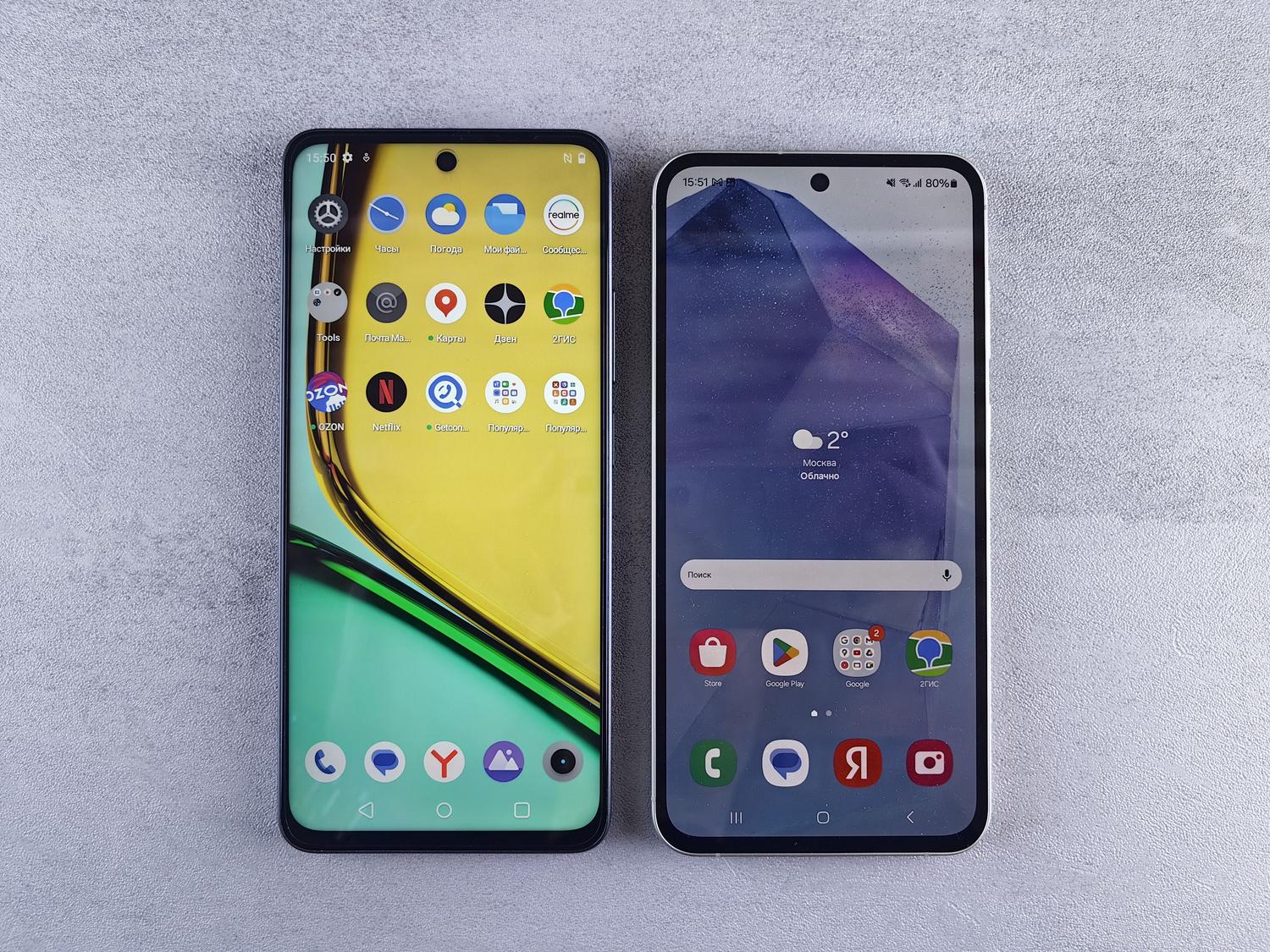
- There are multiple ways to transfer information, from using physical cables and WiFi connections to cloud storage.
- The latest versions of Android have optimized migration, allowing the transfer of complex elements such as eSIMs and network passwords.
- It is essential to manage the deactivation of Apple-exclusive services to ensure the correct reception of messages on the new device.
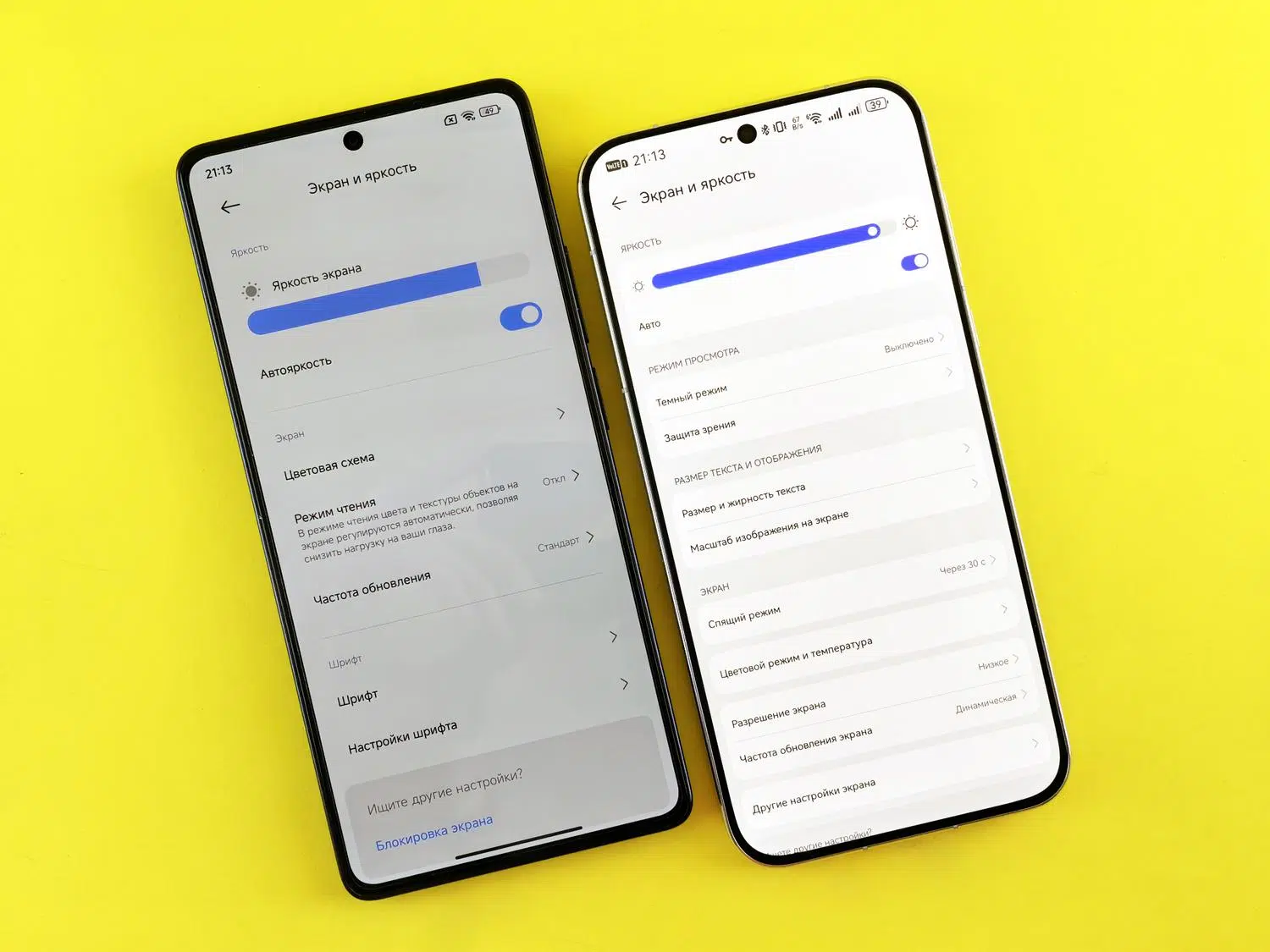
Making the leap from the Apple ecosystem to the Android world can be daunting, especially due to the fear of losing memories and contacts accumulated over years. The truth is, while it used to be a real headache, nowadays the process is much more intuitive and straightforward than it initially seems.
If you've decided to upgrade your smartphone and want to switch to Android with all your digital data intact, don't worry. In this article, we'll tell you about all the possible options so you don't lose anything along the way, whether you prefer the speed of a cable or the convenience of the cloud.

The most direct method: Transfer via cable
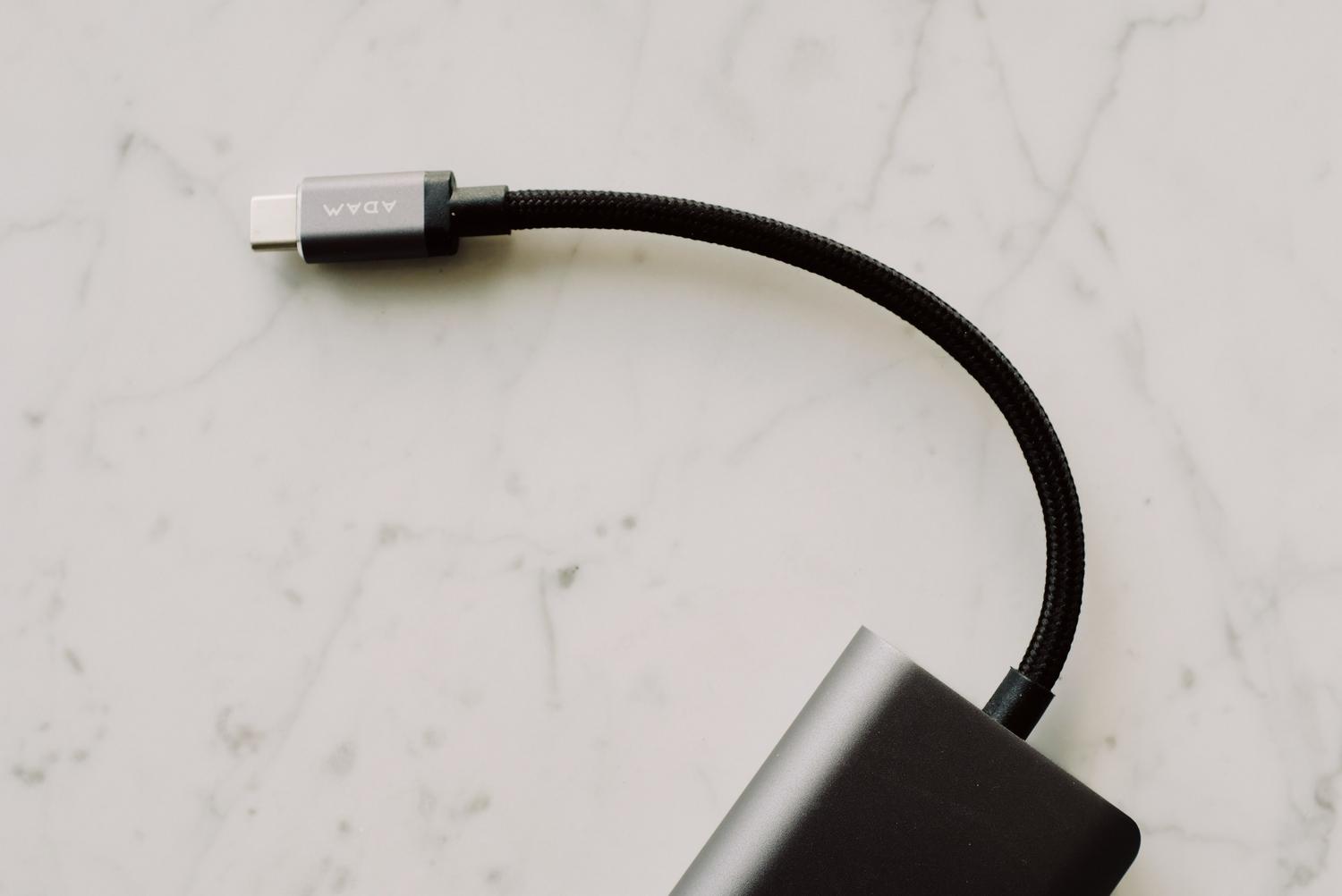
For those seeking maximum efficiency, physically connecting the two devices is the best option. Using a Lightning to USB-C cable (or an OTG adapter if the cable is standard USB) will make the migration much smoother. Simply turn on your new Android device and, when prompted, connect both phones.
The main advantage of this method is that it's the fastest and most thorough , allowing you to recover not only photos, but also message history and most settings. However, make sure both devices are fully charged and your iPhone is updated to the latest version to avoid annoying errors during the process.
Wireless migration via WiFi
If you don't have a cable handy or prefer to avoid the hassle of wires, a Wi-Fi connection is your best friend. Using the Switch to Android app , you can link both phones. The process is simple: select the "Wireless" option on your Android device and follow the instructions to sync them.
While very convenient, this method is somewhat limited in terms of data transfer. You can generally transfer contacts, calendar events, photos, and videos without issue, but other files or messages may be left out, forcing you to find them another way.

The path to the cloud: Google Drive and alternatives
Another very solid alternative is to use the cloud as a bridge. By installing Google Drive on your iPhone , you can go into settings and activate the "Back Up" feature. This will automatically upload your contacts, calendar, and media to your Google account.
Regarding photos, you can choose between original quality or a slightly compressed, high-quality version to save space within the 15 GB of free storage offered by Google. Alternatively, if absolute privacy is your priority, there are options like Proton Drive , which encrypts your files end-to-end, although it requires a more tedious manual step to export contacts via vCards from iCloud.
What's new in Android 17 and advanced transfer
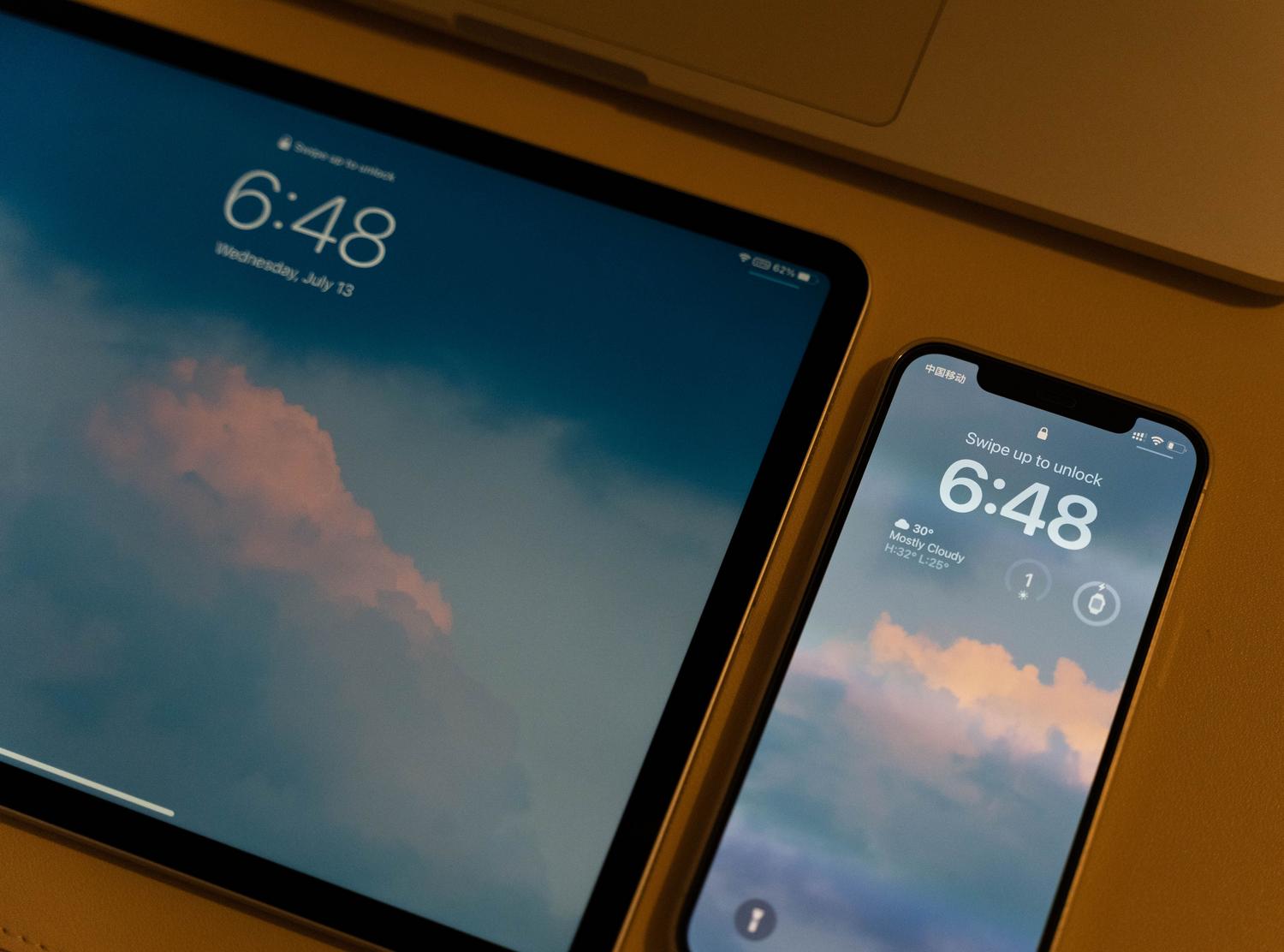
Technology never stands still, and the latest versions, like Android 17, have simplified this process considerably. Now, on modern devices like the Pixel 8 or the Samsung Galaxy Z Fold 8 , the process starts simply by scanning a QR code, without needing to install any additional apps on the iPhone.
The most surprising thing is the amount of data that can now be transferred. We're no longer just talking about photos, but also saved passwords, Wi-Fi networks, and even your eSIM , eliminating the need to contact your carrier to configure the line. It even allows you to copy your home screen layout and alarms, making the change almost invisible to the user.

Managing WhatsApp and Apple services
WhatsApp is often the biggest concern. Currently, you can take advantage of the migration assistant during the initial Android setup or use the built-in chat transfer feature. It's crucial to perform this step before erasing your iPhone, as WhatsApp backups on iOS are stored in iCloud and are not directly compatible with Google Drive.
A critical point that many people forget is disabling iMessage and FaceTime . If you don't do this before removing the SIM card from your iPhone, messages sent by other Apple users will continue to arrive on your old device and you won't see them on your new Android. You need to go to your Messages and FaceTime settings and manually turn off both switches.
Considerations regarding apps and purchases
It's important to understand that while most apps are available in both stores, purchases made in the App Store don't transfer to Google Play. You'll have to pay again for premium apps or look for free alternatives on Android. Additionally, some very specific Apple apps might not have an exact equivalent on Google's system.
For a successful transition, the ideal approach is to combine a wired transfer for large data files with cloud storage for a secure, long-term backup . Once you've verified that your contacts and photos are on your new phone, you can reset your iPhone with the peace of mind that your entire digital life has been successfully transferred to your new Android device.