- Comprehensive analysis of temperatures, voltages and energy consumption in real time to detect performance problems.
- Advanced thermal and energy audit methodologies using benchmarks and data logs.
- Custom configuration of sensors and visualization tools to optimize hardware control on laptops and desktops.
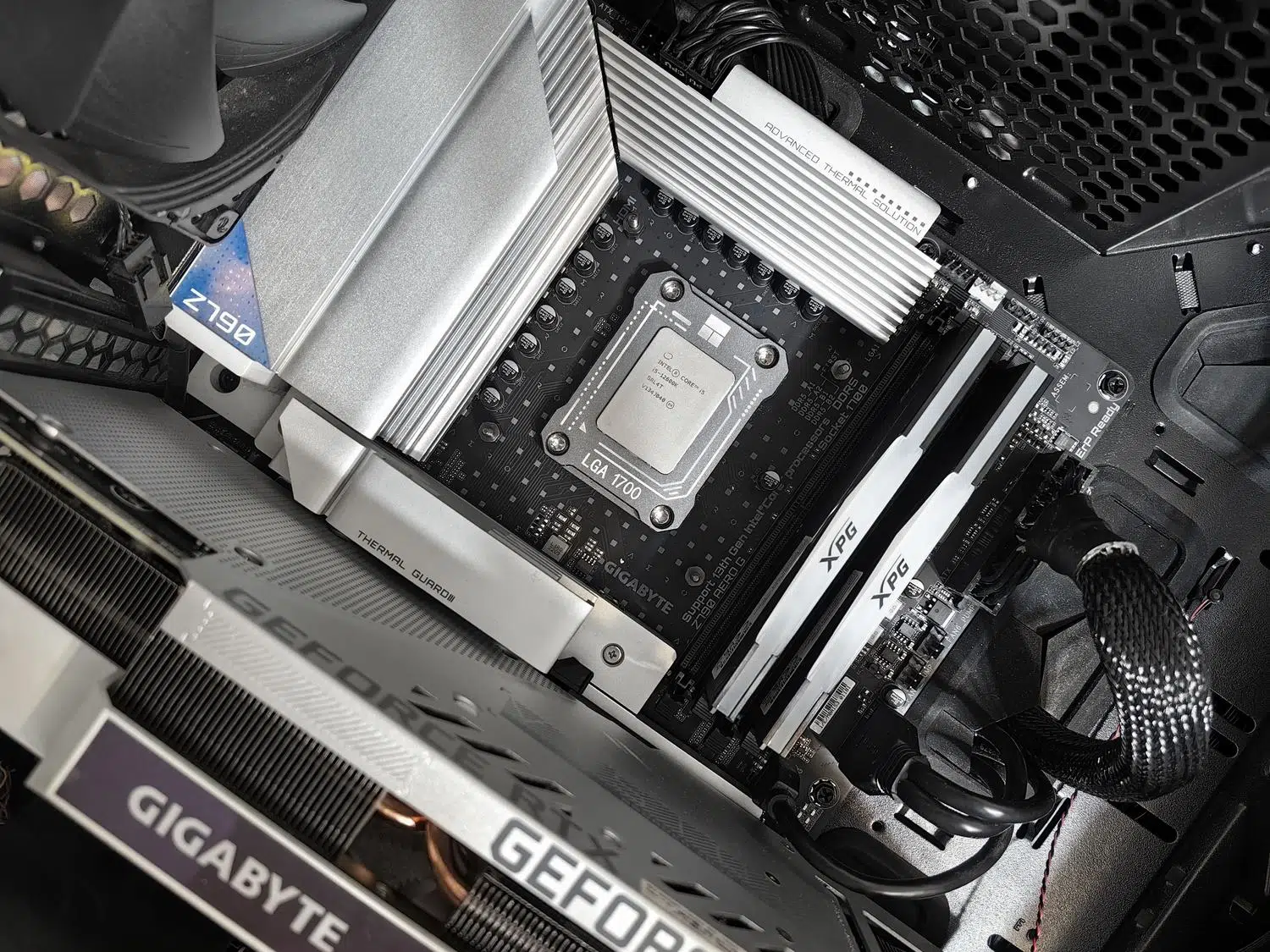
If you've ever wondered what's really going on inside your desktop or laptop while you're gaming or working, you need a tool that doesn't mess around. The world of hardware is complex, and while Windows provides some information, it falls short if we want to know whether our computer is under strain or if we've pushed it to its limits. That's where HWiNFO comes in, a free software that is essentially the gold standard for component diagnostics , even used in demanding environments like NASA.
It's not just about checking if the temperature is high or low, but about understanding how the components interact with each other. From monitoring whether an SSD is overheating to checking if your laptop manufacturer has misled you about the promised wattage, this tool allows you to perform a complete and quantitative audit of your machine. Whether you have a DIY PC or a pre-built system, having full control over the sensors is the only way to ensure your investment doesn't degrade prematurely.

Installation and first steps with the software
To start exploring, the first thing to do is go to the developer's official website. Here you'll find two main versions: 32-bit and 64-bit, so choose the one that matches your operating system. An important detail is that you can choose between the stable version and the Beta version ; if you have very recent hardware, I recommend going for the Beta, as it's constantly updated to recognize the latest chips on the market.
When you run the program, you'll see a welcome screen offering two options. Summary mode is ideal for a quick overview of your installed system, RAM, processor, and storage. However, the real magic happens in sensor mode , where the full arsenal of real-time monitoring is deployed, showing you current, minimum, maximum, and average values for each component.
Advanced settings and customization

To prevent the interface from becoming a jumble of numbers, HWiNFO allows for complete customization. In the settings menu, the General tab lets you choose which sensors to prioritize and whether you prefer to view temperatures in Celsius or Fahrenheit. If you want to organize the data, the Fixed order option in the Layout tab is key, as it allows you to group the sensors that are most relevant to you, saving you from having to search through hundreds of lines.
For those who want to take monitoring to the next level, there's integration with RivaTuner Statistic Server (RTSS) via the OSD tab. This allows you to project data on screen while you play, making it a fantastic alternative to the best task manager app if you're not interested in overclocking but do want to keep an eye on your GPU and make sure it's not running at its limit. You can also configure alerts so the program notifies you if any component reaches a dangerous temperature.

Thermodynamic auditing and practical cases
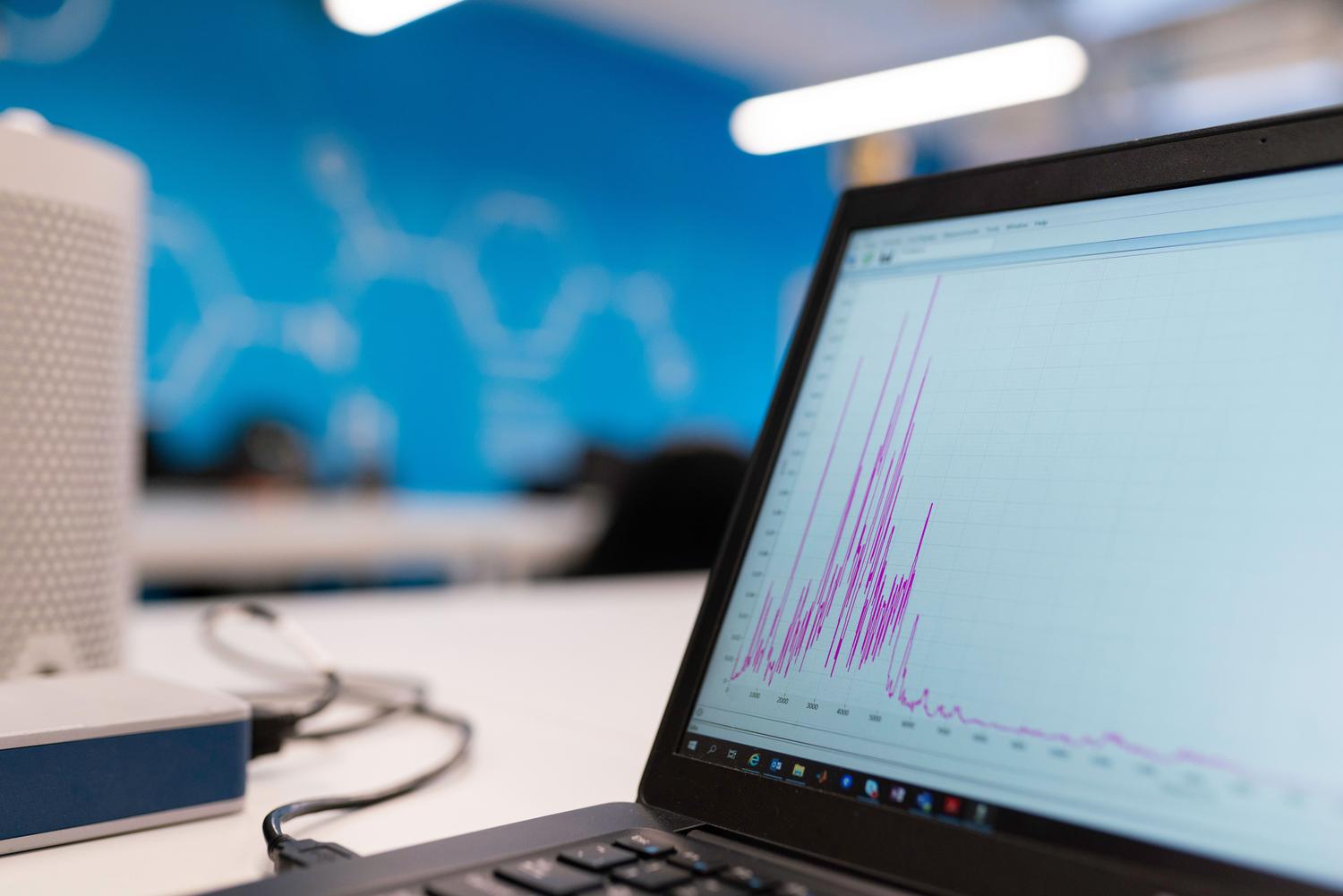
One of HWiNFO's most useful applications is characterizing the cooling system. To do this properly, it's best to launch the program in sensor mode and activate the Show Graph function by right-clicking on the desired sensor. By running a demanding benchmark, such as Cinebench R23, for 10 or 30 minutes, we can observe how the wattage and temperature rise until they stabilize. If we see the power drop while the temperature continues to rise, we're experiencing the dreaded Thermal Throttling , which occurs when the chip reduces its frequency to avoid overheating.
In laptops, this is critical. We can analyze the combined wattage of the CPU and GPU running simultaneously to determine the system's actual heat dissipation capacity . For example, if a GPU has a nominal TGP and a dynamic overage, we can check if the cooling system can utilize that extra power or if, when the CPU is turned on, the system reduces power to the graphics card to balance the heat. These types of tests reveal whether the performance is sustained or if it's just momentary power spikes.
Performance and battery mode analysis
Another interesting exercise is to monitor how the power profiles (Silent, Balanced, Performance) affect actual power consumption. By changing the mode while running a stress test, we'll see that the wattage curve forms a sort of stepped pattern . This allows us to know exactly how much power is allocated to the processor in each mode and whether the fan is able to keep up or if the system ends up saturating.
In terms of battery life, HWiNFO is a gem for laptop users. It allows you to compare the current battery capacity against the original specifications, revealing the extent of cell degradation and helping you understand if leaving your laptop plugged in affects the battery . You can also monitor the discharge rate in real time to identify which applications are draining the battery or check the battery temperature—information not always available in other tools.
The power of logs and data auditing
When quick graphs aren't enough, it's time to generate a log file in CSV format . Clicking the note icon starts the program recording every variation from each sensor. This data can be imported into Excel, but the most efficient way is to use the Generic Log Viewer . This tool allows you to analyze specific segments of the timeline, identify peak and average values with surgical precision, and gain in-depth insights into hardware behavior.
It's important to note that, while the tool is very powerful, some users have noticed that it constantly monitors external hard drives, preventing them from entering sleep mode. In such cases, it's advisable to review the sensor settings to disable frequent queries of drives that don't need to be audited at that moment. Also, remember that to save any changes to the settings, you must use the large X button, not the usual Windows cross.
This tool becomes the perfect ally for anyone who wants to go from intuition to concrete data about their PC, allowing them to do everything from detecting when thermal paste needs replacing to verifying that a gaming laptop performs exactly as the manufacturer promised. By combining live sensor data with subsequent log analysis and stress testing via benchmarks, we gain complete control over the health and thermal efficiency of our hardware.