- Discover advanced productivity and security tools built into the Pro version of Windows 11.
- Methodology for unlocking experimental features using the open source utility ViVeTool.
- List of specific identifiers to activate AI, new interface designs, and taskbar improvements.

Windows 11 continues to surprise and evolve, constantly keeping us updated. Microsoft has focused on refining the user experience , releasing continuous improvements that sometimes go unnoticed. Particularly noteworthy are the so-called Moment updates, which are now a regular feature in the support calendar and occasionally bring dozens of new features that most people aren't even aware of.
The interesting thing is that many of these gems are there, but they require the user to activate them manually or have a specific version of the system. Whether you're looking to optimize your professional workflow or are simply curious to try the latest in AI and design, there are ways to access these capabilities that Microsoft keeps under wraps until their global rollout.

Advanced tools for Windows 11 Pro users
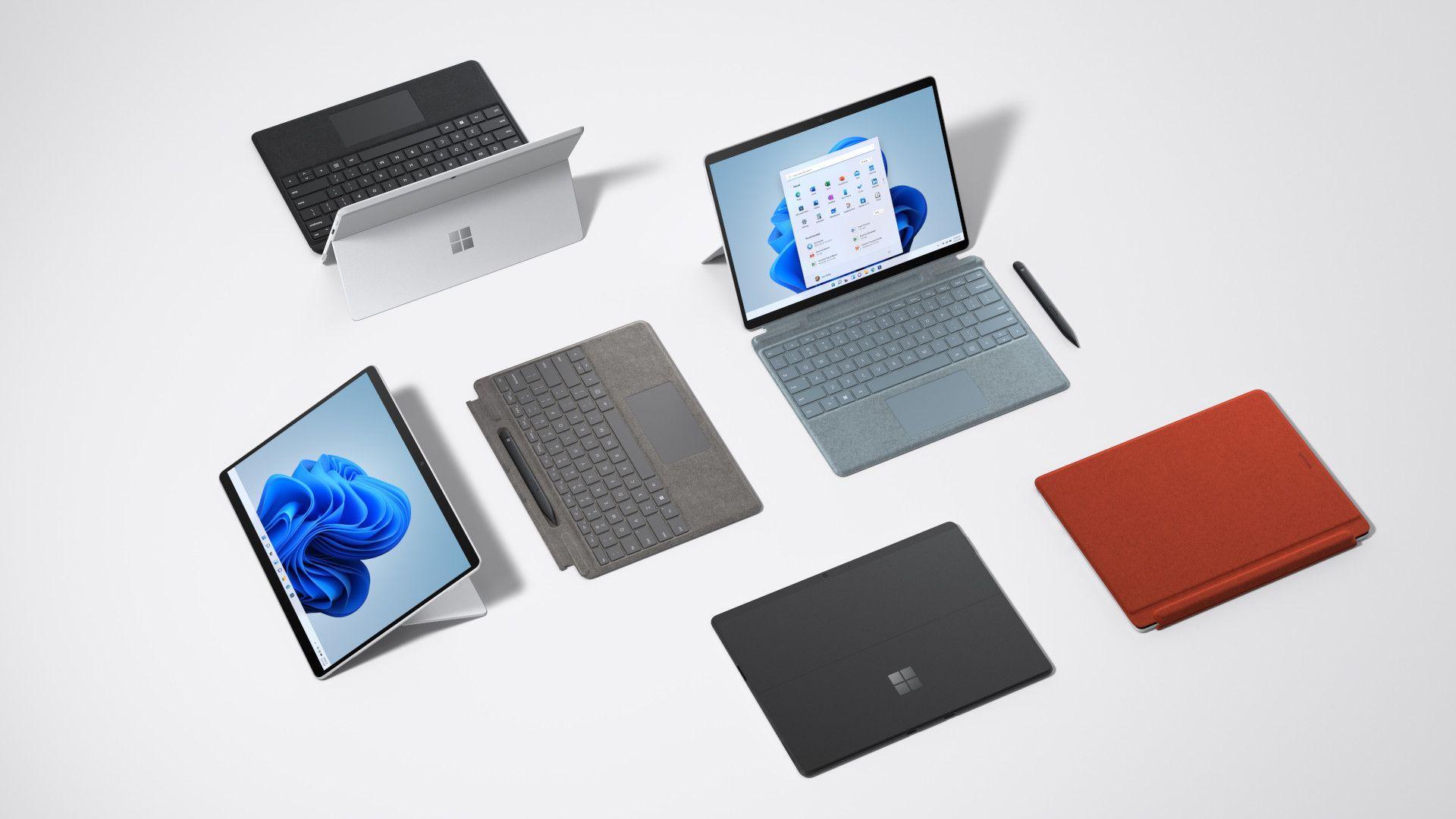
If you use the Pro edition, you have access to an arsenal of features typically marketed as corporate tools, but which are true lifesavers for freelancers and hybrid workers. Many of these options run in the background, saving valuable time during the workday without you even noticing.
One of the most powerful is BitLocker To Go. While general disk encryption is well-known, this variant protects USB drives and external hard drives . It's essential if you frequently move confidential client files on physical hardware, preventing the loss of a USB drive from becoming a data security disaster.
On the other hand, Remote Desktop offers incredible flexibility. It allows you to turn your most powerful computer into the central hub of your work , connecting to it from any other device. This eliminates the need to replicate applications and folders on each laptop, keeping everything organized in one place.

For those who hate when their PC restarts at the worst possible moment, Windows Update Controls for Business are the solution. This feature allows you to precisely manage when updates are installed and how much downtime is acceptable during the week, providing predictable system stability.
If you're a developer or manage large databases, a Dev Drive is a specialized option. It allows you to create a dedicated volume for code and package libraries, separating the development environment from the rest of the operating system for significant performance gains.
Finally, Provisioning Packages are the ideal tool for those managing multiple machines. Instead of repeating the configuration over and over, you can apply settings and customizations in bulk, eliminating the tedious process of manual configuration on each new machine.

Unlocking secrets with ViVeTool
Microsoft uses a phased rollout system, meaning that one person might have a feature enabled while another, with the same version, might not. To bypass this wait, there's ViVeTool, an open-source utility that interacts with Windows' feature management mechanism to force the activation of features already present in the code.
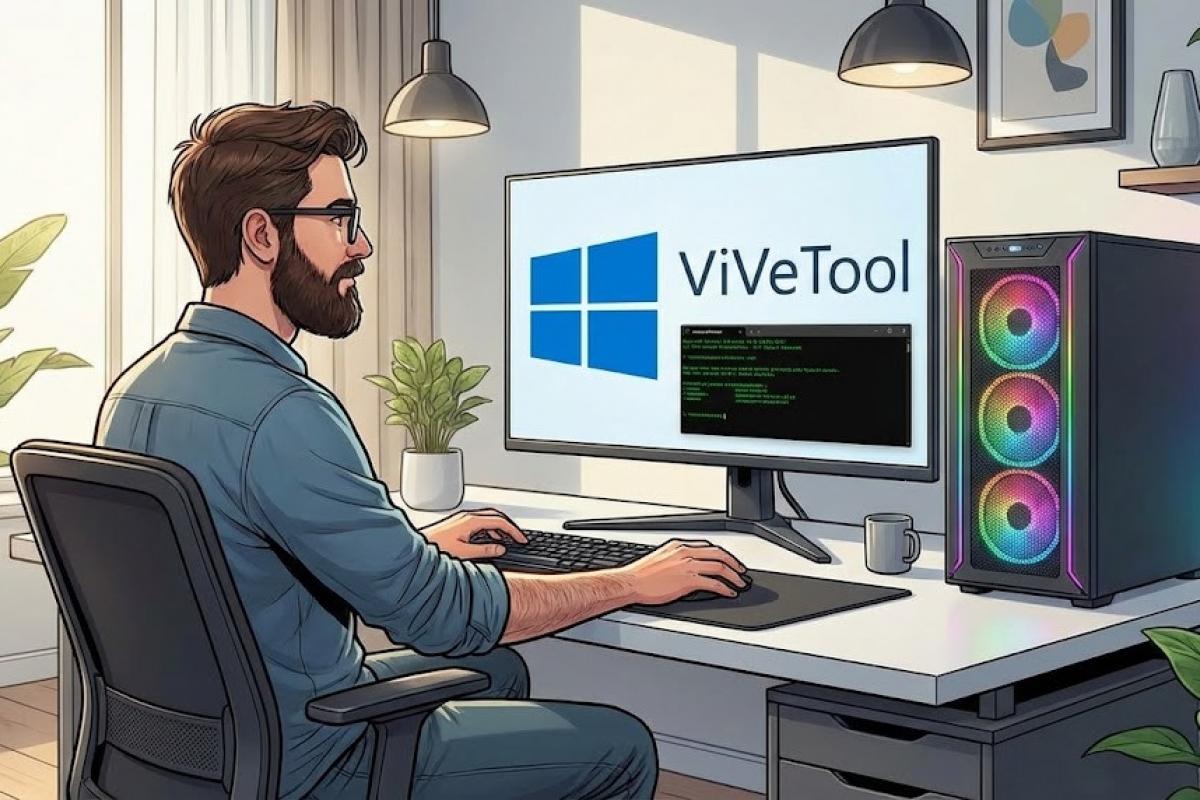
It's important to clarify that this tool doesn't install anything new; it simply changes the configuration of features you've already downloaded through Windows Update. To use it, you need to download the appropriate version from GitHub based on your processor (Intel AMD or Snapdragon ARM64) and extract it to a simple location, preferably C:\ViVeTool to avoid console path issues.
To operate it, you need to open Command Prompt as administrator and navigate to the folder using the command cd C:\ViVeToolOnce there, the basic syntax is vivetool /enable /id:NÚMERO, where the number is the unique identifier of the function you want to wake up.

Current codes and experimental functions
Depending on your build (especially if you're on 26200.7171 or higher), you can try various tricks. For example, the new one-page Home menu without the recommendations feed is enabled with ID 47205210. If you prefer more precise visual control, ID 56328729 enables the battery icon with percentage and informative colors.
For AI enthusiasts, there are IDs like 54792954 and 55345819 that unlock AI actions within File Explorer . You can also enable administrator protection and the emoji button in the taskbar using ID 57048231, although the latter might require additional adjustments in the Group Policy Editor.
There are other interesting codes you can track down on forums like Reddit: IDs 59162732 and 55994763 refresh the widget design , while 41356296 allows automatic hiding of the taskbar and 4569026 adds cloud file search directly from the browser.

If any of these features give you trouble or you simply don't like them, that's okay. You can reverse changes using the command /reset instead of /enable, returning the identifier to its original state, or use /disable to turn the function off completely.
Safety tips to avoid scares
Experimenting with the system can be exciting, but it comes with risks. The smartest approach is to always create a system restore point before running any commands. This way, if a function causes instability, you can revert to a previous state in no time without losing your personal data.
It is strongly recommended to perform individual tests . Do not activate ten functions at once; activate one, restart your PC, and check that everything runs smoothly. If the system crashes after a mass activation, it will be a real headache to figure out which of all the codes is responsible for the problem.
Also keep in mind that compatibility varies depending on the Windows build. Code that works in the Experimental Channel might not work or might cause conflicts in the stable version. Keep the tool up to date by visiting the GitHub repository to ensure ViVeTool is compatible with the internal changes Microsoft implements in each patch.
Mastering these tools allows you to transform Windows 11 into a much more powerful and personalized system, whether by taking advantage of the security of the Pro version or getting ahead of the future by using ViVeTool and its experimental identifiers, always maintaining caution and keeping backups up to date.
