- Using two monitors in Windows increases productivity by reducing window switching and improving work organization.
- The dual screen offers more visual space, makes it easier to compare documents, and reduces eye strain during intensive use.
- In gaming and streaming, it allows you to play in full screen while controlling chat, live stream, and auxiliary tools on the second monitor.
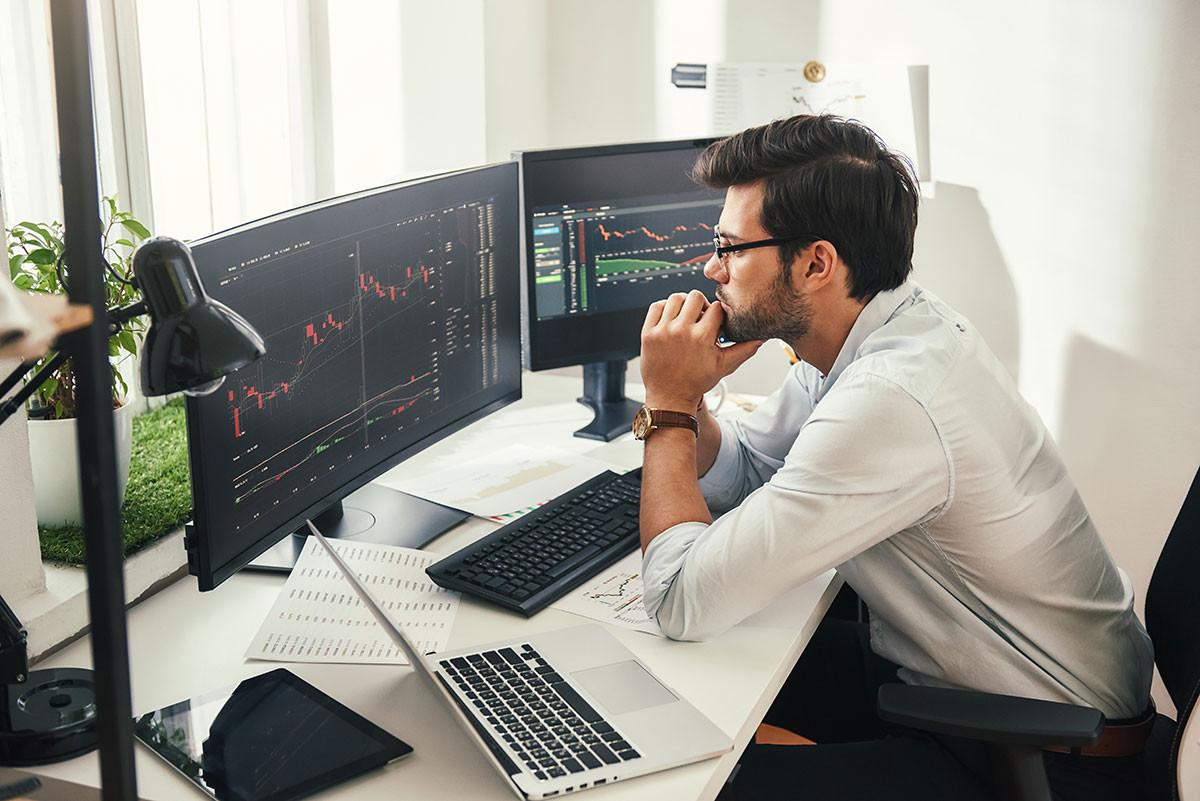
Using two monitors in Windows has become almost commonplace in both offices and homes. What a few years ago sounded like a "geeky luxury" or something reserved for highly specialized professional environments is now a very accessible solution that greatly improves the way we work, study, create content, or play games on our PCs.
While connecting two screens to a single computer might seem excessive at first glance , once you spend a few days with an extended desktop, it's hard to go back. From better organizing email and documents at work to playing a video game full screen on one monitor and using Twitch or Discord on the other, the possibilities are enormous and significantly impact productivity, visual comfort, and the overall user experience.
Why are so many offices now using two monitors?
In many office jobs, seeing someone with two monitors on their desk no longer raises eyebrows. It's not necessarily a sign that the person is performing incredibly complex tasks; in fact, even in routine work, having more screen space reduces constant friction: switching windows, rearranging documents, searching for lost tabs, and so on.
In most office jobs, you work with several applications open at the same time : email, browser, spreadsheets, text documents, internal chats, web panels, CRM… With a single monitor, everything gets piled up and forces you to maximize, minimize and switch between them with Alt+Tab every few minutes.
Extending your Windows desktop to a second screen reduces that clutter. You can dedicate one monitor to the main task (for example, an Excel or Word report) and the other to auxiliary tools : email, reference documents, file explorer, or a video call. This makes your workflow much smoother and more natural.
Furthermore, ergonomics and productivity studies indicate that switching from one to two screens significantly increases efficiency. It's not magic: it simply reduces the time wasted searching for windows, repositioning them, and switching contexts . Throughout the day, this "wasteful time" adds up.
Another reason why companies recommend this configuration is that it allows for better adaptation of the visual space to each person: some people prefer to have one monitor in portrait mode for long documents, and another in landscape mode for spreadsheets or dashboards.
Advantages of using two monitors in Windows for work
The list of practical benefits is long, but it can be summarized in a few key points that are repeated in almost all professional profiles that work with computers daily.
1. Less time wasted switching between windows
When you only have one monitor, every task involving multiple applications is done by constantly opening, closing, and switching between windows. Imagine writing a document while simultaneously researching data on a website and answering emails: with a single screen, you spend all day using Alt+Tab or clicking on the taskbar.
With two monitors, you can keep each application in its designated place . For example, reports and spreadsheets on the primary monitor, and email, company chat, and a web browser on the secondary one. The result is that you can perform actions much more efficiently, without those constant micro-interruptions from switching windows.
2. Better visualization and less need to zoom
Another obvious advantage is that You see more content at a comfortable size.A single monitor usually forces you to fit several reduced windows, or to work with high zoom levels, or Increase font size in Windows 11 So that "everything fits." With a dual screen, you can leave documents and applications at their natural size, without cropping or cluttering them up.
This is especially useful when dealing with dense information : dashboards with many charts, diagrams, 3D models, spreadsheets with numerous columns, or lengthy technical documents. Instead of constantly scrolling and zooming, you distribute the information logically across both monitors.
3. More workspace, less eye strain
Squeezing four or five windows on a single monitor often results in tiny fonts and elements packed tightly together. Doing this for many hours a day can cause eye strain, headaches, and even bad posturebecause you get too close to the screen to read lowercase letters.
Using two monitors truly expands your Windows desktop: the system sees a large, continuous space where you can place windows at a reasonable size , respecting margins and without straining your eyes. Furthermore, it's easy to calibrate a monitor in Windows 10 to improve long-term visual ergonomics.
4. Clearer organization of tasks and priorities
Many people organize their dual monitors by “roles.” For example, one of the monitors becomes the main deep work screen (that's where the IDE goes if you program, the spreadsheet if you do finance, the text editor if you write, etc.), while the second monitor acts as a support information center.
On that second screen, you can keep your email on one side, a chat with the team on another, a folder with resources, a reference PDF, or a browser with open documentation. This way, your attention is focused primarily on the main monitor, but you have everything else in view without having to search for it.
5. Compare documents and data without printing
Another clear improvement is the ease of compare documents at the same timeInstead of printing two versions of a contract or two reports to put side by side on the table, you place each file on a monitor and review it paragraph by paragraph or line by line.
This works for text documents, spreadsheets, and even designs: reviewing budgets, comparing versions of the same document, validating data between different sources, and so on. Not only do you save paper, but you also reduce the likelihood of errors because everything is on screen and synchronized.
How to improve your PC gaming experience with two monitors
In the gaming world, dual-monitor setups also open up many possibilities. It's not just a whim to "see more," but a real way to play more comfortably and be better connected to what's happening around you: live streams, chat, tools, guides, and so on.
Many people use a second monitor to have Twitch, YouTube, Discord, or Spotify open while playing on their main monitor. Windows allows you to run the game in borderless windowed mode and move the mouse to the other monitor when needed (for example, during loading times or between matches).
For streamers and content creators, two monitors are practically essential: one for running the game and the other for controlling OBS, live chat, alerts, dashboards, and statistics . This allows you to react to your audience in real time without leaving the game.
It's also very useful to have guides, interactive maps, builds, or forums on the second monitor . If you're playing a complex RPG or strategy game, you can consult information without minimizing the game every two minutes, which significantly breaks immersion.
Finally, some gamers use the second screen for light multitasking: replying to a quick message, checking email, or monitoring PC temperature and performance with tools like MSI Afterburner, without interrupting what's happening on the main monitor. If you're building a gaming PC, a budget gaming PC guide can help you balance budget and performance.
Basic dual monitor setup in Windows
Although the original content we have used as a reference focuses mainly on the advantages, it is worth mentioning in a simple way how all this is managed in Windows , because the system makes it quite easy.
The first step is to physically connect both monitors to the graphics card or the computer's video output, using HDMI, DisplayPort , USB-C, or similar . Once recognized, Windows usually detects them automatically.
Then, from Settings > System > Display, you can choose whether you want to duplicate the image or, more commonly, extend the desktop . Extended mode is where you really make the most of the space, since each monitor acts as a part of the same continuous desktop.
From that same settings screen, you can drag to tell Windows which of the two monitors is on the left or right, which will be the main monitor (where the taskbar and most windows are displayed by default), and adjust the resolution and scale so that everything looks proportional.
Once set up, moving windows between monitors is as simple as dragging them to the edge of the screen. Windows also allows you to quickly snap windows to one side or the other, or switch them between monitors without using the mouse, using keyboard shortcuts—perfect for intensive use.
When is it worth investing in a second screen?
It's reasonable to wonder if, in your specific case, it's really worth spending money on a second monitor. The answer will depend on the type of tasks you perform and the amount of time you spend in front of the computer.
If your work, studies, or hobbies involve spending many hours with several applications open (office applications, programming, design, accounting, video editing, data analysis, etc.), in practice the productivity gain usually more than compensates for the investment in the second monitor after a few months.
In professional environments, a second screen can also avoid indirect costs: it reduces the need to print documents for comparison, minimizes errors due to carelessness when switching windows, and improves the visual comfort of the staff, which impacts well-being and performance.
At home, while perhaps not as "essential," it's invaluable if you work remotely, study online, create content, or play games intensively. Being able to separate leisure and work on different monitors, or simply gain space for your usual tools, makes daily PC use more enjoyable and less stressful.
There are also specialized companies and computer stores that advise on what type of monitor to choose as a second screen, taking into account factors such as size, resolution, ergonomics and main use , as well as purchase or rental options to equip a complete office.
In short, having two monitors in Windows is one of those improvements that, once tried, changes the way you use your computer: you gain speed when working, you organize information better, you take better care of your eyesight, and for those who play games or stream live, you enjoy a much more comfortable and versatile environment.
